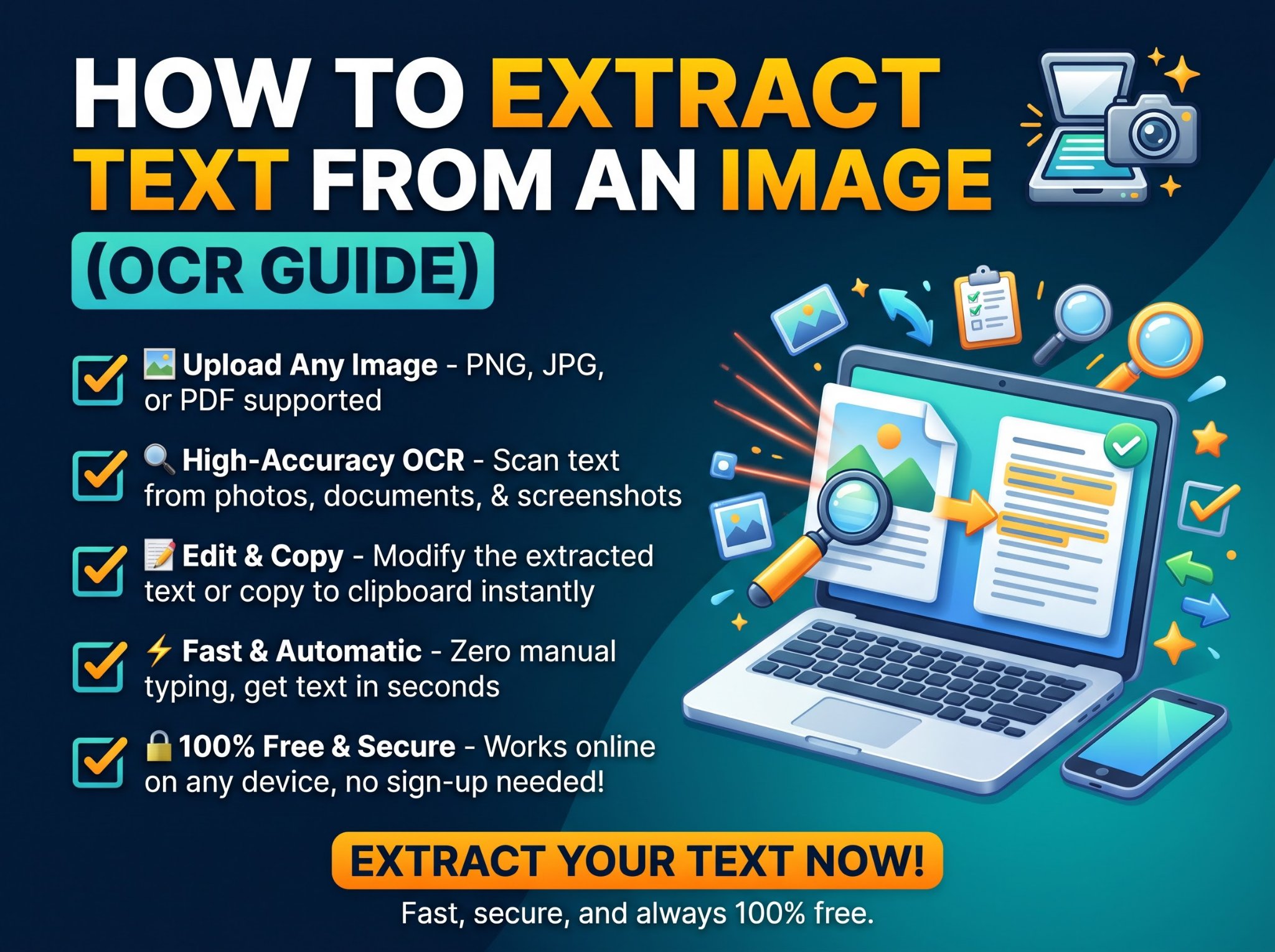
You have a screenshot full of text you need to quote, a photo of a document you need to edit, or a receipt you need the numbers from — and retyping it all would take forever. You do not have to. Technology called OCR can read the text in an image and turn it into normal, editable text in seconds.
This guide explains how OCR works, how to extract text from any image step by step, how to get clean results, and what to do when the text lives in a scanned PDF instead. The tool used throughout is the free Image to Text converter — it runs entirely in your browser, so your images are never uploaded to a server.
What Is OCR?
OCR stands for optical character recognition. It is the technology that lets a computer “read” text inside a picture. The software analyses the shapes in the image, recognises letters and words, and outputs real text you can copy, edit, search, and save.
OCR is what lets your phone pull a phone number off a photo of a business card, and what lets archives turn scanned books into searchable documents. Modern OCR, like the Tesseract engine used by the Trencada tool, handles printed text in photos, screenshots, and scans with high accuracy — even when the image is slightly tilted or unevenly lit.
How to Extract Text From an Image (Step by Step)
- Open the Image to Text tool.
- Upload your image. It accepts JPG, PNG, WebP, GIF, and BMP files — a screenshot, a phone photo, or a scan all work.
- Pick the recognition language. English, Spanish, French, German, and Arabic are supported. Choosing the right language matters: the engine uses it to decide ambiguous characters.
- Click Extract Text and watch the progress bar — recognition happens in your browser, usually in a few seconds.
- Copy, edit, or download. Fix any small mistakes directly in the result box, copy the text to your clipboard, or download it as a .txt file.
That is the whole process. No account, no software to install, and — because the recognition runs on your device — the image never leaves your computer or phone, which makes it safe for sensitive documents like IDs, contracts, and medical papers.
How to Copy Text From a Screenshot
Screenshots are the most common OCR job: an error message, a chat, a settings screen, a paragraph from a video or an app that does not let you select text. Save or drag the screenshot into the image to text converter and extract — screenshots are usually the easiest images for OCR because the text is sharp, flat, and high-contrast, so results are typically near-perfect.
A useful habit: if you are screenshotting part of a long page, crop the image to just the text you need first. Less visual clutter means faster, cleaner recognition.
How to Extract Text From a Photo of a Document
Phone photos are harder than screenshots — shadows, angles, and curled pages all fight the recognition. These tips make a real difference:
- Light it evenly. Photograph in bright, indirect light; avoid your own shadow falling across the page.
- Shoot straight on. Hold the phone parallel to the page, not at an angle, so the text lines stay horizontal.
- Fill the frame. Get close enough that the document fills most of the photo, but keep every edge visible.
- Flatten the page. Smooth out curled or folded paper; a crease through a line of text will break it.
- Clean the image up first if needed. A slightly blurry photo can still work, but a sharp one works far better — retake rather than rescue.
Even a mediocre photo usually yields usable text; expect to spend a minute correcting a few characters rather than retyping the whole page.
What Can You Use Image to Text For?
- Receipts and invoices — pull amounts and details into a spreadsheet or expense note.
- Textbook and book pages — turn a photographed page into notes you can search and quote.
- Screenshots — error messages, chat logs, social posts, code snippets shown in videos.
- Signs, menus, and labels — capture text when travelling or shopping.
- Business cards and flyers — names, numbers, and addresses without manual typing.
- Old documents and printouts — digitise paper records so they become searchable.
After extracting, paste the text into a word counter if you need its length for an assignment or submission, or drop it straight into your document editor to clean up.
What About Scanned PDFs?
A scanned PDF is really a picture of a page wrapped in a PDF file — which is why you cannot select or copy its text. The fix is the same OCR idea: extract each page as an image and recognise it. First check whether your PDF is actually scanned (images only) or a normal text PDF with a different problem — our guide on how to check if a PDF is scanned shows the ten-second test. If it is a scan, converting its pages to images and running them through the Image to Text tool gets your text out page by page.
How Accurate Is OCR?
On clean printed text — screenshots, scans, well-lit photos — modern OCR is typically 95–99% accurate: a handful of corrections per page at most. Accuracy drops with:
- Handwriting. Standard OCR is built for print. Neat block handwriting sometimes reads partially; cursive usually fails. Treat handwriting results as a rough draft.
- Decorative fonts and logos. Stylised lettering confuses the letter shapes the engine expects.
- Low resolution and blur. If you cannot read it easily, neither can the software.
- Text over busy backgrounds. Photos of text printed over photos or patterns are the hardest case.
The practical rule: OCR removes 95% of the typing. Budget a quick proofread for the remaining 5% — especially names, numbers, and anything with money attached.
Frequently Asked Questions
How do I extract text from an image for free?
Open the Image to Text converter, upload your JPG, PNG, WebP, GIF, or BMP image, choose the language, and click Extract Text. You can then copy the text or download it as a .txt file — no signup and no cost.
Can I copy text from a screenshot?
Yes — screenshots are the easiest input for OCR because the text is sharp and high-contrast. Upload the screenshot and the tool returns the text as editable, copyable text within seconds.
Which image formats work?
JPG, PNG, WebP, GIF, and BMP are all supported. If your image is in a different format (such as HEIC from an iPhone), convert it to JPG first, then extract.
Does the tool upload my image to a server?
No. Recognition runs entirely in your browser using the Tesseract.js engine — the image never leaves your device. That makes it suitable for documents you would not want to send to a third-party server.
Can OCR read handwriting?
Only partially. The engine is designed for printed text. Very neat printed-style handwriting may come through with many errors, and cursive generally does not work. For handwritten notes, OCR output should be treated as a starting point for manual correction.
What languages are supported?
English, Spanish, French, German, and Arabic. Selecting the language that matches your image noticeably improves accuracy, especially for characters with accents or a different alphabet.
Why did some words come out wrong?
Usually image quality: blur, shadows, skew, or very small text. Retake the photo straight-on in better light, crop to the text area, and run it again — most errors disappear. Always proofread names and numbers in the result.
The Short Version
If text is trapped inside a picture, OCR is how you free it. Upload the image to the free Image to Text tool, pick the language, extract, and copy or download clean editable text — all in your browser, with nothing uploaded anywhere.