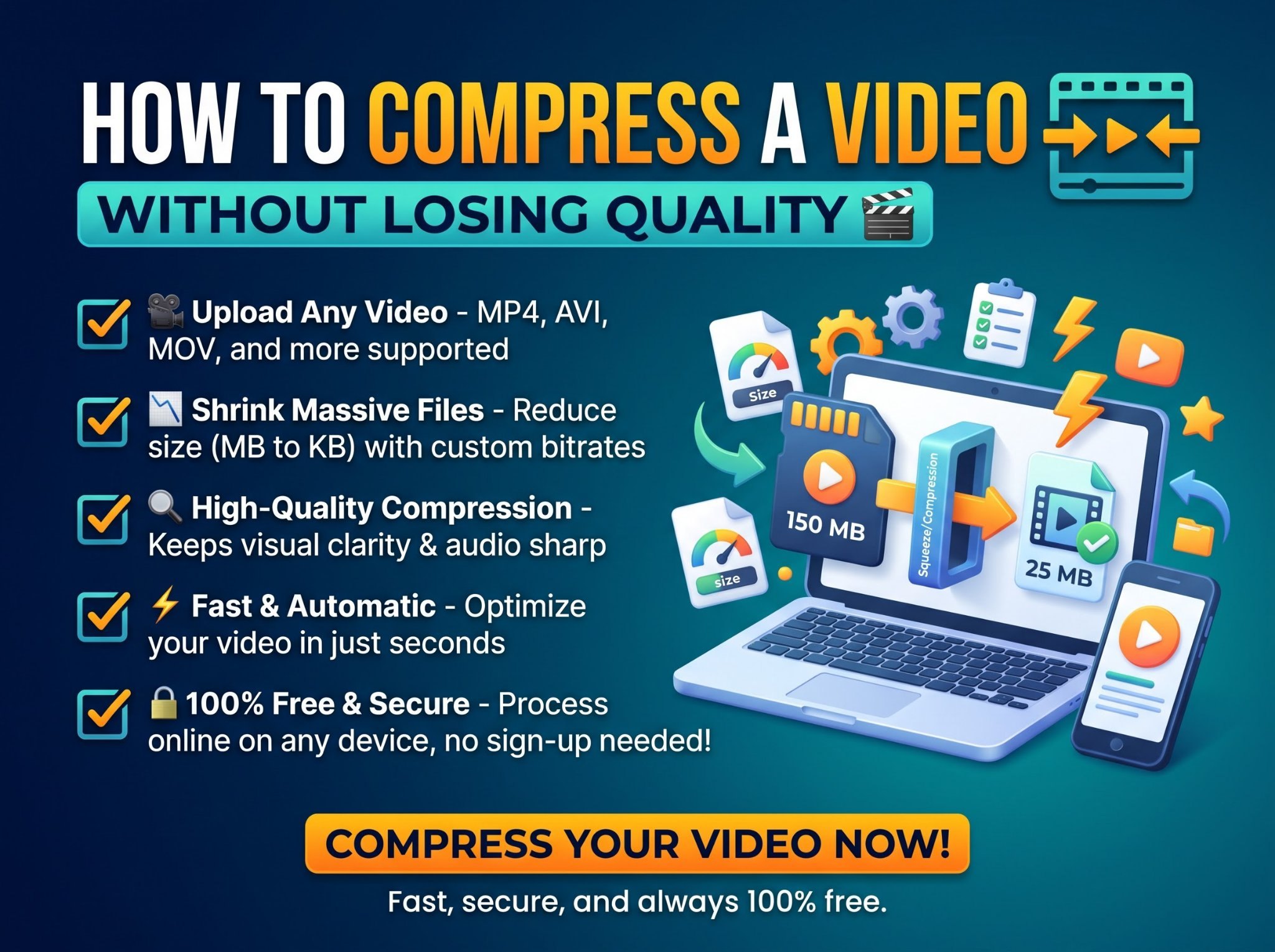
Phone cameras record beautiful video — and enormous files. A two-minute clip can weigh 400 MB, which is about twenty times what Discord lets you upload, twenty-five times the WhatsApp video limit, and far beyond anything an email inbox will accept. Compression is how you close that gap without reshooting anything.
This guide covers the whole job: the fast browser method, why video files are so big in the first place, exactly how to hit the Discord, WhatsApp and email limits, how to do it on a phone, and the honest limits of what compression can do. The tool used throughout is the free Video Compressor — it runs entirely in your browser with FFmpeg technology, so your video is never uploaded, and it adds no watermark.
How to Compress a Video (Step by Step)
- Open the Video Compressor.
- Add your video. Drag and drop it, or click Choose File. MP4, MOV, WebM and MKV all work.
- Pick a quality level. High keeps the most detail, Medium is the everyday balance, Low makes the smallest file. The guide below explains which one your situation needs.
- Click Compress Video and keep the tab open — larger files can take a few minutes to re-encode.
- Check the new size, then download. The compressed size is shown before you download, so if the file is still too big for your limit, step down one quality level and compress again.
The tool accepts files up to 100 MB on desktop and 50 MB on mobile. No account, no install, no watermark — and because everything happens locally in your browser, even a private video stays on your device.
Why Is My Video File So Big?
One equation explains almost everything about video size:
File size ≈ bitrate × duration
Bitrate is how much data the video uses per second, and it is driven mainly by two things: resolution (a 4K frame holds four times the pixels of a 1080p frame) and frame rate (60 frames per second is twice the data of 30). A 4K/60 phone recording can burn through 100 MB in well under a minute.
That gives you four levers for making a video smaller, in order of how painless they are:
- Re-encode smarter. Modern compression (the tool above uses H.264) squeezes the same picture into fewer bits. This is what “compressing” usually means, and it costs the least visible quality.
- Shorten it. Every second costs the same again. Trimming dead air at the start and end is pure profit.
- Lower the resolution. A video destined for a chat window does not need 4K. Dropping to 720p or 1080p shrinks the file dramatically.
- Reduce the frame rate. 60fps to 30fps halves that part of the data — fine for talking heads and screen recordings, less fine for fast sport.
The settings section below is just these levers, packaged.
Which Quality Level Should You Choose?
The Video Compressor offers three levels. Typical results, from the tool’s own guidance:
| Level | Typical size reduction | Best for |
|---|---|---|
| High | Smallest reduction, most detail kept | Videos you will edit later or rewatch on a big screen |
| Medium | About 50–70% smaller | Everyday sharing — the default choice |
| Low | 80% or more smaller | Messaging apps, strict upload limits, quick previews |
A practical workflow: start with Medium. If the result is under your target limit, you are done — never compress harder than you need to. If it is still too big, go to Low. If even Low misses the target, the file is not too compressed, it is too long or too high-resolution — use the shrink-first tactics below.
How to Compress a Video for Discord
Discord’s free upload limit is 10 MB historically, raised to 20 MB in 2026, and Nitro subscribers can upload up to 500 MB — which is why “compress video for Discord” searches cluster so heavily around the 10 MB mark. To land a clip under the free limit:
- Trim first. Cut everything except the moment itself with the Video Trimmer and Compressor. Ten seconds at Low beats sixty seconds at any setting.
- Compress at Low. In the Video Compressor, Low routinely takes 80% or more off the file size.
- Still too big? Drop the resolution. Run the clip through Change Video Resolution and bring 1080p down to 720p, then compress again. In a Discord chat window, nobody can see the difference.
- Check the size before downloading — the tool shows it, so you know it fits before you upload.
How to Compress a Video for WhatsApp
WhatsApp caps videos at 16 MB, and it compresses whatever you send a second time, so start as close to the limit as you can rather than far under it:
- For most clips, Medium in the Video Compressor lands near the limit with the best picture WhatsApp will preserve.
- For long videos, use Low, and trim first — a two-minute video needs aggressive settings no matter what.
- Sending to WhatsApp Status? Keep it short as well as small: Status clips are brief by design, so trim to the essential seconds before compressing.
How to Compress a Video for Email
Most email providers cap attachments at about 25 MB (Gmail’s limit; others are similar or smaller). A video squeezed under that with Medium or Low will arrive fine — but be honest about the trade-off: an emailed video is a compressed copy, not an archive. If the recipient needs the original quality (an editor, a client, family archive), send the compressed version as the preview and share the original through a file link instead. Compression is for sending, not for storing.
How to Compress a Video on iPhone or Android
The process is identical on a phone, because the compressor runs in the browser:
- Open the Video Compressor in your phone’s browser.
- Choose the video from your gallery or files (MP4, MOV, WebM and MKV work — iPhone MOV recordings are covered).
- Pick a quality level and compress. Note the mobile file limit is 50 MB, since phones re-encode more slowly.
- Download the smaller video and share it straight from the phone.
No app to install, and the video never leaves the device — handy when the clip is personal and the Wi-Fi is not yours.
Shrink It Before You Compress It
Compression works best on a video that is already the right shape. Three quick pre-steps, each with its own tool:
- Trim the fat. Dead seconds at the start and end are the most expensive part of most clips. The Video Trimmer and Compressor cuts them and compresses in one place.
- Lower the resolution. If the video will only ever be watched in a chat or a feed, 4K is wasted data. Change Video Resolution steps it down cleanly.
- Drop the audio. A silent clip (a screen recording, a reaction shot) does not need its audio track. Mute Video removes it, and the file shrinks again.
Wrong Format? Convert It First
Some platforms are picky about containers. If your video is MOV (iPhone) or MKV (screen recorders and cameras) and the destination insists on MP4, convert before you compress: the MOV to MP4 Converter and the MKV to MP4 Converter handle the common cases, and the general Video Converter covers the rest. Converting to MP4 first also tends to produce the smallest, most compatible result when you compress afterwards.
Two Special Cases
Only need a few seconds of it? If the moment is under about eight seconds and needs to loop or autoplay silently, a GIF is the better format — our guide to making a GIF from a video walks through it, and the Video to GIF Converter does the job. Already have a GIF that is too heavy? The GIF Compressor shrinks animated GIFs specifically.
Only need the sound? Do not compress the video at all — pull the audio out instead. Extracting the audio to MP3 turns a 300 MB video into a 5 MB audio file when the picture does not matter (lectures, podcasts, music practice tracks).
What Compression Cannot Do
- It cannot add quality back. Compression removes data permanently. Always keep your original file somewhere — compress copies, never the master.
- It is not free of trade-offs. At some point “smaller” means visibly softer, especially in dark scenes, fast motion and fine detail like grass, water or confetti. That is the format’s physics, not the tool’s fault; the fix is a higher quality level or a shorter clip.
- It cannot rescue a bad recording. A shaky, dark, low-resolution original compresses into a smaller shaky, dark video. Compress the best version you have.
Frequently Asked Questions
How do I compress a video without losing quality?
Use the highest quality level that meets your size target — in the Video Compressor, that is High. Some data loss is built into compression, but at High the difference is invisible in normal viewing. Trimming and removing unneeded audio shrink the file with zero picture-quality loss, so do those first.
How do I compress a video to 10 MB?
Trim the clip as short as it can be, compress at Low, and if it still misses, lower the resolution to 720p and compress again. Short clips (under ~30 seconds) reach 10 MB comfortably; a ten-minute video will not, whatever you do — split it or share a link instead.
How much smaller will my video get?
At Medium, typically 50–70% smaller. At Low, 80% or more. The exact result depends on the source: a noisy, high-motion 4K clip compresses less predictably than a clean screen recording.
How long does compression take?
Short clips take seconds to a couple of minutes. Because the video is re-encoded in your browser rather than on a server, large files can take several minutes — keep the tab open while it works.
Is there a file size limit?
Yes: 100 MB on desktop and 50 MB on mobile in the Video Compressor. For a bigger original, trim or split it first, or lower its resolution in stages.
Is my video uploaded to a server?
No. The conversion runs entirely in your browser using FFmpeg.wasm technology — your video never leaves your device, and nothing is stored anywhere.
The Short Version
Trim first, then compress: Medium for everyday sharing, Low for Discord, WhatsApp and email limits, High when the video matters. Drop the resolution if you still miss the target. Open the free Video Compressor, pick your level, and download a file that actually fits — no uploads, no watermark, no signup.