A two-second reaction, a goal celebration, a product demo loop — some moments are simply better as a GIF than as a video. GIFs play automatically, loop forever, need no sound, and work in chats, forums, emails, and blog posts where video players are clunky or blocked.
This guide shows how to make a GIF from any video in your browser, how to choose the settings that control quality and file size, and how to fix the classic problem of a GIF that comes out far too big. The tool used throughout is the free Video to GIF Converter — it runs entirely on your device with FFmpeg technology, so your video is never uploaded, and it adds no watermark.
How to Make a GIF From a Video (Step by Step)
- Open the Video to GIF Converter.
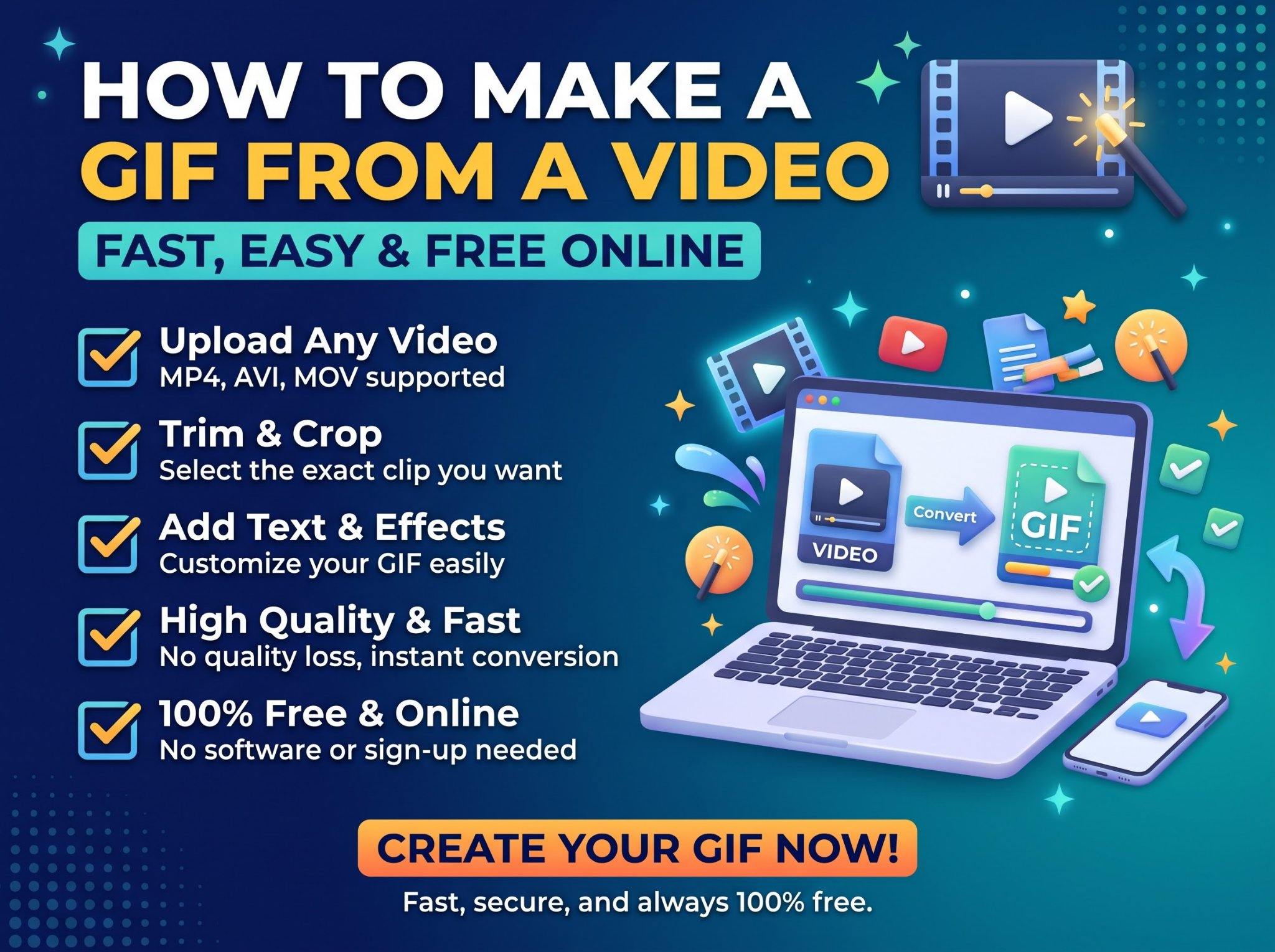
- Add your video. Drag and drop it, or click Choose File. MP4, MOV, WebM, and most common video formats work.
- Pick the moment. Set the start point and the clip length — the converter trims your GIF from the section you choose.
- Set the width and frame rate. The defaults (320 pixels wide, 10 frames per second) suit most chats and posts; the settings guide below explains when to change them.
- Click Convert to GIF and wait a few seconds while your browser builds the GIF.
- Download your GIF when the download button appears.
No account, no software install, no watermark on the output — and because the conversion happens locally in your browser, even a private video stays private.
What Makes a Good GIF?
- Short. The sweet spot is 2–6 seconds. GIFs are a punchline, not a presentation — if the moment needs 20 seconds, it needs to stay a video.
- A clean loop. The best GIFs end where they begin: a wave, a nod, a spinning logo, a reaction that resets. When you pick your start point, think about what the last frame flows back into.
- One clear subject. Small screens and heavy compression punish busy scenes. Zoom your moment choice in on the face, the hands, the product — the thing the viewer must see.
- Action in the middle. Start the clip a fraction before the action and end a fraction after; dead time at the ends doubles the file size and halves the impact.
GIF Settings Explained: Width, Frame Rate, Duration
Three settings decide your GIF’s quality and file size, and they multiply together:
File size ≈ width × frame rate × duration
Double any one of them and the file roughly doubles. Halve two of them and the file shrinks to a quarter. That one idea lets you fix almost any “GIF too big” problem.
Width
The GIF’s width in pixels (height follows the video’s shape automatically). Screen space is what costs bytes:
- 320px — the default; ideal for chats, comments, and message apps.
- 480px — noticeably crisper; good for blog posts and social feeds.
- 640px and up — only for short clips; files grow very fast beyond this.
Frame rate (FPS)
How many images per second the GIF contains:
- 10 FPS — the default; smooth enough for most reactions and simple motion.
- 15 FPS — smoother movement for faster action.
- 20+ FPS — film-like smoothness, but files balloon; rarely worth it.
Duration
Every second costs the same again. A 6-second GIF is roughly twice the size of the same clip at 3 seconds — trimming one dead second is the cheapest quality upgrade there is.
Recommended settings by use
| Use | Width | Frame rate | Duration |
|---|---|---|---|
| Chat and messaging reactions | 320px | 10 FPS | 2–4 seconds |
| Social media posts | 480px | 12–15 FPS | 3–6 seconds |
| Blog or website embed | 480–640px | 12–15 FPS | 3–8 seconds |
| Tutorial step or product demo | 640px | 10–12 FPS | 5–10 seconds |
Why Is My GIF File So Big? (And How to Fix It)
GIF is a 1980s format with weak compression — a few seconds of video can outweigh the video itself. If your GIF comes out at 15 MB, work through these in order:
- Trim it. Cut dead time at the start and end first — this is the biggest lever.
- Drop the width. 480px → 320px cuts the file to well under half.
- Lower the frame rate. 15 FPS → 10 FPS removes a third of the frames.
- Reconsider the format. If the clip is long or detailed, a short video is simply the better tool — compress the video itself with a video compressor and share that instead.
GIF vs Video: Which Should You Share?
Choose a GIF when the moment is under ~8 seconds, needs to autoplay silently, must loop, or is being posted somewhere that embeds images but not videos (many forums, chats, and email clients).
Keep it a video when there is sound, when the clip is longer, when fine detail matters (GIFs are limited to 256 colours per frame, which is why gradients can look banded), or when file size matters — a compressed MP4 of the same moment is almost always smaller than the GIF.
How to Make a GIF on Your Phone
The process is identical on mobile: open the Video to GIF Converter in your phone’s browser, choose the video from your gallery, set the start, length, width, and frame rate, convert, and download. The conversion runs on the phone itself, so it also works as a way to turn a long phone video into a small shareable loop without installing an app or uploading your footage anywhere.
Frequently Asked Questions
How do I turn a video into a GIF for free?
Upload your video to the Video to GIF Converter, set the start point, clip length, width, and frame rate, click Convert to GIF, and download the result. It is free, needs no signup, and adds no watermark.
What is the best frame rate for a GIF?
10 FPS works for most reactions and simple clips. Use 12–15 FPS for faster movement, and remember that every extra frame per second adds directly to the file size.
How long should a GIF be?
Two to six seconds covers most uses. Under ten seconds is a good ceiling — beyond that, a compressed video is usually smaller, sharper, and easier to share.
Why does my GIF look grainy or banded?
GIFs store at most 256 colours per frame, so smooth gradients (skies, skin tones, shadows) can show banding. It is a limit of the format, not your video. A smaller width and a scene with fewer gradual colour transitions reduce the effect. The Trencada converter uses an optimised colour palette to keep quality as high as the format allows.
Which video formats can I convert?
MP4, MOV, WebM, and most other common video formats are accepted. The output is always an animated GIF.
Is my video uploaded to a server?
No. The converter runs entirely in your browser using FFmpeg.wasm technology — your video never leaves your device, and nothing is stored anywhere.
Can I make a GIF from a YouTube video?
You need the video file itself. If it is your own video, download it from your YouTube Studio and convert the file. The converter works with files on your device, not with links.
The Short Version
Pick the moment, keep it short, and let the settings serve the purpose: 320px and 10 FPS for chats, 480px and 12–15 FPS for posts. Open the free Video to GIF Converter, trim your clip, convert, and download a clean GIF with no watermark — all without your video ever leaving your device.