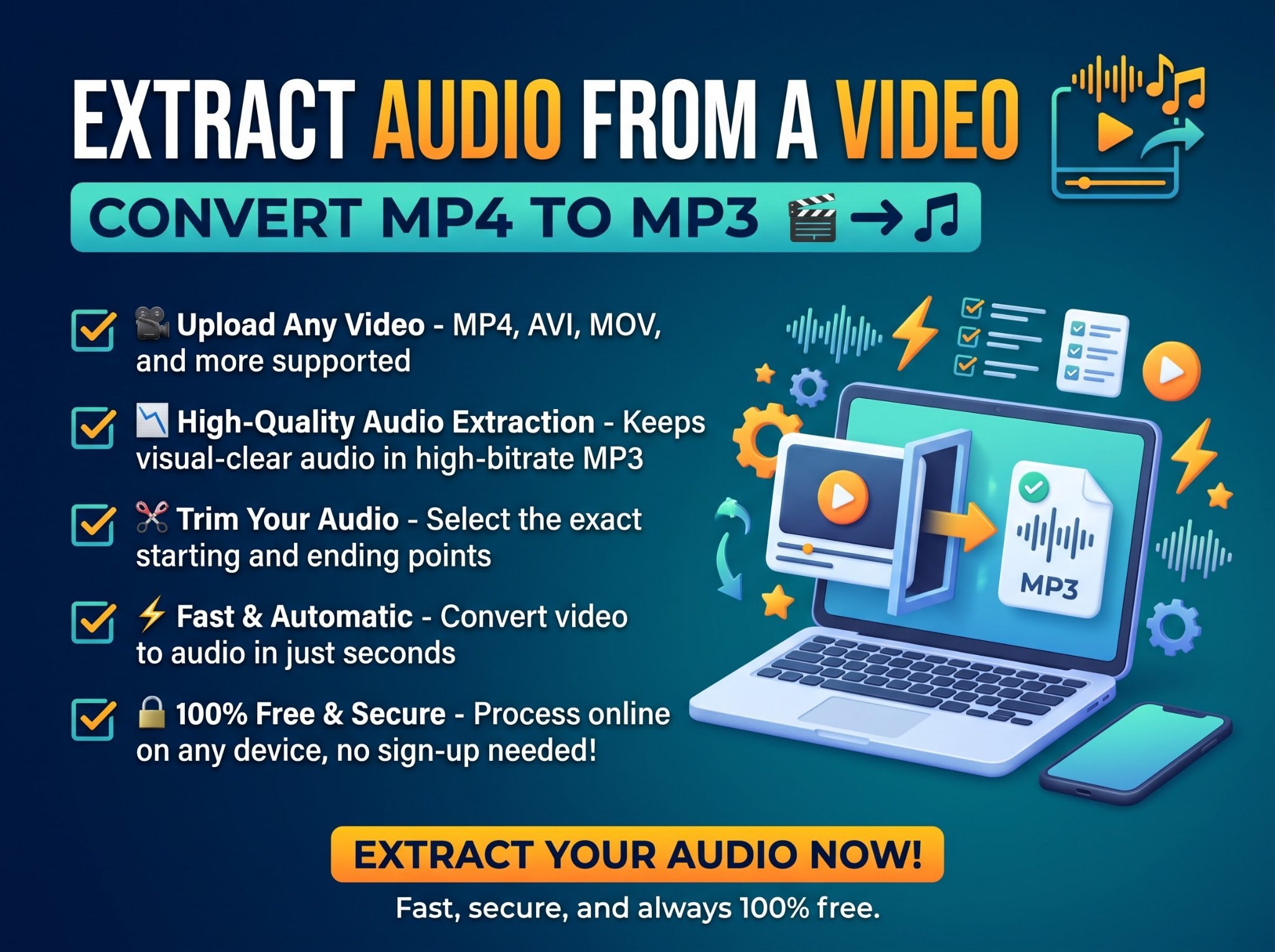
Sometimes the picture is just packaging. The lecture you recorded, the podcast that only exists as a video, the song from a live session, the voiceover in a screen recording — what you actually want is the sound, in a file you can play anywhere. Extracting the audio turns a bulky video into a small MP3, and it takes less than a minute.
This guide shows the fast browser method, how to choose the right MP3 quality, when to use lossless WAV instead, what to do with other formats, the desktop methods people often search for, and the one quality truth worth knowing before you convert a whole library. The tool used throughout is the free MP4 to MP3 Converter — it runs entirely in your browser, so your video is never uploaded.
How to Extract Audio From a Video (Step by Step)
- Open the MP4 to MP3 Converter.
- Add your video. Drag and drop it, or click Choose File. MP4, MOV, WebM, MKV and most common video formats work.
- Pick your MP3 quality: 128 kbps (smallest file), 192 kbps (the recommended balance), or 320 kbps (best quality). The next section explains the choice.
- Click Extract MP3 and watch the progress bar.
- Download your MP3 when the download button appears.
Files up to 200 MB on desktop and 100 MB on mobile are accepted. No account, no software to install, no watermark — and because the conversion happens locally on your device with FFmpeg technology, the video never leaves your machine.
Which MP3 Quality Should You Choose?
Bitrate is simply how much data each second of audio gets. More data sounds better and weighs more. The converter’s three options map cleanly onto the three common situations:
| Bitrate | File size (per 10 minutes) | Best for |
|---|---|---|
| 128 kbps | ~10 MB | Voice: lectures, meetings, voice notes, language practice |
| 192 kbps | ~14 MB | The default — music and mixed content where quality and size both matter |
| 320 kbps | ~24 MB | Music archiving, DJ sets, anything you will listen to on good headphones |
The tool’s own guidance matches: 192 kbps is the best balance for most uses, 320 for music you are keeping, 128 for speech. Speech stays perfectly intelligible at 128 because voices use a narrow slice of the audio spectrum; music exposes every shortcut, so give it the bits.
When You Need Perfect Quality: Extract to WAV Instead
MP3 is a lossy format — it discards fine detail to save space. If you are extracting audio to edit it (for a podcast, a video project, a sample library), pull it out losslessly instead with the MP4 to WAV Converter: WAV keeps the audio exactly as it was in the video, so your edits start from full quality. You can always make an MP3 from the finished edit later — and if the WAV itself needs to become an MP3 for sharing, the WAV to MP3 Converter does that in the same browser-based way. Rule of thumb: WAV for working, MP3 for listening.
Other Formats? There Is a Converter for Each
The same extraction exists for the other containers people actually have:
- iPhone and QuickTime recordings → MOV to MP3 Converter
- Voice memos and Apple audio → M4A to MP3 Converter
- OGG files from games and open-source tools → OGG to MP3 Converter
- Anything else, or converting between audio formats (MP3, WAV, OGG) → the general Audio Converter
How to Extract Audio on iPhone or Android
The browser method works the same on a phone — there is nothing to install:
- Open the MP4 to MP3 Converter in your phone’s browser.
- Choose the video from your gallery or files app.
- Pick a bitrate (192 kbps is the safe default) and extract. The mobile file limit is 100 MB.
- Download the MP3 and play it in your usual music or files app.
This is also the practical way to turn a long phone video — a concert clip, a recorded class — into something you can listen to with the screen off.
The Desktop Methods People Search For
If you would rather use software already on your computer, the two classics work — they are just slower:
- VLC (free, Windows/Mac/Linux): Media → Convert/Save → add your video → Convert → choose the MP3 profile → pick a destination → Start. Reliable, but one file at a time and several menus deep.
- Audacity (free audio editor): importing a video’s audio requires the optional FFmpeg library to be installed alongside Audacity; once it is, you can open the video file directly and export the track as MP3. Best when you also want to edit the audio, overkill for a straight conversion.
The browser converter above exists precisely because both of those are a lot of steps for a ten-second job.
After You Extract: Three Useful Next Steps
- Trim it. Only need the middle two minutes? The MP3 Cutter trims audio in the browser — intros, silence and applause come off in seconds.
- Shrink it. A long recording at 320 kbps adds up. The Audio Compressor reduces MP3 and WAV file sizes when you need to email or upload the audio.
- Put it on a different video. Extracted a clean voiceover or a better soundtrack? Merge Video and Audio combines an audio track with a video file into a finished clip.
The One Quality Truth Worth Knowing
Extraction cannot invent quality that is not in the video. If the original video’s audio was encoded at a low bitrate (common for screen recordings and older downloads), choosing 320 kbps produces a bigger file containing the same limited sound — the extra bits store nothing new. Match your choice to the source: a crisp music video deserves 320; a Zoom recording is honestly served at 128. When in doubt, extract once at 192 and listen — your ears settle it faster than any chart.
A Note on Videos From YouTube and Other Sites
Converters like this one work on files on your device, not on links. If the video is yours, download it from your own account (for YouTube, that’s YouTube Studio) and then extract the audio from the file. That keeps you on solid ground: your content, your file, your MP3.
Video Too Big to Extract From?
If the video is enormous and unwieldy, shrink it first with the Video Compressor — or better, read our companion guide on how to compress a video for the full method. (For pure audio extraction, though, size rarely matters: the converter reads the file locally, and audio extraction is much faster than video re-encoding.)
Frequently Asked Questions
How do I convert MP4 to MP3 for free?
Open the MP4 to MP3 Converter, add your video, choose a quality (192 kbps for most things), click Extract MP3, and download. It is free, needs no signup, and runs in your browser.
What is the best MP3 quality to choose?
192 kbps balances quality and file size for most uses. Choose 320 kbps for music you are archiving, and 128 kbps for voice recordings like lectures and meetings.
Which video formats are supported?
MP4, MOV, WebM, MKV and most other common video containers. The output is always an MP3 (or a WAV, if you use the MP4 to WAV Converter).
Is there a file size limit?
Yes — 200 MB on desktop and 100 MB on mobile for the MP4 to MP3 Converter.
Is my video uploaded anywhere?
No. Everything happens in your browser using FFmpeg.wasm technology. Your files never leave your device and nothing is stored.
Can I extract audio from a video link?
No — the converter works with video files stored on your device, not URLs. Download your own video first, then extract from the file.
Will the MP3 sound worse than the video?
At 192 kbps or above, most listeners cannot tell the difference on normal speakers and earbuds. Remember the source caps the result: a low-quality video audio track stays low-quality at any setting.
The Short Version
Add your video to the free MP4 to MP3 Converter, pick 192 kbps (128 for voice, 320 for treasured music), extract, and download — no uploads, no installs, no signup. Need it flawless for editing? Extract to WAV instead, and make the MP3 at the end.