Ever tried to copy text from a PDF, only to find nothing happens when you drag your cursor across the page? You’re probably dealing with a scanned PDF — a file made of images of pages rather than real, selectable text. It looks identical on screen, but underneath it’s a completely different beast. Here’s how to check if your PDF is scanned images or real text, what that means, and what to do about it.
Why it matters
Before you do anything with a PDF, it helps to know what’s actually inside it. The difference between a text-based PDF and a scanned one decides what you can do with it:
- Copy-paste fails. You can’t select, copy, or quote passages from a scanned PDF — there’s no text to grab, just pixels.
- Search doesn’t work. Pressing Ctrl+F (or Cmd+F) finds nothing in a scanned PDF, which makes long documents painful to navigate.
- AI tools can’t read it. Chatbots, summarizers, and translation tools need real text. Feed them a scanned PDF and they’ll come back empty-handed.
Knowing which type you have saves you from fighting the wrong battle — like trying to extract text from a file that contains none.
The 30-second test
You don’t need any special software. Open the PDF in your browser or PDF reader and try these two quick checks:
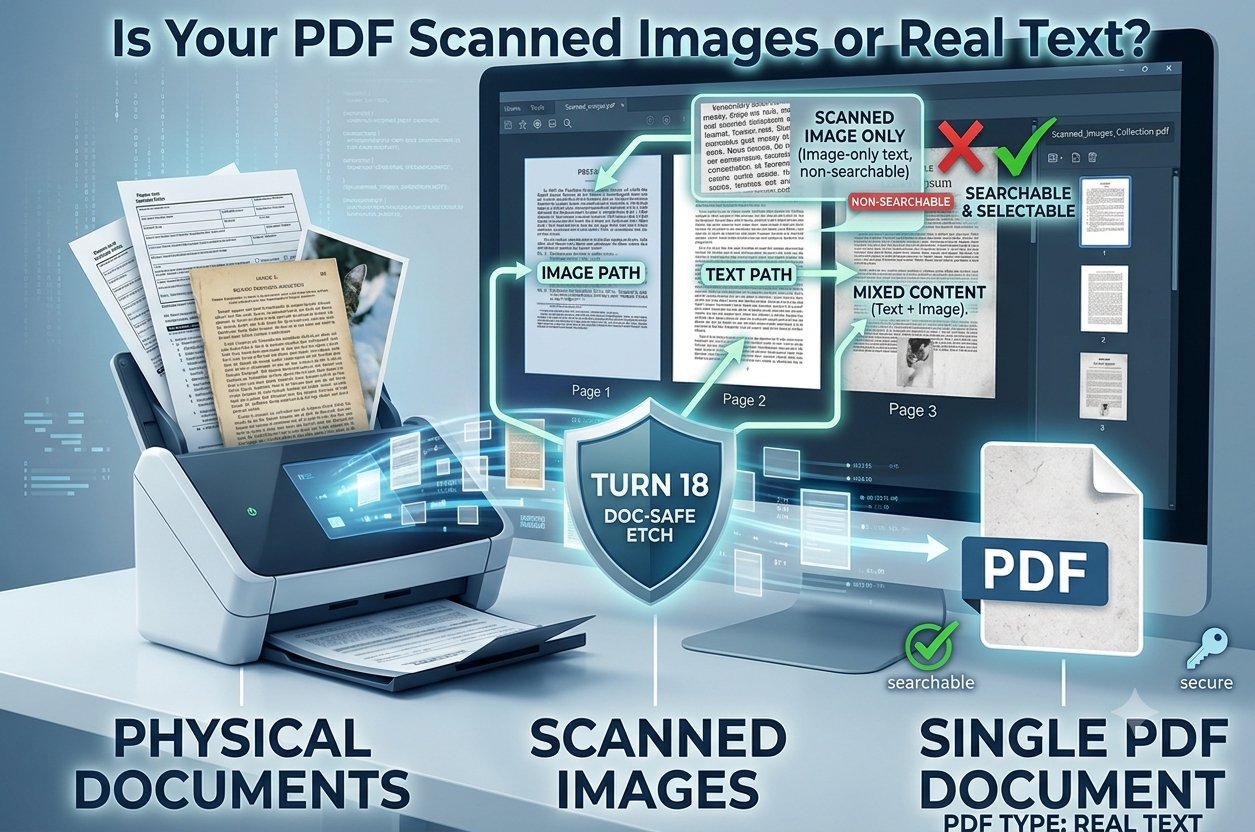
- Try selecting text. Click and drag your cursor across a sentence. If the text highlights neatly word by word, your PDF has a real text layer. If nothing highlights — or a whole page selects as one big block — it’s scanned images.
- Try searching. Press Ctrl+F (Cmd+F on Mac) and type a word you can see on the page. If the reader jumps to matches, there’s real text in there. If it reports zero results, you’re looking at pictures of text.
That’s it. If either test fails, your PDF is image-only — at least on the pages you tested.
What the results mean
A little vocabulary, so the rest of this guide makes sense:
- Text layer: the invisible layer of real, selectable characters sitting behind what you see on screen. Born-digital PDFs — exported from Word, Google Docs, InDesign, and the like — have one.
- Image-only (scanned) PDF: each page is a flat picture, like a photograph of a printed page. There’s no text layer at all, so nothing is selectable or searchable.
- Born-digital vs. scanned: born-digital PDFs were created from a document file and almost always contain real text. Scanned PDFs come from a scanner or phone camera and usually don’t — unless someone ran OCR on them afterwards.
One more wrinkle: a PDF can be mixed. Documents assembled from multiple sources often combine born-digital pages with scanned ones, so it’s worth testing a few different pages rather than just the first.
If it’s real text — extract it
Good news: if your PDF has a text layer, getting the text out is easy. Trencada’s free PDF to Text tool pulls the text straight out of your PDF:
- Click “Upload PDF File” and choose your PDF — the file name appears once it’s selected.
- Click “Convert to Text.” A progress bar tracks the extraction page by page, with live page, word, and character counts.
- Read the extracted text in the preview box, then copy it with “Copy Text” or download it as a .txt file (saved as Trencada-yourfilename.txt). The “Reset” button clears everything so you can start over.
The whole thing runs in your browser — your file is never uploaded anywhere.
If it’s scanned images — OCR it
If your PDF is scanned images, a text extractor can’t help you — there’s no text layer to extract. What you need is OCR (optical character recognition): software that looks at the images, recognizes the characters in them, and builds a searchable text layer for you.
Trencada’s free OCR PDF tool does exactly that, right in your browser:
- Click “Upload Scanned PDF” and select your file.
- Pick your language: English, Hindi, or English + Hindi.
- Click “Convert to Editable PDF.” You’ll see “Processing page X of Y” as it works through the document.
- When it’s done, the button becomes “Download OCR PDF” — save your new searchable, editable PDF.
Your file is processed entirely on your device and never uploaded. One honest note: OCR isn’t perfect — accuracy depends on how clear and clean the original scan is. A crisp, straight scan gives great results; a blurry or skewed photo will produce mistakes, so proofread anything important afterwards.
Frequently asked questions
Is it free to check — and fix — my PDF?
Yes. The 30-second test above costs nothing, and both Trencada tools mentioned here are completely free with no signup.
Is my PDF uploaded anywhere when I use these tools?
No. Both the PDF to Text tool and the OCR PDF tool run entirely in your browser — your file never leaves your device.
Why can’t I select text in my PDF?
Because there’s no text to select. Your PDF is made of scanned images — flat pictures of pages — rather than a real text layer. Run it through an OCR tool to add one.
Can a PDF be half scanned and half real text?
Yes. PDFs assembled from multiple sources often mix born-digital pages with scanned ones. Test a few different pages using the selection and search checks above.
What exactly is OCR?
Optical character recognition. It’s technology that examines an image of text — like a scanned page — recognizes the individual characters, and converts them into real, selectable, searchable text.
Will OCR be 100% accurate?
No — and be wary of any tool that promises it is. OCR accuracy varies with scan quality: clean, high-resolution, properly aligned scans convert very accurately, while blurry, skewed, or low-contrast scans produce errors. Always proofread important documents after OCR.
Check your PDF in the next 30 seconds
Open your PDF, try the selection-and-search test, and if you’ve got real text, pull it out in seconds with Trencada’s free PDF to Text tool — no signup, no uploads, no hassle.