The short version
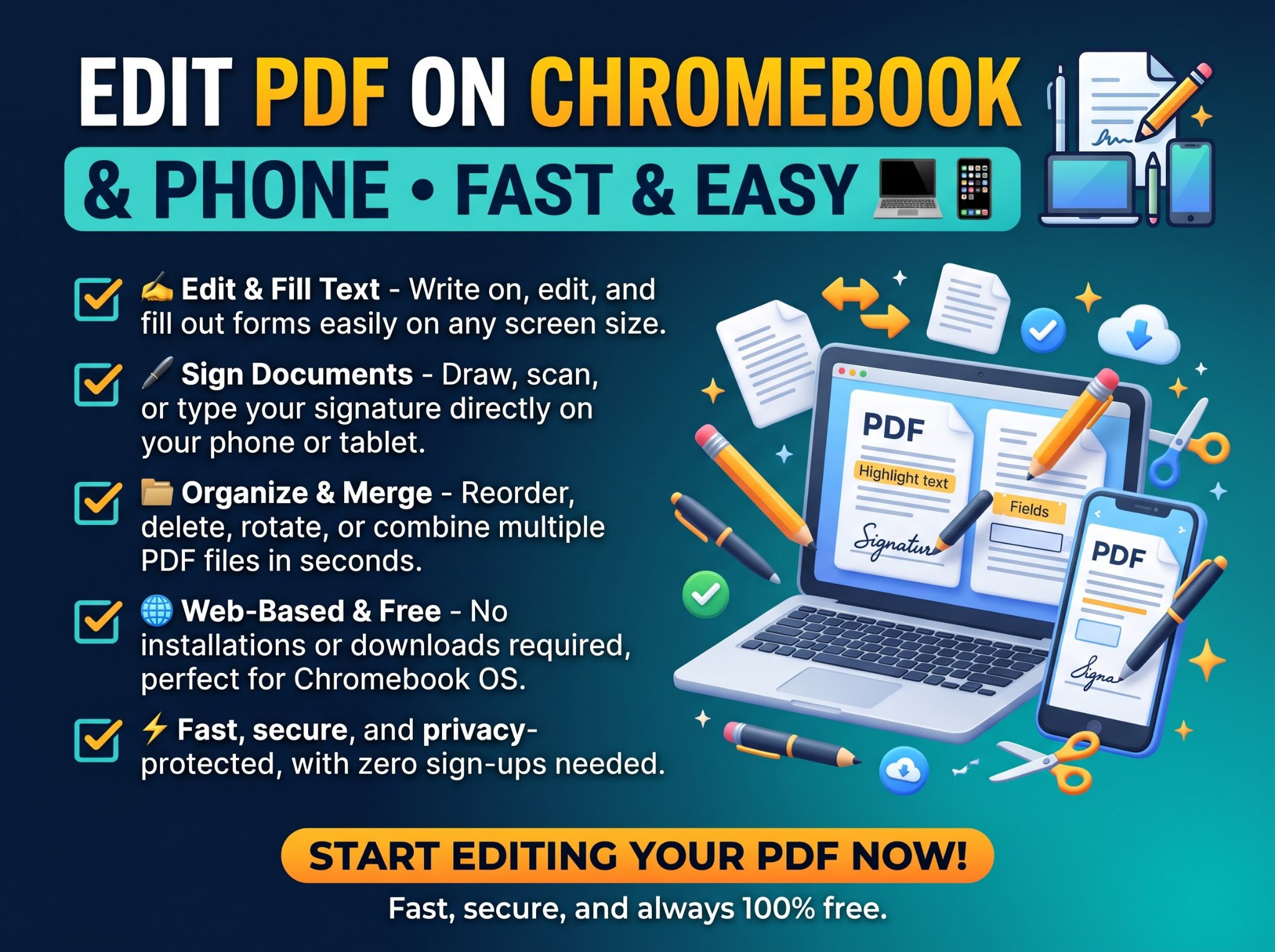
If you need to fix a typo, a date, or a name in a PDF and you are on a Chromebook or a phone, you do not need to install anything. Open the free Edit PDF tool in your browser, upload the file, click the line with the mistake, type the correction, and download the fixed PDF. No signup, no app, no subscription. It changes the actual text in the document, which is exactly what a Chromebook’s built-in app cannot do — more on that below.
Two honest limits up front, so you do not waste a trip: replacement text uses a standard font, so it may look slightly different from the original, and lines do not reflow — longer text extends past the old line instead of wrapping. And if your PDF is a scan, there is no text to edit until you run it through OCR first. For the full guide to editing PDFs online, including annotations, forms, and redaction, see How to Edit a PDF Online Free (Without Adobe).
Why the built-in Chromebook app is not enough
Chromebooks run ChromeOS, not Windows or macOS, so you cannot install ordinary desktop software (.exe or .dmg files). On a school-managed Chromebook you may not be allowed to install anything at all, not even from the Play Store. That leaves two kinds of tools: the built-in app and the browser.
The built-in Gallery app, described in Google’s own Chromebook help, handles forms, text annotations, highlights, and freehand signatures. What it does not do is change the words already in the document — an annotation sits on top of the page; the original text underneath stays exactly as it was. If the mistake is in the document itself (a wrong date in a contract, a misspelled name on a form), annotation does not fix it.
A browser editor is the other route, and it is the one that actually edits text. The steps below use Trencada’s Edit PDF tool because it is free, needs no signup, and changes real text lines — but the workflow is the same shape for any browser editor: upload, edit, download.
On a Chromebook, step by step
- Find the file. On a Chromebook your files usually live in Downloads, in Google Drive, or in a folder shared by your school or work account. If the PDF came from email or a classroom portal, download a copy first.
- Open the Edit PDF tool in Chrome. Nothing installs and nothing asks for an account.
- Upload the PDF. Drag and drop it, or click to browse — the Chromebook file picker lets you choose from Downloads or Drive.
- Click the line with the mistake and type the correction, then Apply. To add text that was not there before, click Add text, then click anywhere on the page and type.
- Download the edited PDF. It lands in Downloads as a normal PDF, ready to submit, email, or re-upload. Your original file stays untouched — the edited copy is a separate download.
That is the whole workflow, and it needs no admin rights, which is why it works on managed school devices where installs are blocked.
On a phone, the same workflow in your browser
On Android, open Chrome; on iPhone, open Safari. Go to the Edit PDF tool, choose the PDF from your files, tap the line you need to change, type the correction, and download the result. There is no app to install and no account to create.
Two practical tips for small screens: zoom in before tapping a line, because tapping the wrong line on a dense page is the most common phone mistake; and keep phone edits short. A typo, a date, or a name is a perfect phone job. Reformatting a whole document is not — do that on a bigger screen.
What it cannot do
- Scanned PDFs. A scanned page is a picture, not text. No editor can change text that is not there. Extract the text first with the OCR tool, then work from the extracted text.
- Match fonts exactly. Replacement text uses a standard font, so it may look slightly different from the original.
- Reflow text. Longer replacement text extends past the old line instead of wrapping to the next line.
- Very large files. There is no fixed page or size limit, but very large PDFs may be slow.
- Redesign a document. For layout work, annotations, forms, signatures, or truly removing sensitive text, see the full guide: How to Edit a PDF Online Free (Without Adobe).
Frequently asked questions
Can I edit a PDF on a Chromebook without installing anything?
Yes. Use a browser editor: open the Edit PDF tool in Chrome, upload the file, click the line, type the fix, and download it. Nothing installs and no account is needed.
Does the Chromebook’s built-in Gallery app change PDF text?
No. Per Google’s Chromebook help page, Gallery fills forms, adds annotations and highlights, and signs documents — it does not change the existing text in the document. For that you need an editor that edits text lines, like the browser tool above.
Can I edit a PDF on my phone without an app?
Yes, in your phone’s browser: Chrome on Android or Safari on iPhone. Open the Edit PDF tool, choose the file, tap the line, type the correction, and download the result. Keep phone edits short — typos, dates, and names suit a small screen best.
What if my PDF is a scan?
A scan has no editable text, so edit tools cannot change it directly. Run it through the OCR tool first to extract the text, then work from the extracted text.
Do I need an account or payment?
No. The Edit PDF tool needs no signup and no payment for this workflow.
Will the edited text look exactly like the original?
Not exactly. Replacement text uses a standard font, so it may differ slightly from the original, and lines do not reflow. For a one-line correction this is rarely noticeable; for a document where typography matters, check the downloaded copy before sending it.
Sources
- Trencada Edit PDF tool (workflow and limits, verified from the live tool page)
- How to Edit a PDF Online Free (Without Adobe) (general editing guide: annotations, forms, redaction)
- Google Chromebook Help: Check, edit and sign PDFs (what the built-in Gallery app does)