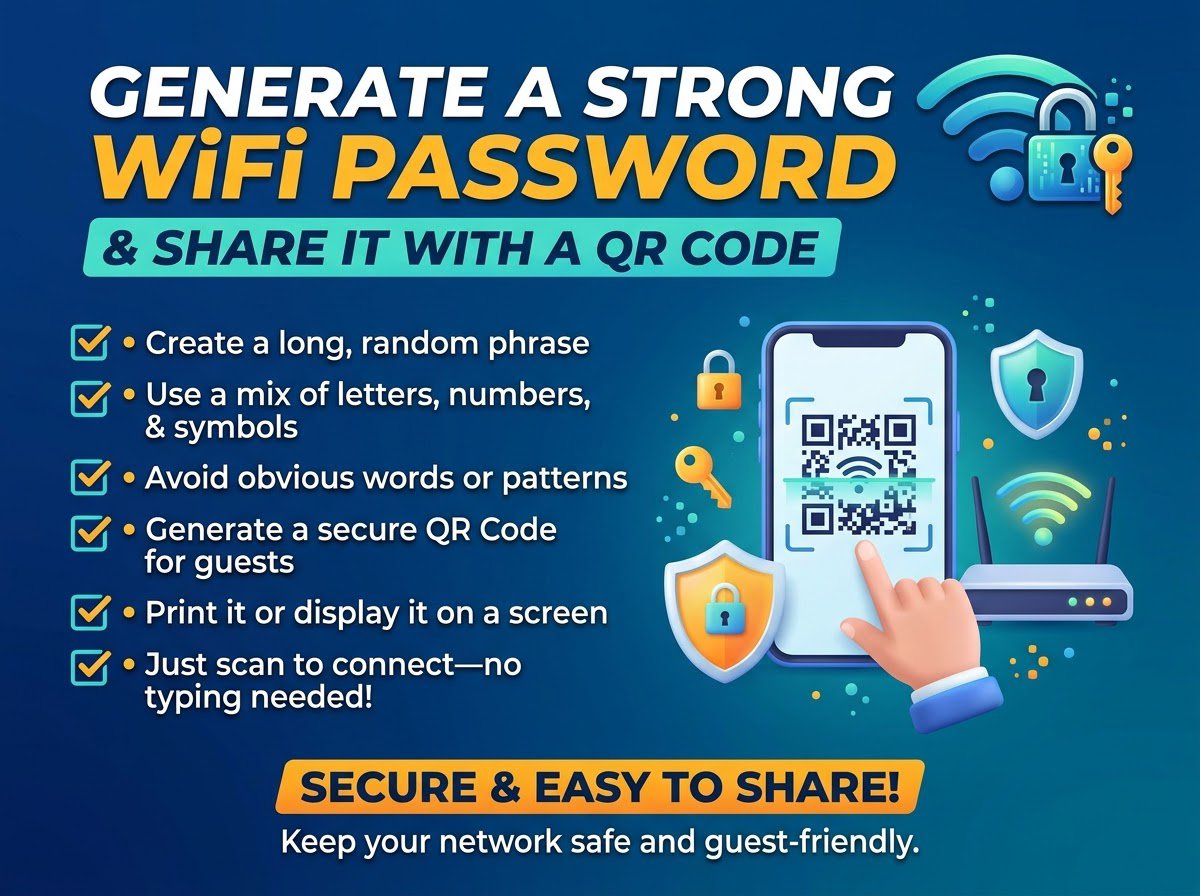
Nobody enjoys the WiFi password ritual: reading a sixteen character string aloud, watching someone mistype it twice, then spelling it out letter by letter. There is a better way. Generate a password nobody can guess, turn it into a QR code, and your guests join by pointing their camera at it. No typing, no spelling, no mistakes.
Here is the whole workflow. It takes about five minutes.
Step 1: Generate a strong WiFi password
Open Trencada Password Generator and create a password at least 20 characters long, with uppercase letters, numbers and symbols. WiFi passwords do not need to be memorable, they need to be unguessable, so let the generator do the work. The password is created locally in your browser, which means it is never sent to any server or stored anywhere.
Copy the result somewhere safe for now, like a notes app. You will need it in step 3.
Step 2: Turn it into a scannable WiFi QR code
Go to Trencada QR Code Generator, choose the WiFi option, enter your network name and the password you just generated, and create the code. Print it, save it to your phone, or stick it on the fridge. Anyone who scans it with their phone camera joins the network instantly, without ever seeing or typing the password.
This is also the polite way to share WiFi with visitors. You never have to say the password out loud in front of the whole room, and you never have to change it after guests leave just because too many people heard it.
Step 3: Put the new password in your router
Log into your router admin panel (usually by typing 192.168.1.1 or 192.168.0.1 into your browser), find the wireless settings, and replace the old password with the new one. While you are there, change the router admin password away from the factory default if you never did. Save, let the router restart, and reconnect your own devices by scanning the same QR code.
A few things worth knowing
Your old devices will disconnect. Every phone, laptop and smart TV signed in with the old password needs the new one. Scan the QR code on each of them once and you are done.
Use WPA2 or WPA3. In the router wireless settings, make sure the security mode is WPA2 or WPA3, not the ancient WEP or WPA. A strong password on weak encryption is like a good lock on a cardboard door.
Consider a guest network. Many routers can broadcast a second network just for visitors. Give the guest network its own generated password and QR code, and your main network stays private even when the house is full.
Rotate it once in a while. You do not need to do this monthly, but if you have shared the password widely or had a lot of visitors, generating a fresh one takes two minutes and the QR code makes the rollout painless.
The five minute version
Generate a long random password, turn it into a WiFi QR code, paste the password into your router, and scan the code on your own devices. From now on, sharing your WiFi means holding up a piece of paper instead of spelling out gibberish.
Start here: generate your new WiFi password, then turn it into a QR code.