You converted a PDF to Word and the result is a mess: tables collapsed, text boxes drifted, fonts substituted. Before you blame the converter, know this: no PDF to Word tool produces perfect output every time, because PDF was designed to freeze a layout, not to preserve editable structure. But you can get dramatically better results by choosing the right source files and checking the right things. Here is how.
An honest note about how online conversion works
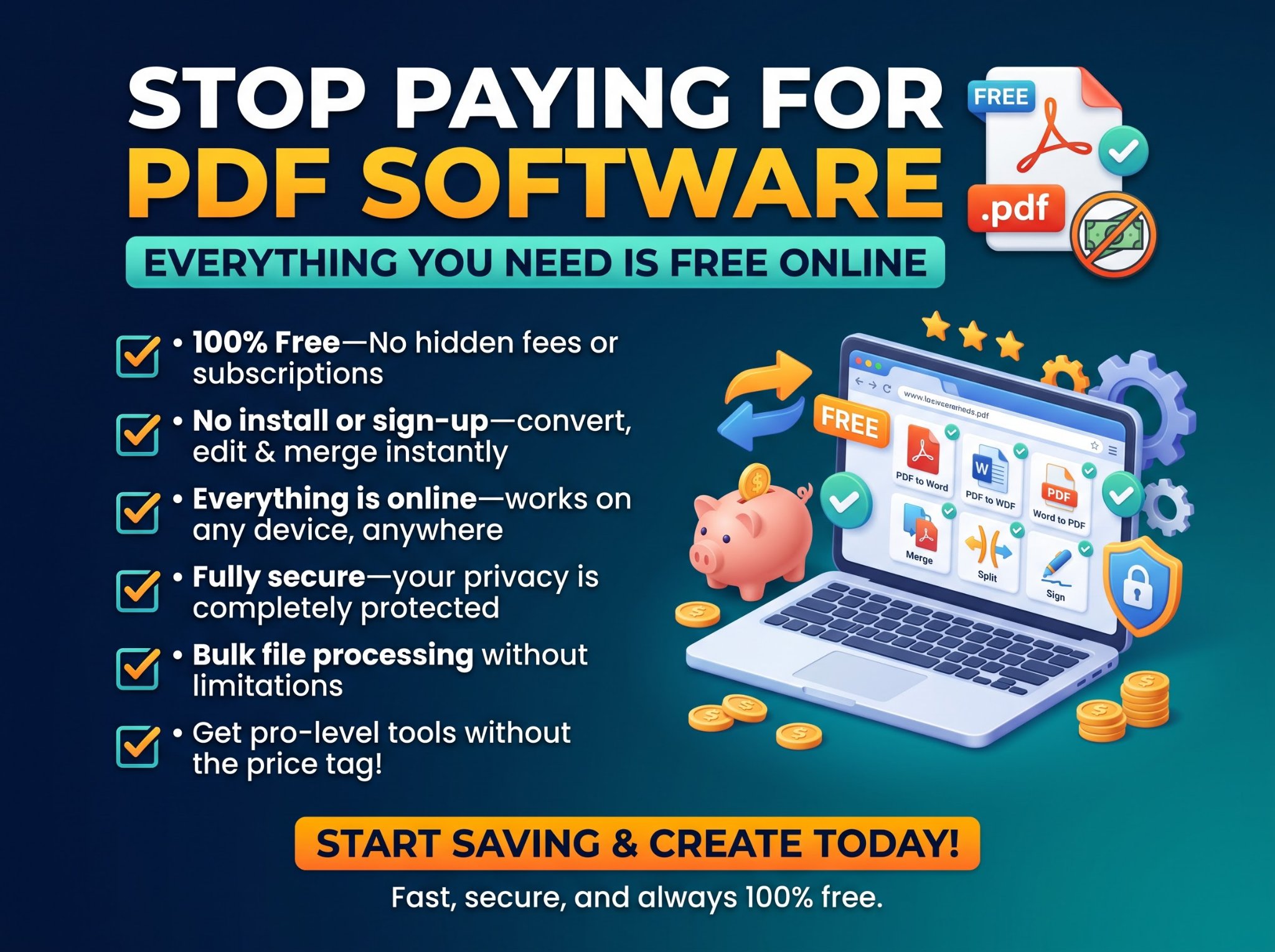
Unlike Trencada’s browser-local tools, the PDF to Word Converter sends your file to an external conversion service to do the heavy lifting. That is true of virtually every online PDF to Word tool, free or paid. The practical rule: use it for everyday non-sensitive documents like flyers, articles, and public reports. For confidential contracts, medical records, or anything you would not email, use a desktop tool or convert on a machine you control.
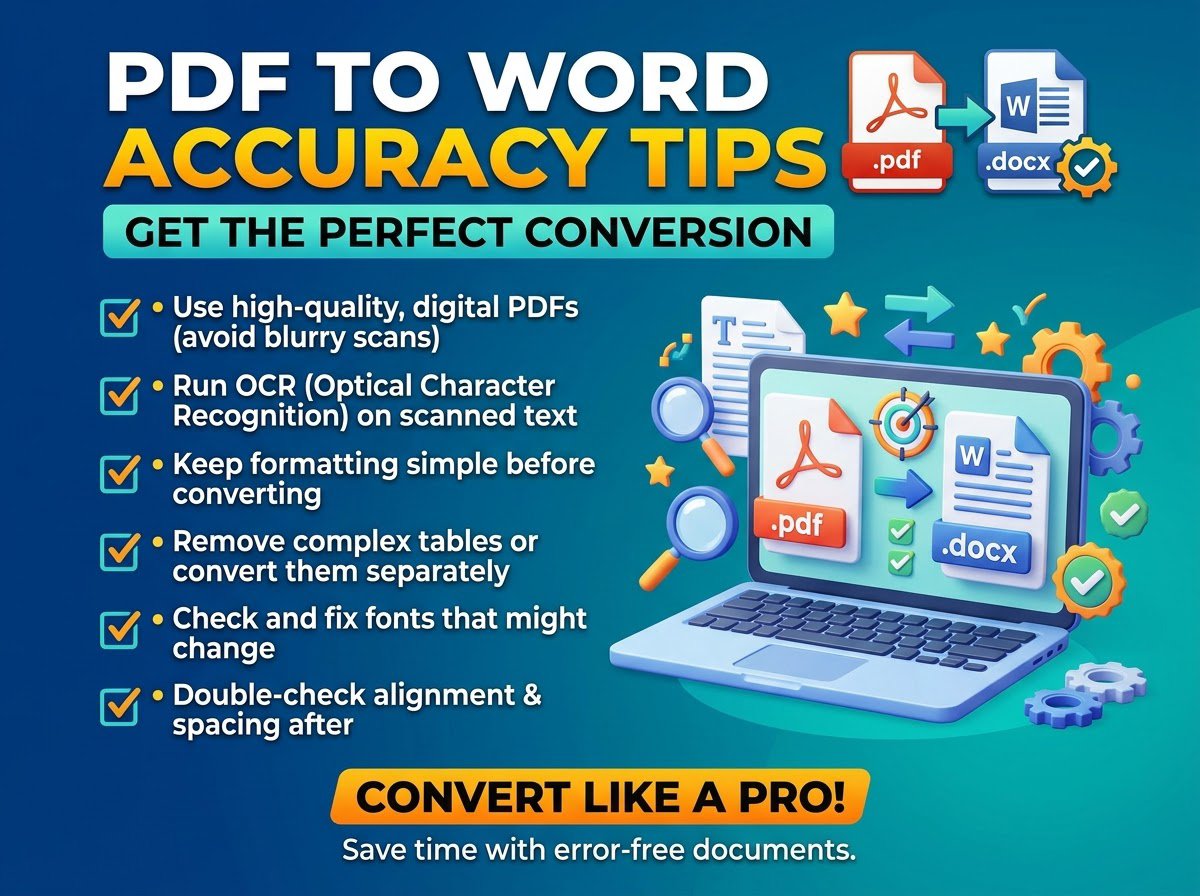
Tip 1: Start with a text-based PDF, not a scan
This is the single biggest factor. A PDF exported from Word contains real text with fonts and layout information, and converters handle it well. A scanned PDF is just pictures of pages, and conversion quality drops sharply. If your PDF is a scan, run it through OCR first or accept that the Word output will need cleanup.
Tip 2: Simplify before you convert
Complex layouts convert badly everywhere. If you control the source, flatten multi-column layouts to single column, replace floating text boxes with inline content, and use standard fonts. Each simplification removes a guess the converter has to make, and fewer guesses means fewer errors.
Tip 3: Check tables and lists first
Tables are where conversions visibly fail: merged cells split, borders vanish, nested tables flatten. After converting, review every table before anything else. Lists with custom numbering are the second most common casualty. Budget your cleanup time here rather than re-reading the whole document.
Tip 4: Fix fonts after conversion
Font substitution is normal: the converter maps the PDF’s fonts to the closest available Word fonts. If headings look wrong, select all and apply your intended font in one pass, then fix sizes for headings. This two minute pass resolves most of the “it looks off” feeling.
Tip 5: Know when to retype instead
Some documents are faster to retype than to fix: single-page flyers with heavy graphics, forms with intricate layouts, anything where the conversion produced more errors than original content. Recognizing this early saves the sunk-cost cleanup spiral.
The quick version
Convert text-based PDFs, simplify complex layouts first, check tables immediately, fix fonts in one pass, and keep sensitive documents away from any online converter. For everyday files, start here: convert PDF to Word free.