Need to protect PDF with password before you hit send? Whether you’re emailing a contract to a client, sharing tax documents with your accountant, or sending HR files to a new hire, a password keeps the wrong eyes out. Trencada’s free Protect PDF tool encrypts your PDF online in under a minute — no signup, no software, and your file never leaves your browser.
Why password-protect a PDF?
A PDF feels final, but anyone who receives it can forward it, copy text from it, or print it. Adding a password is the simplest way to make sure only the right people can open it. Here are everyday situations where it matters:
- Emailing contracts — sending a signed agreement to a client? A password keeps it private in transit and in their inbox.
- Tax documents — W-2s, 1099s, and tax returns contain Social Security numbers and income details worth locking down.
- HR files — offer letters, salary details, and performance reviews should only open for the people they’re meant for.
- Financial and medical records — bank statements, loan paperwork, and health reports are obvious candidates for password protection.
If a file would be a problem in the wrong hands, it deserves a password.
How to protect PDF with password in 4 steps
Here’s how to protect PDF with password using Trencada’s free tool:
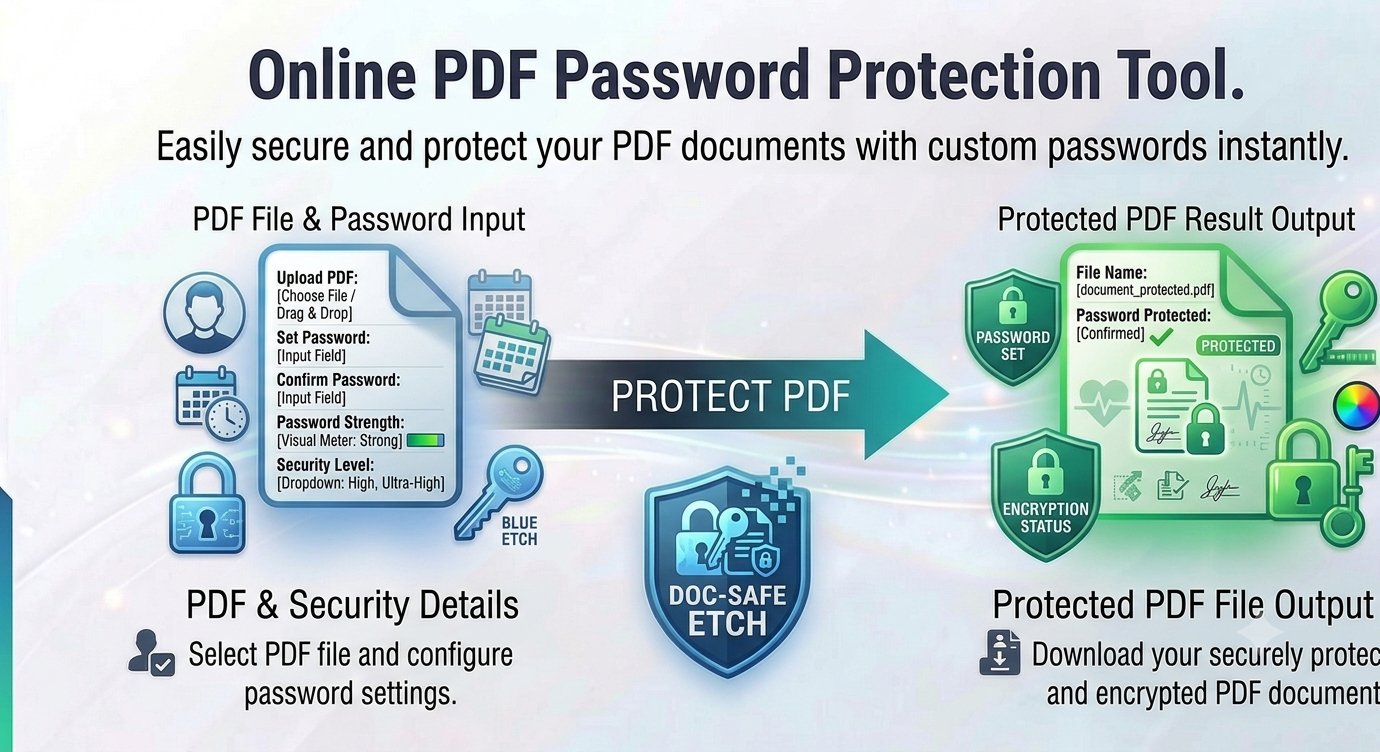
- Upload your PDF — click “Upload PDF File” and choose the PDF from your device.
- Set a password — type your chosen password into the “Set Password” field.
- Click “Protect PDF” — the tool encrypts your file right in your browser using 256-bit AES encryption.
- Download your protected PDF — click “Download Protected PDF” to save the secured copy to your device. (Use the Reset button if you want to start over with a different file.)
That’s it — the whole thing takes under a minute, and there’s nothing to install.
What the password actually does
The tool applies a user password — meaning the PDF cannot be opened at all without entering it. It also locks down what can be done with the file:
- Open protection — anyone who tries to open the PDF is asked for the password first.
- Usage restrictions — the protected file blocks copying text, editing content, and filling in forms.
- Real encryption — the file is secured with 256-bit AES encryption, as stated on the tool page itself.
One thing to know: the tool protects one PDF at a time. If you have several files, either combine them into a single PDF first or run each one through the tool.
Choosing a strong password
A password is only as good as the password itself. A few practical rules:
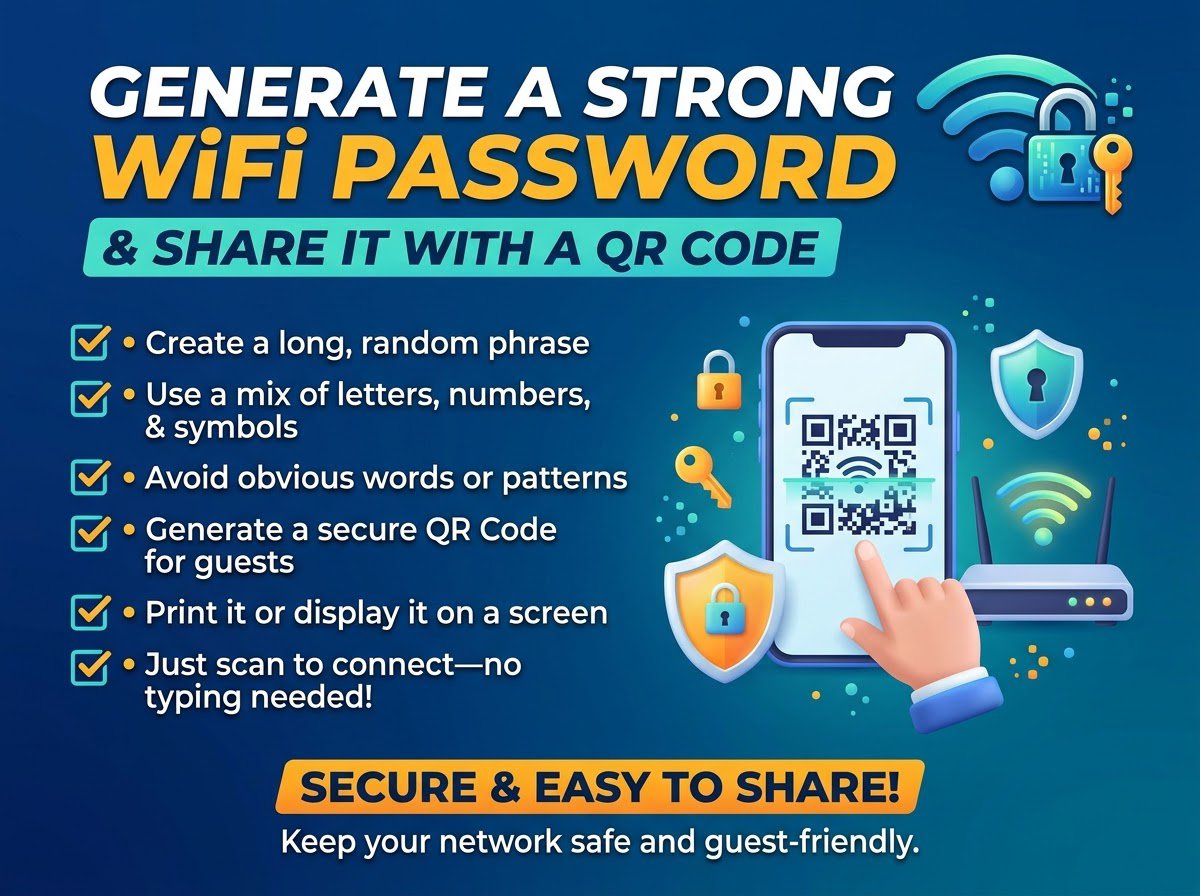
- Go long — a longer password is harder to guess than a short, clever one.
- Mix it up — combine uppercase and lowercase letters, numbers, and symbols.
- Avoid the obvious — names, birthdays, company names, and “password123” are the first things anyone tries.
- Don’t reuse it — use a password you don’t use anywhere else, so one leak doesn’t open everything.
- Store it safely — save it in a password manager or somewhere secure, and share it with the recipient through a different channel than the PDF itself. A quick call or text works.
Sending the password in the same email as the file defeats the purpose — always share it separately.
How to remove the password later
Changed your mind, or need an unprotected copy for your own records? If you know the password, you can strip it back off. Trencada’s free Unlock PDF tool removes password protection from PDFs you own — handy once the sensitive version has served its purpose.
Frequently asked questions
Is it free?
Yes. Protecting a PDF with Trencada is completely free — no account, no signup, and no watermark on your file.
Is my PDF uploaded anywhere?
No. The tool works entirely in your browser: your PDF is encrypted on your own device and never sent to a server. There’s nothing to intercept and nothing stored on Trencada’s side.
What encryption is used?
The tool applies a user password with 256-bit AES encryption — the standard stated on the tool page itself.
What if I forget the password?
Be careful here: a forgotten password can’t be recovered — not by you, and not by Trencada, since the file never leaves your device. Keep a copy of the password somewhere safe before you share the file.
Can I password-protect multiple PDFs?
The tool handles one PDF at a time. For several files, either merge them into a single PDF first or repeat the quick process for each one.
Does it work on all PDF viewers?
Yes. Password protection is part of the PDF standard, so the protected file will ask for the password in any standard PDF reader — from Adobe Acrobat to the viewer built into your browser.
Ready to lock it down? Protect PDF with password now using Trencada’s free online tool — it takes less than a minute, and your file never leaves your browser.