A flowchart turns a confusing process into a picture anyone can follow. Whether you are documenting how your team handles refunds, planning an app login flow, or explaining a decision for a school project, a good flowchart makes the steps obvious at a glance.
This guide covers everything you need: what a flowchart is, the standard symbols and what they mean, a simple 5-step method for building one, and copy-and-paste examples you can edit. You can create every example in this guide with the free Trencada Flowchart Maker — no signup, no software to install, and no watermark on your downloads.
What Is a Flowchart?
A flowchart is a diagram that shows the steps of a process in order, using standard shapes connected by arrows. Each shape represents a different kind of step — an action, a decision, a start or end point — and the arrows show the direction the process flows.
Flowcharts have been used since the 1920s to document business and computer processes, and they are still the fastest way to answer questions like:
- What happens first, and what happens next?
- Where can this process branch into different outcomes?
- Where does it get stuck, repeat itself, or go wrong?
Because the shapes follow widely understood standards, a flowchart you draw today can be read by a colleague, a client, or a developer on the other side of the world without extra explanation.
When Should You Use a Flowchart?
Flowcharts are useful anywhere a process has more than a couple of steps or more than one possible outcome. Common uses include:
- Documenting business processes — onboarding, approvals, refunds, support tickets, order handling.
- Software and app planning — login flows, checkout steps, error handling, user journeys.
- Finding bottlenecks — a drawn-out process exposes repeated steps, dead ends, and unnecessary loops that are hard to spot in text.
- Training and onboarding — new team members learn a procedure faster from a diagram than from a long document.
- Decision making — mapping the options and consequences before committing to one.
- Documentation and compliance — many quality standards expect processes to be documented visually.
- Brainstorming and teaching — breaking a big idea into ordered steps for a class, a presentation, or your own planning.
If you have ever explained a process out loud and said “and then, if that fails, we go back to…”, that process deserves a flowchart.
Flowchart Symbols and Their Meanings
Every flowchart is built from a small set of standard symbols. Learn these nine and you can read or draw almost any flowchart you will ever meet. The right-hand column shows how to create each shape in the Trencada Flowchart Maker, which uses simple text syntax (called Mermaid) instead of dragging boxes around.
| Symbol shape | Name | What it means | Mermaid syntax |
|---|---|---|---|
| Oval (stadium) | Terminator | The start or end of the process | A([Start]) |
| Rectangle | Process | An action or task step | A[Task] |
| Diamond | Decision | A question with two or more branches, usually Yes/No | A{Question?} |
| Parallelogram | Input / Output | Data coming in or going out | A[/Data/] |
| Cylinder | Database | Information stored in a database | A[(Database)] |
| Circle | Connector | The flow continues from another point | A((A)) |
| Double-edged rectangle | Predefined process | A step defined in detail elsewhere | A[[Sub-process]] |
| Hexagon | Preparation | A setup step before the main process | A{{Prepare}} |
| Trapezoid | Manual operation | A step performed manually instead of automatically | A[/Text\] |
A few rules keep your flowcharts readable:
- Start with one Terminator and end with one Terminator (a loop back to an earlier step is fine).
- Label every branch leaving a Decision — Yes/No, Approved/Rejected, True/False.
- Keep the flow moving in one direction: top to bottom, or left to right.
How to Make a Flowchart in 5 Steps
You can apply this method with any tool — paper, a whiteboard, or an online flowchart maker.
Step 1: Define the process. Write down exactly where the process starts and where it ends. “Customer support ticket” is too vague; “from ticket received to ticket resolved” gives your flowchart clear boundaries.
Step 2: List the steps in order. Write each step on its own line, in the order it happens. Do not worry about symbols yet. Mark the points where a question decides what happens next — those become your decisions.
Step 3: Turn steps into symbols. Actions become rectangles, questions become diamonds, and the first and last steps become terminators. Add input/output and database shapes only where data genuinely enters, leaves, or is stored.
Step 4: Connect the steps with arrows. Draw an arrow from each step to the next. At every decision, draw one arrow per answer and label each one. If a path loops back (for example, a failed login returning to the login form), draw the arrow back to the earlier step.
Step 5: Review and simplify. Follow each path from start to finish with fresh eyes. Every path should reach the end, every decision should have all its outcomes covered, and no step should be left floating. If a chart needs more than about 15 boxes, consider splitting part of it into its own chart.
How to Make a Flowchart Online With the Trencada Flowchart Maker
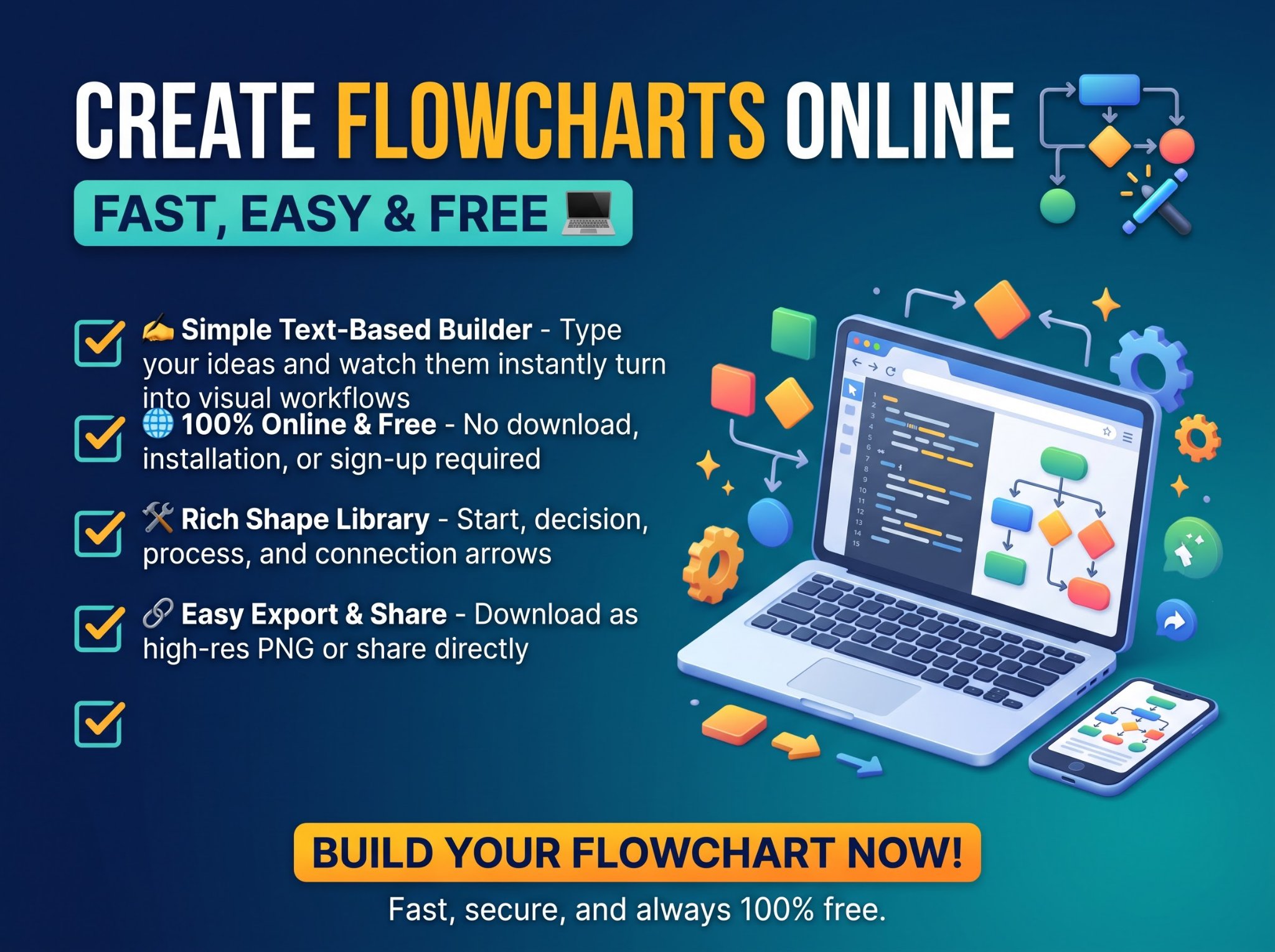
The Trencada Flowchart Maker builds your diagram from plain text. You describe the steps, and the diagram draws itself and updates live as you type. There is nothing to install and no account to create.
- Open the Flowchart Maker.
- Pick one of the 9 ready-made templates — flowchart, sequence diagram, class diagram, state diagram, ER diagram, Gantt chart, pie chart, user journey, or mindmap — or start from the default flowchart.
- Edit the text in the editor. Each line is one connection:
A[Step one] --> B[Step two]. The preview updates instantly. - Choose from 5 themes to match your document or presentation.
- Download your diagram as a PNG image or an SVG file, or copy the code to reuse in your own documentation.
Because the diagram is generated in your browser, your text and diagrams stay on your device. Your exports are free of watermarks.
Your first flowchart in under a minute
Paste this into the editor to see how decisions and branches work:
flowchart TD
    A([Start]) --> B[User clicks Forgot Password]
    B --> C[Enter email address]
    C --> D{Email found?}
    D -->|Yes| E[Send reset link]
    D -->|No| F[Show account not found message]
    F --> C
    E --> G[User creates new password]
    G --> H([End])
TD means the chart flows top-down; change it to LR for left-to-right. Curly braces { } create the decision diamond, and |Yes| and |No| label its branches.
Flowchart Examples You Can Copy and Edit
Example 1: User login process
A login flow with an error loop and an optional two-factor step:
flowchart TD
    A([Start]) --> B[Open login page]
    B --> C[Enter username and password]
    C --> D{Details correct?}
    D -->|No| F[Show error message]
    F --> C
    D -->|Yes| E{Two-factor enabled?}
    E -->|Yes| G[Enter verification code]
    E -->|No| H[Open dashboard]
    G --> H
    H --> I([End])
Example 2: Online order process
From checkout to delivery, including the two failure paths most order flowcharts forget — out of stock and declined payment:
flowchart TD
    A([Customer places order]) --> B[Check stock]
    B --> C{Item in stock?}
    C -->|No| E[Notify customer and offer refund]
    C -->|Yes| D[Take payment]
    D --> F{Payment approved?}
    F -->|No| H[Cancel order]
    F -->|Yes| G[Pack and ship order]
    G --> I[Send tracking email]
    I --> J([Delivered])
    E --> K([End])
    H --> K
Example 3: Approval workflow (left to right)
flowchart LR
    A([Request submitted]) --> B[Manager review]
    B --> C{Approved?}
    C -->|Yes| D[Finance processes payment]
    C -->|No| E[Return with comments]
    E --> A
    D --> F([Request closed])
Each example can be pasted straight into the Flowchart Maker, edited with your own steps, and downloaded as PNG or SVG for documents, slides, wikis, and tickets.
More Than Flowcharts: 8 Other Diagrams You Can Make
The same tool creates eight other diagram types from text, which makes it a general-purpose diagram maker as well:
- Sequence diagrams — show how systems or people exchange messages over time (great for API and login interactions).
- Class diagrams — map the structure of software classes and their relationships.
- State diagrams — show the states something can be in and what triggers each change (pending, paid, shipped, delivered).
- ER diagrams — design database tables and how they relate.
- Gantt charts — plan project timelines with tasks, dates, and milestones.
- Pie charts — present proportions at a glance.
- User journey maps — chart the stages, actions, and feelings of a customer journey.
- Mindmaps — branch ideas out from a central topic for brainstorming and study notes.
What Is Mermaid, and Why Does This Tool Use It?
Mermaid is a popular open-source way of creating diagrams from text. Instead of clicking and dragging shapes, you write lines like A[Start] --> B{Approved?} and the diagram is generated for you.
This text-to-flowchart approach has real advantages:
- Fast to edit — change a word and the diagram redraws; no boxes to realign.
- Easy to share — the code fits in an email, a ticket, or a chat message.
- Works in your documentation — Mermaid renders natively in GitHub, GitLab, and many wiki and docs platforms, so the code you copy from the Flowchart Maker can live inside your README or project docs and stay editable forever.
- Version friendly — text can be tracked in version control, unlike binary image files.
That is also why “mermaid diagram” is searched tens of thousands of times a month: developers and technical writers increasingly prefer diagrams they can maintain as code.
Flowchart Best Practices
- Keep one idea per box. Short labels like “Send invoice” beat sentences.
- Be consistent. Use the same symbol for the same kind of step throughout the chart.
- Label every decision branch. An unlabeled arrow out of a diamond is a guess for your reader.
- Limit crossings. If arrows keep crossing, reorder steps or switch direction (TD to LR).
- Use one start, clear ends. Readers should never wonder where to begin or whether a path finishes.
- Check it against reality. Walk a real case through the chart — a failed payment, a missing document — and confirm every outcome has a path.
- Split big processes. A chart with 30 boxes helps no one; break sub-processes into their own charts and link them with the predefined process symbol.
Common Flowchart Mistakes to Avoid
- Starting before defining the end. Without a clear finish line, charts sprawl.
- Forgetting the failure paths. Most real processes break at the exceptions, not the happy path.
- Mixing detail levels. “Review application” next to “Click the green button in the top-right” confuses readers.
- Unlabeled or missing branches. Every question needs every answer drawn.
- Dead ends. Every path must loop back or reach a Terminator.
- Decorating instead of clarifying. Extra colors and shapes should encode meaning, not decoration.
Frequently Asked Questions
How do I create a flowchart online for free?
Open the Trencada Flowchart Maker, choose a template or edit the example text, and watch the diagram build itself. When it looks right, download it as PNG or SVG. There is no cost and no watermark.
Can I make a flowchart from text?
Yes. That is exactly how this tool works: each line of text describes a step and its connection, using Mermaid syntax such as A[First step] --> B[Second step]. The diagram updates live as you type.
Can I create branching flowcharts with Yes/No decisions?
Yes. Use curly braces for the decision, then label each outgoing arrow — for example D{Approved?} with branches D -->|Yes| E[...] and D -->|No| F[...].
Do I need to install anything or sign up?
No. The flowchart maker runs entirely in your web browser. There is no download, no installation, and no account.
Is the flowchart maker really free?
Yes — creating diagrams and downloading PNG and SVG files is free, with no watermark and no limit screens.
Do I need to know flowchart symbols or notation before I start?
No. Start from one of the 9 templates and edit the words inside the boxes; the shapes are created by the punctuation around your text. The symbols table above explains what each shape means when you are ready to go further.
What is the difference between PNG and SVG downloads?
PNG is a picture file that works everywhere — documents, slides, chats. SVG is a vector file that stays perfectly sharp at any size and can be edited in design tools, which makes it better for print and large displays.
Can I reuse the diagram code in GitHub or my documentation?
Yes. Copy the Mermaid code from the tool and paste it into a mermaid code block in GitHub, GitLab, and many docs platforms — it renders as a live diagram there and stays editable as text.
Conclusion
Making a flowchart is mostly thinking, not drawing: define the start and end, list the steps in order, mark the decisions, and connect everything with labeled arrows. The right tool removes the fiddly part — no dragging boxes or fixing alignment by hand.
Try it now with the free Trencada Flowchart Maker: start from a template, make it yours in a minute, and download a clean PNG or SVG with no signup and no watermark.