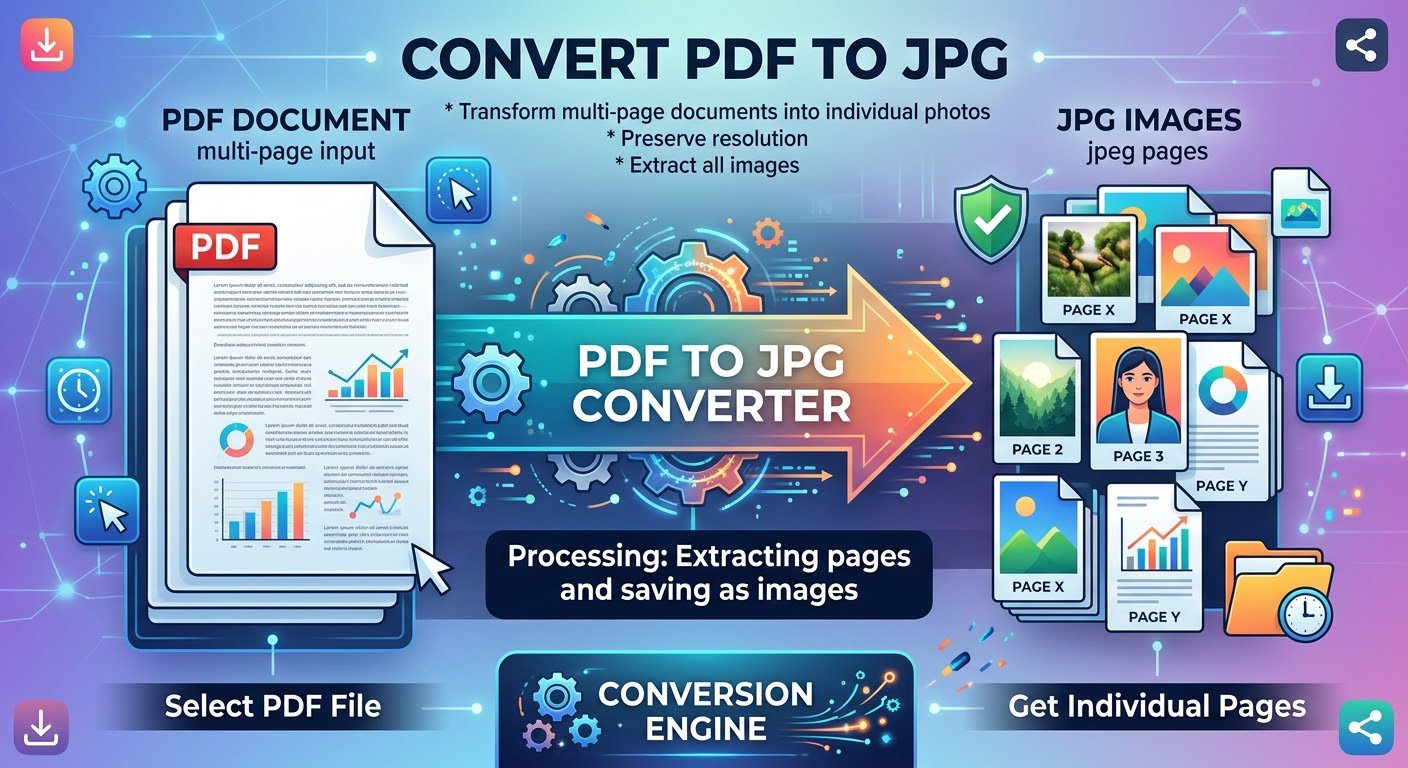
A PDF is great for documents, but it’s a terrible format for sharing a single page as an image. Converting pages to JPG lets you post them on social media, drop them into a presentation, send them through messaging apps, or display them anywhere images work but PDFs don’t.
JPG is also universally supported: every phone, email client, and browser opens JPGs without special software.
How to convert PDF to JPG online in 30 seconds
- Open the PDF to JPG Converter (linked) — no account, no signup, no download.
- Upload your PDF file (or drag and drop it onto the page).
- Choose which pages to convert and the image quality you want.
- Click convert and download your JPG images instantly.
The conversion happens entirely in your browser — your file is never uploaded to a server.
What quality should you choose?
- High quality: for printing or close-up detail. Larger files.
- Medium quality: the sweet spot for sharing on social media or in presentations.
- Lower quality: when you just need a quick preview or the smallest file size.
If the pages are mostly text, medium quality usually looks perfect and keeps the download small.
4 more ways to use PDF-to-JPG conversion
- Social media posts: turn a flyer or one-pager into a shareable image.
- Presentations: insert key pages directly into your slides instead of attaching a PDF.
- Thumbnails: make preview images for documents you list online.
- Quick edits: convert a page to JPG, annotate it in any image editor, and you’re done.
FAQ
Does converting PDF to JPG reduce quality?
It depends on the quality setting you choose. A high-quality JPG from a clean PDF is virtually indistinguishable from the original on screen. Text stays sharp at medium-to-high settings; only very small or low-resolution source pages may lose detail.
Is there a file size limit?
Most free converters handle everyday PDFs without trouble. Very large PDFs (hundreds of pages) take longer because each page has to be rendered — convert just the pages you need instead of the whole file.
Can I convert a scanned PDF to JPG?
Yes. A scanned PDF is already made of images, so converting it to JPG works perfectly — it’s the fastest way to extract the scanned pages as individual image files.
Do I need Adobe Acrobat to convert PDF to JPG?
No. Acrobat is powerful but overkill for this job — and it requires an account or subscription. A free online tool does the conversion in seconds without installing anything.
Convert your PDF now
Your pages are seconds away from becoming shareable images. Try the free PDF to JPG Converter (linked) — no signup, no watermark, no upload.