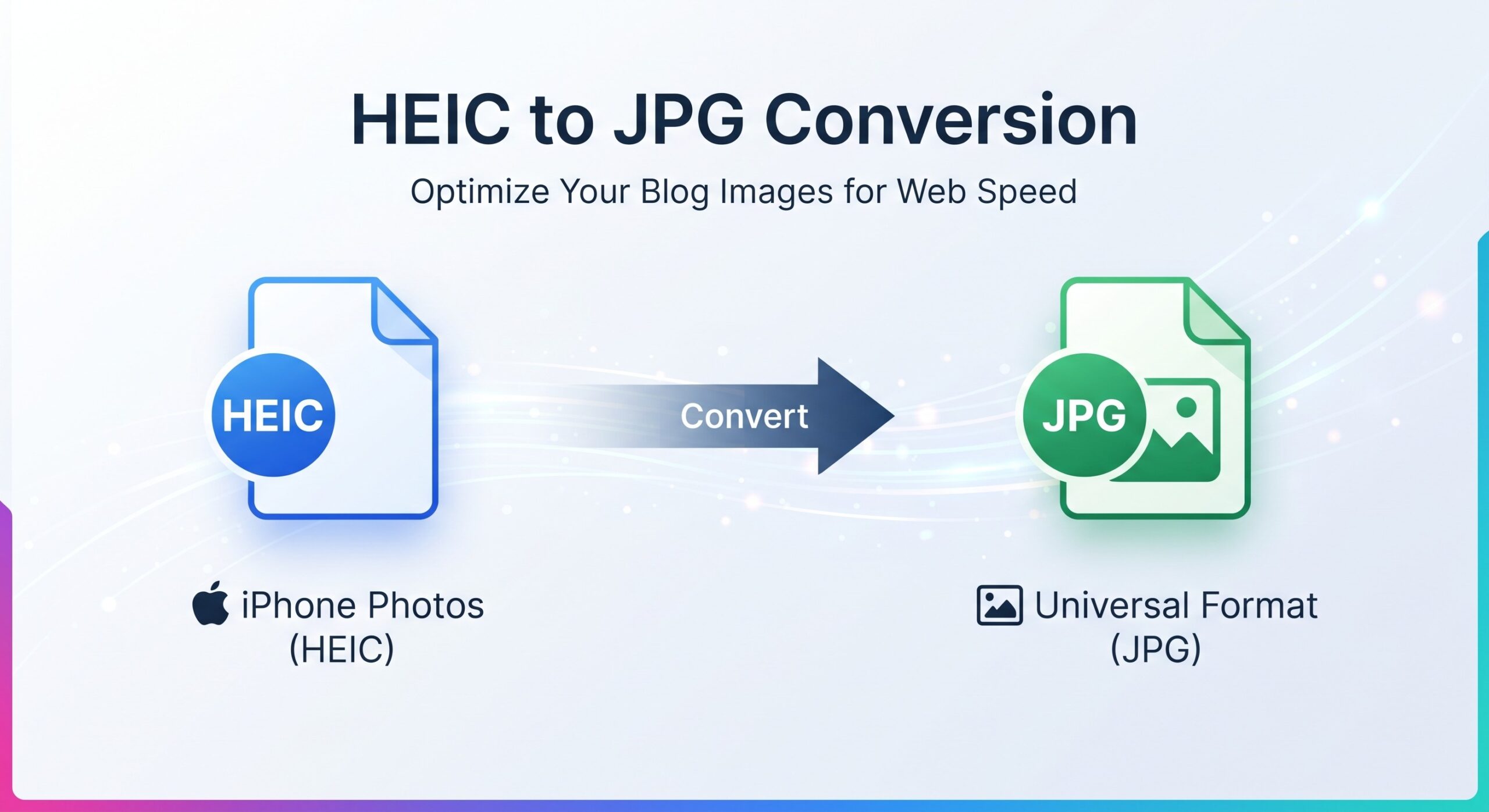
You took a great photo on your iPhone, moved it to your Windows PC, and now it won’t open. The file ends in .heic, your upload form rejects it, and the person you emailed it to says the attachment is broken. This happens to millions of iPhone users — and the fix takes less than a minute: convert the HEIC file to JPG.
This guide explains what HEIC is, how to turn it into a JPG that opens everywhere, and how to stop your iPhone from creating HEIC files in the first place.
Why your iPhone photos are HEIC (and why nothing opens them)
Since iOS 11, iPhones save photos in a format called HEIC (High Efficiency Image Container) by default. Apple chose it because it stores the same photo quality in roughly half the file size of JPG — great for your phone’s storage.
The catch: most of the world never caught up. Windows, many Android apps, older software, and countless website upload forms still don’t recognize HEIC. So your perfectly good photo becomes a file nobody else can open.
JPG, on the other hand, opens on literally everything — every browser, every operating system, every app built in the last 25 years. Converting HEIC to JPG is the universal fix.
How to convert HEIC to JPG in under a minute
You don’t need to install anything. A free HEIC to JPG converter runs entirely in your browser — on Windows, Mac, iPhone, or Android.
Step by step
- Open the converter in your browser — no signup, no download.
- Select your HEIC photo from your computer or phone.
- Choose JPG as the output format (JPEG is the same thing — just a different file extension).
- Pick a quality level — High for photos you want to keep, Medium or Low for smaller files to email or upload.
- Convert and download your JPG. That’s it.
On Windows, Mac, or your phone
Because the conversion happens in the browser, the steps are identical everywhere. On Windows, this is far simpler than hunting down Apple’s HEIF codec extensions. On your iPhone itself, you can convert a photo and share the JPG directly to any app.
HEIC vs JPG: what actually changes?
Converting isn’t magic — here’s the honest trade-off:
- File size: JPGs are usually larger than the original HEIC. HEIC’s whole point is efficiency.
- Quality: JPG uses lossy compression, so a tiny amount of image data is discarded. At the High quality setting, you won’t see a difference with the naked eye.
- Compatibility: this is the entire reason to convert. A JPG opens everywhere; a HEIC often opens nowhere outside Apple devices.
Tip: keep your original HEIC files archived somewhere safe, and use the JPGs for sharing, uploading, and printing. If the converted JPGs are still too large, shrink them further with our free image compressor.
Should you convert HEIC to JPG or PNG?
The same converter also offers PNG output. Quick rule of thumb:
- Choose JPG for photographs — smaller files, universal support, ideal for sharing and the web.
- Choose PNG when you need lossless quality, such as graphics, screenshots, or design work. Note the file will be bigger.
For iPhone photos you’re trying to share or upload, JPG is almost always the right call. If instead you need your photos as a document, you can convert HEIC to PDF.
How to stop your iPhone from saving HEIC files
If you’re tired of converting, change the camera setting once and be done with it:
- Open Settings on your iPhone.
- Go to Camera → Formats.
- Select Most Compatible instead of High Efficiency.
From now on, your iPhone saves every new photo as a JPG. Your existing HEIC photos stay as they are — convert those with the tool above.
Frequently asked questions
Is converting HEIC to JPG free?
Yes. The Trencada converter is completely free — no signup, no watermark, no limits pushed at you mid-conversion.
Will I lose photo quality converting HEIC to JPG?
A negligible amount. JPG compression discards some data, but at the High quality setting the difference is invisible in normal viewing. For precious photos, keep the original HEIC as a backup.
Is HEIC to JPG the same as HEIC to JPEG?
Yes. JPG and JPEG are two extensions for the exact same format. Either one opens everywhere.
Can I convert HEIC to JPG on my iPhone without a computer?
Yes — open the converter in Safari or Chrome on your phone, select the photo, and download the JPG. No app to install.
Why doesn’t Windows open HEIC files?
Windows doesn’t include HEIC support out of the box (it requires a separate codec from the Microsoft Store). Converting to JPG sidesteps the problem entirely and works on any Windows version.
What if I need the photo inside a document instead?
Convert it to PDF instead of JPG — the HEIC to PDF converter turns your iPhone photos into a standard PDF document.
iPhone photos shouldn’t need a workaround to live on the rest of your devices. Convert your HEIC files once and use them anywhere. Convert HEIC to JPG free — no signup