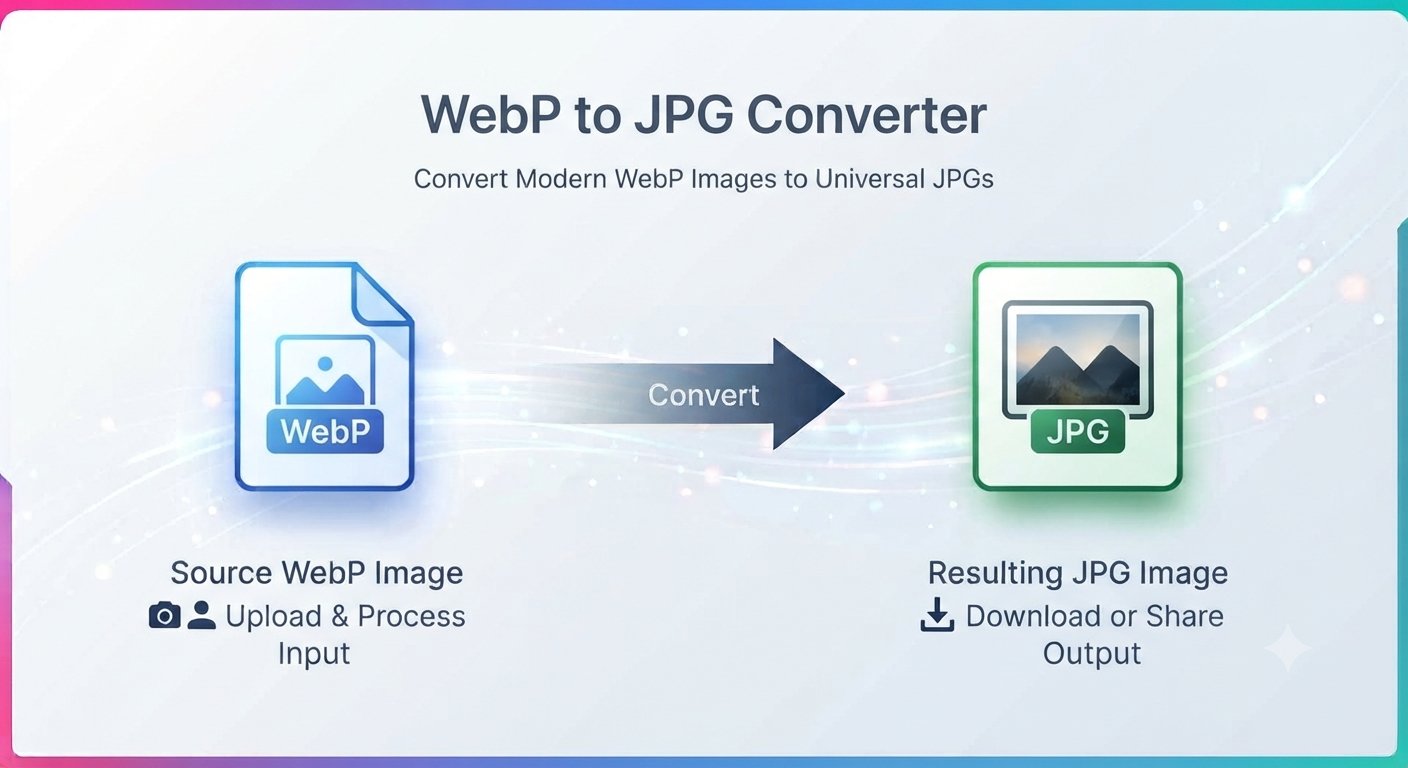
You saved the perfect image from a website, went to open it, and your photo viewer just shrugged. The file ends in .webp — a format your apps don’t recognize, your editor can’t import, and half the upload forms on the internet reject. The fix takes less than a minute: convert the WebP file to JPG.
This guide explains what WebP is, why it’s suddenly everywhere, and how to turn WebP images into JPGs that open on absolutely anything.
What is WebP (and why is it everywhere now?)
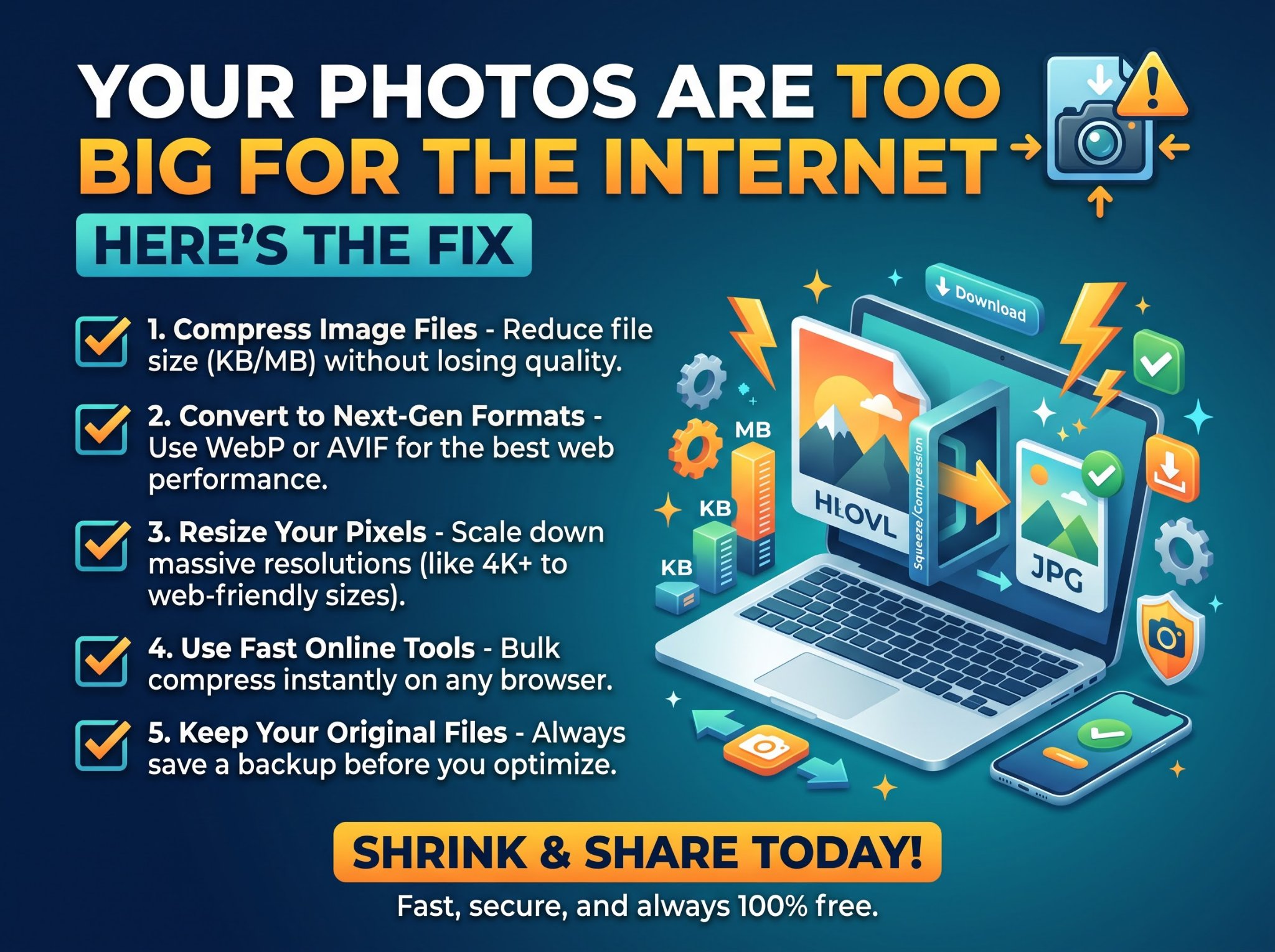
WebP is an image format created by Google, and websites love it for one reason: a WebP file is roughly 25–35% smaller than the same image saved as JPG, with no visible difference in quality. Smaller files mean faster-loading pages, so over the last few years most big sites quietly switched to serving their images as WebP.
That’s great for browsing speed — and annoying the moment you right-click and hit “Save image as.” You expected a JPG. You got a .webp instead.
Why your WebP files won’t open
WebP is a web format first and a desktop format second. Plenty of everyday software still doesn’t speak it:
- Older Windows photo viewers and some versions of the Photos app refuse to open WebP.
- Desktop editors and office apps — older Photoshop, Word, and PowerPoint versions can’t import it.
- Upload forms on job portals, government sites, and print services often accept only JPG or PNG.
- Older phones and apps may show a broken thumbnail or refuse the file entirely.
JPG, by contrast, opens on literally everything — every browser, every operating system, every app built in the last 25 years. Converting WebP to JPG is the universal fix.
How to convert WebP to JPG in under a minute
You don’t need to install anything. A free WebP to JPG converter runs right in your browser — on Windows, Mac, or your phone.
Step by step
- Open the converter in your browser — no signup, no download.
- Drag and drop your WebP files into the upload area, or click to browse for them.
- Click “Convert to JPG” and wait a few seconds.
- Download your JPGs — individually, or all at once as a convenient ZIP archive.
Batch-convert a whole folder
Saved a dozen images from a site and they’re all WebP? Upload them all in one go — the converter processes multiple files at once, so you fix the entire batch in a single pass instead of converting one file at a time.
WebP vs JPG: what actually changes?
Converting isn’t magic — here’s the honest trade-off:
- File size: the JPG will usually be a bit larger than the original WebP. That smaller size was WebP’s whole point. If the converted file is too big, run it through our free image compressor to shrink it back down.
- Quality: both formats use lossy compression. At normal viewing sizes you won’t see a difference between the WebP and the converted JPG.
- Transparency: this one matters — WebP supports transparent backgrounds, JPG does not. If your WebP has transparency, the converted JPG gets a solid background instead.
- Compatibility: the entire reason to convert. A JPG opens everywhere; a WebP still doesn’t.
Should you convert WebP to JPG or PNG?
Quick rule of thumb:
- Choose JPG for photos and everyday images — smaller files, universal support, ideal for sharing, uploading, and printing.
- Choose PNG only if you need to preserve transparency or want lossless quality for graphics and screenshots — and accept the bigger file size.
For the vast majority of “I saved this image and can’t open it” cases, JPG is the right answer.
WebP to JPG FAQ
Is converting WebP to JPG free?
Yes. The converter is completely free — no signup, no watermark, no limits.
Will I lose image quality?
Not visibly. The conversion preserves visual clarity, resolution, and color accuracy. You’d have to zoom in and compare pixels side by side to spot any difference.
What happens to my files after conversion?
Your files are processed securely and deleted from the servers shortly after conversion — they’re not kept or shared.
Can I convert multiple WebP files at once?
Yes. Upload a batch of WebP files, convert them all together, and download the JPGs individually or as a single ZIP.
Why doesn’t Windows open WebP files?
Older Windows photo viewers and some app versions predate WebP support. Rather than installing codec packs, converting to JPG gives you a file that works in every program you already have.
Does JPG support animation like WebP does?
No — and this is worth knowing. Animated WebP files convert to a still JPG (the first frame). If you need the animation, keep the original WebP.
WebP saves space online but breaks compatibility elsewhere. Convert to JPG when you need the universal format. Convert WebP to JPG free — no signup