You try to upload a PNG and the form rejects it: “file too large.” Or you attach three PNG screenshots to an email and it bounces back. PNG files look great — but they’re heavy, and a lot of the web wasn’t built for that weight.
This guide explains when converting PNG to JPG is the right move, when you should keep your PNG, and how to do the conversion online for free — in seconds, with no signup.
Why is my PNG file so big?
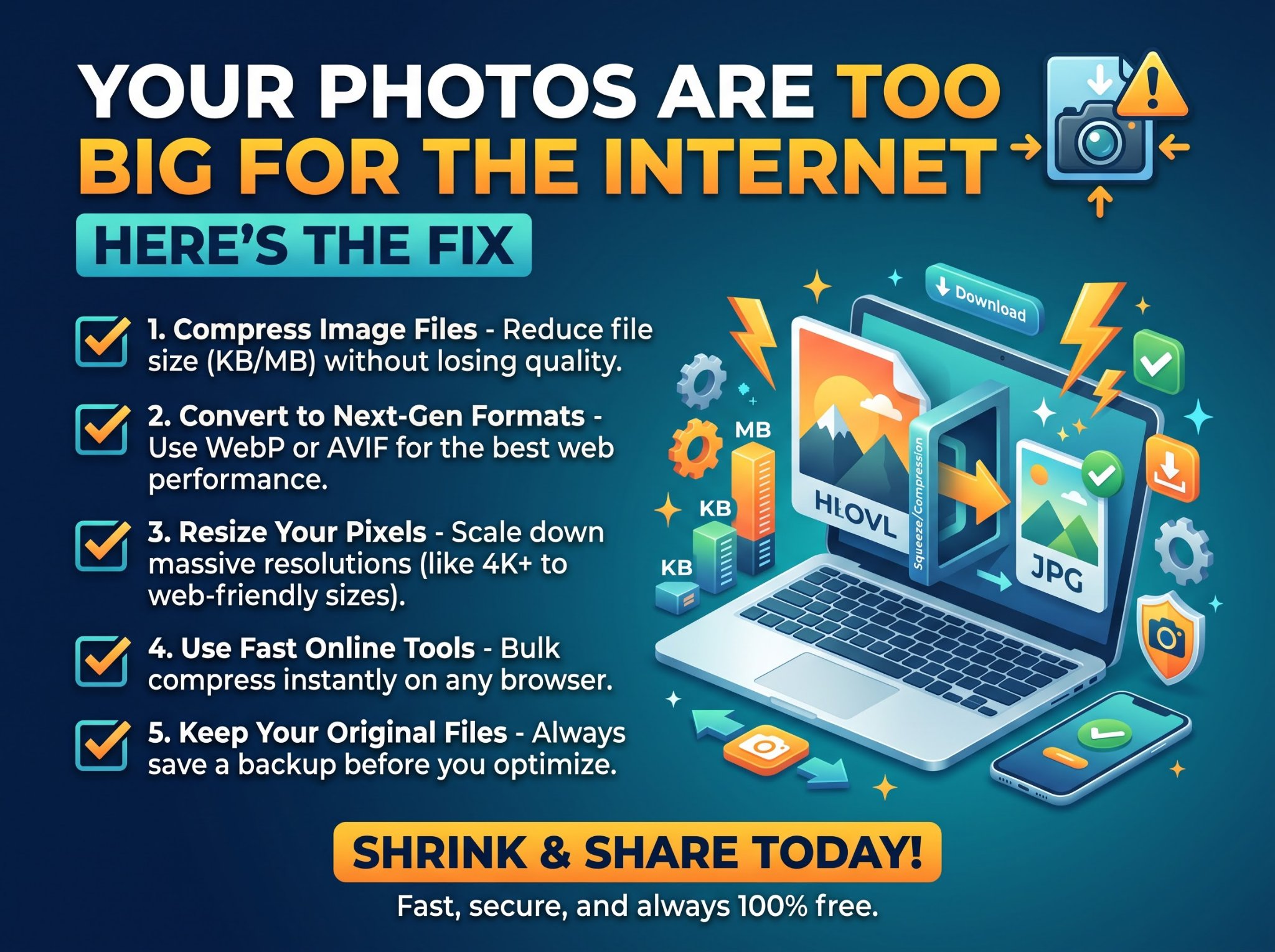
PNG is a lossless format: it keeps every single pixel of your image exactly as-is. That’s great for quality, but it means file sizes stay large — a full-screen screenshot can easily run 3–5 MB, and a detailed graphic even more.
JPG, on the other hand, is lossy: it compresses by throwing away image data your eyes won’t notice. A photo that was a 5 MB PNG often becomes a few hundred kilobytes as a JPG. Same visible image, a fraction of the weight. That’s why upload forms, email servers, and websites prefer JPG — files upload faster, load faster, and rarely hit size limits.
When to convert PNG to JPG (and when not to)
Convert to JPG when:
- Uploading photos or screenshots to a form, job application, or school portal with a size limit.
- Emailing images that keep getting rejected or bouncing.
- Publishing images on a website where page speed matters.
- Freeing up storage space on your phone or computer.
Keep the PNG when:
- It’s a logo or graphic with text — JPG compression smudges sharp edges and small text.
- You need transparency — JPG doesn’t support it at all (more on this below).
- You plan to edit the image again later — every JPG save degrades quality a little; PNG survives unlimited edits.
Rule of thumb: photos and screenshots go to JPG. Logos, icons, and anything with sharp text stays PNG.
How to convert PNG to JPG online free
A free PNG to JPG converter runs right in your browser — no signup, no software, no watermarks.
Step by step
- Open the converter in your browser.
- Drag and drop your PNG files into the upload area, or click to choose them from your device. You can queue multiple files at once — it converts in batch, so you don’t have to repeat the process file by file.
- Set your JPG quality with the slider (it defaults to 90%, a good balance of small size and sharp appearance).
- Pick a background color if your PNG has transparent areas — white or black, since JPG can’t be transparent.
- Click Convert to JPG, then download each file individually or grab them all at once as a zipped archive.
The whole thing takes seconds per image, and there’s nothing to install.
The transparency question: what happens to see-through areas?
This is the number one thing people worry about, and it’s worth understanding: JPG has no transparency. Any transparent area in your PNG has to become something — so the converter fills it with a solid color. Trencada’s converter lets you choose white or black for those areas.
For screenshots and photos this almost never matters (they usually have no transparency). For a logo on a transparent background, it matters a lot — the logo will come out sitting on a white or black rectangle. If your logo needs to float over different backgrounds, keep it as a PNG.
PNG to JPG FAQ
Will converting PNG to JPG reduce image quality?
Slightly, yes — JPG is lossy, so some data is discarded. But at a high quality setting like 90%, the difference is invisible to the naked eye on photos and screenshots. The visible tradeoff only shows up on sharp graphics, text, and thin lines. One important habit: don’t convert a JPG back to PNG and then to JPG again repeatedly — each JPG save loses a little more.
What happens to transparent backgrounds when converting to JPG?
JPG doesn’t support transparency, so transparent areas are filled with a solid color — white by default on Trencada’s converter, with black as the alternative. Choose the one that suits your image before converting.
When should I keep the PNG instead of converting?
Keep PNG for logos, icons, images with small text, graphics you plan to edit again, and anything that needs a transparent background. Convert to JPG for photos, screenshots, uploads, emails, and web publishing where file size matters.
Is the PNG to JPG converter free? Do I need to sign up?
Yes, it’s free — and no signup is required. There are no watermarks added to your images and no subscription fees. The tool’s page states that uploaded files are processed securely and deleted from its servers after conversion.
How much smaller will my JPG be compared to the PNG?
It depends on the image, but the reduction is usually dramatic: a multi-megabyte PNG photo typically shrinks to a fraction of its original size as a JPG. Simple graphics and screenshots compress less than detailed photos, because there’s less “noise” for the compression to work on. Try it on one file first — you’ll see the size difference immediately.
Huge PNGs slow down pages and clog inboxes. Shrink yours to a shareable JPG in seconds. Shrink your PNG free — no signup