You just launched your website. You open it in a browser tab — and next to the title sits a blank, generic page icon. Every professional site has a tiny logo there: Google’s “G”, YouTube’s play button, yours. That little icon is called a favicon, and creating one takes just a few minutes.
This guide explains what a favicon is, how to design one that stays recognizable at tiny sizes, how to generate it free, and how to add it to your website.
What is a favicon?
A favicon (short for “favorite icon”) is the small icon associated with a website. It appears in browser tabs, bookmarks, browser history, and on mobile home screens when someone saves your site. When a visitor has twenty tabs open, your favicon is how they spot you at a glance.
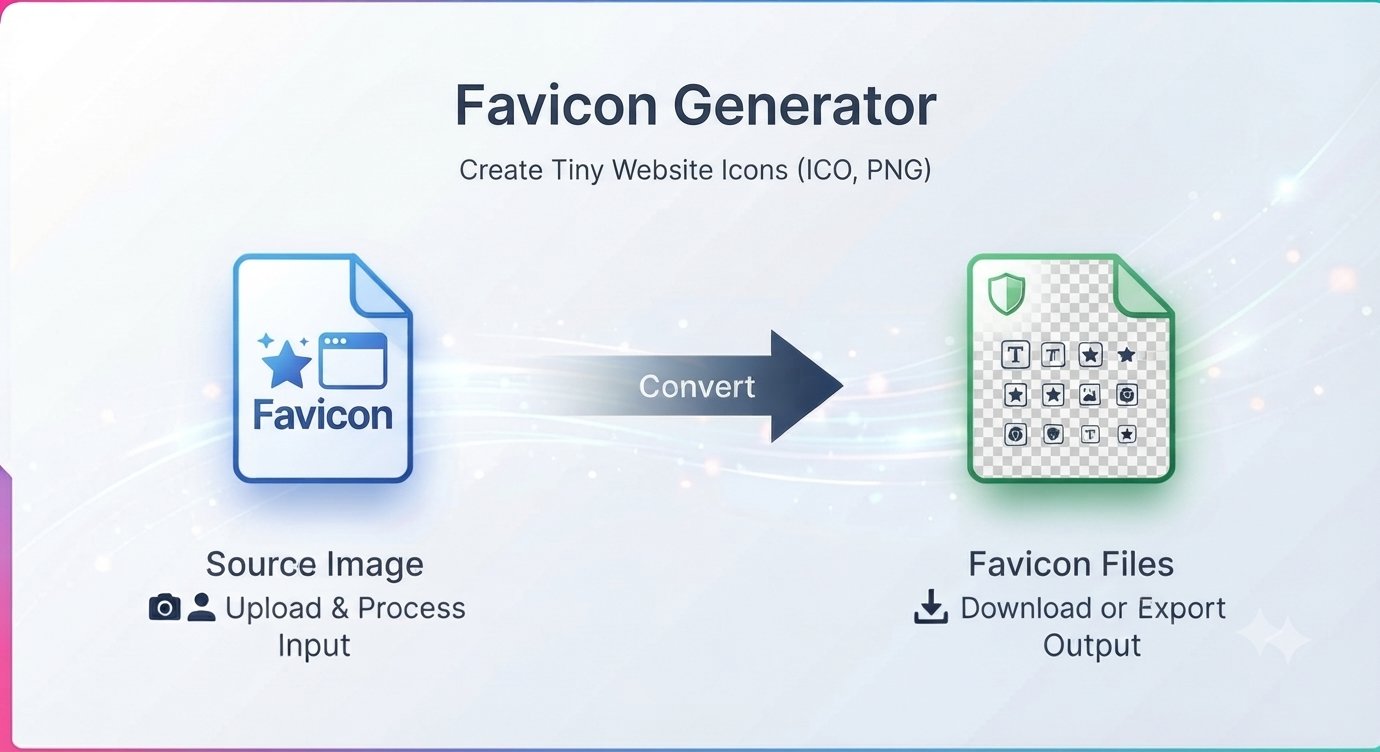
Favicons come in formats like ICO and PNG, and websites often provide several sizes — from a 16×16 pixel tab icon up to 512×512 pixel app icons — so the icon looks sharp everywhere it appears.
What makes a good favicon
A favicon displays at a very small size, so the number one rule is: keep it simple.
- Use a simple symbol or logo mark — not your full detailed logo. Many brands use just the first letter or a simplified icon.
- Avoid small text — a wordmark that reads fine at full size becomes an unreadable smudge at 16×16 pixels.
- Use strong contrast and clear shapes so the icon reads instantly against any browser theme.
- Keep key elements near the center — browsers and devices sometimes crop icons into circles or rounded squares.
- Start from a square image — it scales down to every required size cleanly.
If your logo is complex, don’t shrink it as-is — simplify it into a bold mark first. Test the result at actual small sizes rather than judging the big original.
How to create a favicon in minutes
You don’t need design software. A free favicon generator turns a logo or image into a website-ready favicon right in your browser.
Step by step
- Pick your image — a simple square logo, symbol, or icon. PNG with a transparent background works great.
- Upload it to the favicon generator — no signup, no download.
- Generate the favicon using the available options.
- Preview it small — check that the design is still recognizable at favicon size before you commit.
- Download the favicon file and add it to your website (see below).
Favicon sizes and formats explained
Different contexts use different icon sizes:
- 16×16 and 32×32 px — browser tabs and bookmarks (the classic favicon).
- 48×48 px — some desktop and browser contexts.
- 180×180 px — Apple touch icon (iPhone/iPad home screen).
- 192×192 and 512×512 px — Android and web app icons.
As for format: ICO is the traditional favicon format and can bundle multiple sizes in one file. PNG is widely supported, handles transparency, and is simpler to work with. Either works — what matters is referencing it correctly in your HTML.
How to add a favicon to your website
HTML websites
Upload the favicon file to your site (usually the root folder), then reference it in the <head> section of your pages:
<link rel="icon" href="/favicon.ico">
For a PNG favicon:
<link rel="icon" type="image/png" href="/favicon.png">
Make sure the file path matches where you actually uploaded the icon.
WordPress websites
In WordPress, go to Appearance → Customize → Site Identity → Site Icon and upload a square image (at least 512×512 px recommended). WordPress handles the sizing for you — no code needed.
Common favicon problems
My favicon isn’t showing up.
The most common culprit is browser cache — browsers aggressively cache favicons. Hard-refresh (Ctrl+F5 / Cmd+Shift+R), or open the site in a private window. Also double-check the file path in your HTML.
My favicon looks blurry.
You started from a low-resolution image. Generate the favicon from a crisp, high-resolution square source and it’ll stay sharp at every size.
Text in my favicon is unreadable.
Normal at 16 pixels — that’s why favicons use symbols, not words. Simplify the design to a mark or single letter.
The icon has a background I don’t want.
Generate the favicon from a transparent PNG so the browser tab background shows through naturally.
Favicon FAQ
Is creating a favicon free?
Yes. The favicon generator is completely free — no signup, no watermark.
What image should I use for my favicon?
A simple, square logo or recognizable symbol with strong contrast. Avoid detailed artwork and small text.
Should my favicon be PNG or ICO?
Both work. ICO is the traditional format; PNG is simpler and supports transparency. Pick whichever your setup references more easily.
Can I use an SVG as a favicon?
Modern browsers support it, but compatibility varies. For maximum compatibility across browsers and platforms, stick with ICO or PNG.
Why isn’t my new favicon showing after I uploaded it?
Almost always caching. Browsers can hold onto the old (or missing) icon for a long time — hard-refresh or test in a private window before assuming something is broken.
Do I need multiple favicon sizes?
For a basic site, a single 32×32 icon covers browser tabs. If you want your icon to look right on phones and when saved as an app, provide the larger sizes too (180×180, 192×192, 512×512).
A missing favicon is a small detail visitors notice. Generate yours and tick it off the launch checklist. Create your favicon free — no signup