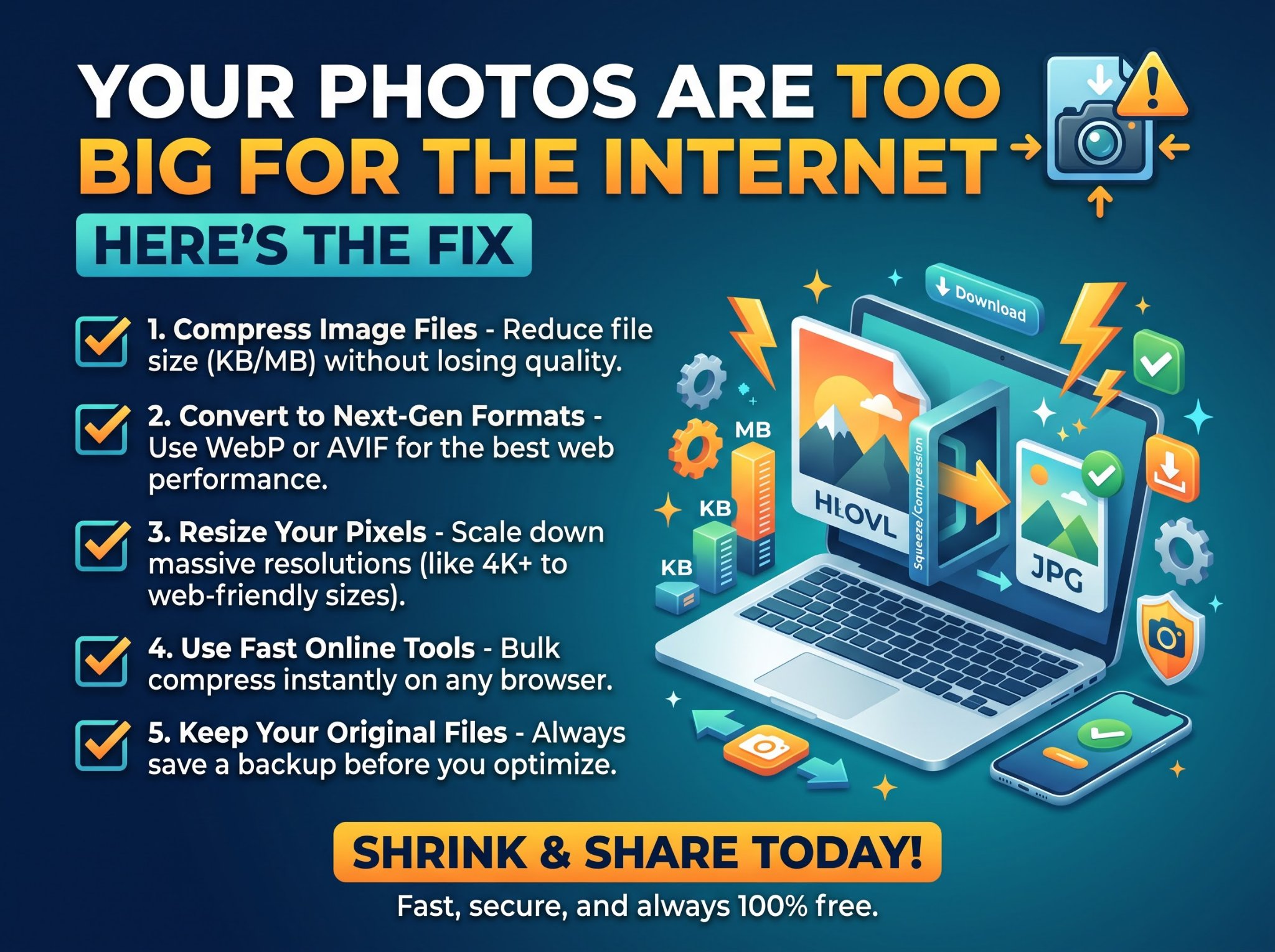
You attach a photo to an email and get the dreaded message: “file too large.” Your website loads slowly because every image is a 6MB monster. You could learn Photoshop’s export settings — or you could compress the image online free and shrink it by 80% in seconds, without it looking any different.
This guide explains how image compression actually works, when it’s safe, and how to squeeze photos down to a fraction of their size while keeping them sharp.
Why your images are so much bigger than they need to be
Photos from modern phones are huge — 12 to 48 megapixels, often several megabytes each. That size made sense for printing; it makes no sense for:
- Websites — a 5MB hero image is the single most common reason pages load slowly.
- Email attachments — most providers cap attachments around 25MB; three uncompressed photos can hit that.
- Uploads and forms — job portals, marketplaces, and government sites often limit files to 1–2MB.
- Messaging — sending full-size photos eats data and takes forever on slow connections.
Compression removes the redundant data your eyes can’t see, so the file shrinks dramatically while the picture looks the same.
How to compress an image online free in under a minute
A free image compressor runs right in your browser — no signup, no software, no watermark.
Step by step
- Open the compressor in your browser.
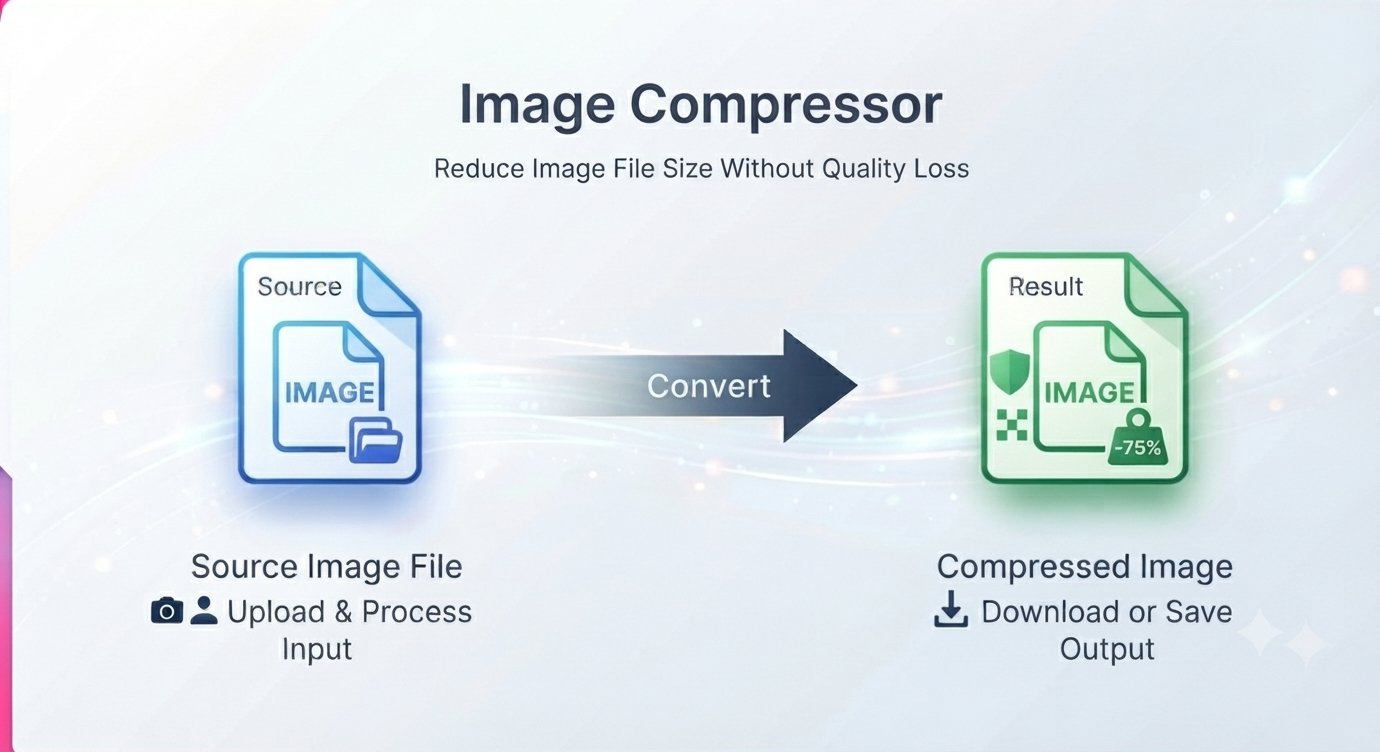
- Upload your image — JPG, PNG, WebP, and more are supported, and you can compress multiple images at once.
- Choose a compression level — low, medium, or high. Medium is the sweet spot for most photos.
- Click Compress and preview the result side by side with the original.
- Download your shrunken image instantly.
Lossy vs lossless: which should you pick?
- Lossy — throws away some image data for much smaller files. At medium settings, the difference is invisible to the human eye. Best for photos going on websites, social media, or email.
- Lossless — squeezes the file without losing any quality at all. Files stay bigger than lossy, but every pixel is identical. Best for archiving originals or images with sharp text and graphics.
For everyday sharing, lossy at medium quality is almost always the right call — a 4MB photo becomes ~400KB and looks identical on screen.
How much can you actually shrink an image?
It depends on the image, but realistic expectations:
- Phone photos (JPG): 60–85% smaller at settings where quality loss is invisible.
- Screenshots and graphics (PNG): often 50–70% smaller, especially with large flat-color areas.
- Already-optimized images: less — if a file was already compressed well, there’s less fat to trim.
If the preview looks noticeably worse, back the compression down a notch. Over-compression causes blocky artifacts, especially in smooth gradients like skies.
Three tricks for even smaller files
- Resize first, then compress. A 4000px-wide photo displayed at 800px is wasted pixels — resize it to the display size first, then compress. The two steps together can shrink a file by 95%.
- Match the format to the content. JPG for photos, PNG for graphics with text or transparency, WebP when you want the best of both.
- Compress once. Re-compressing an already-compressed JPG degrades it further each time. Always start from the original.
Compress image FAQ
Is compressing images free?
Yes — the compressor is completely free with no signup and no hidden costs.
Will compression ruin my image quality?
At sensible settings, no. Lossy compression at medium quality is visually identical to the original for photos. Only extreme compression causes visible artifacts.
What’s the difference between resizing and compressing?
Resizing changes the image’s dimensions (fewer pixels); compressing reduces the file size (less data per pixel). Use both together for the smallest files.
Can I compress multiple images at once?
Yes — batch compression is supported, so you can shrink a whole set of photos in one go.
Which formats are supported?
JPG, PNG, WebP, and more.
Are my images stored anywhere?
No — your images are not stored permanently; they’re processed and you’re done.
Oversized images are the number one reason pages load slowly. Compress yours before you upload. Compress your image free — no signup