If you’ve ever tried to reference “that page somewhere in the middle” of a long PDF, you know why page numbers matter. The good news: you can add page numbers to a PDF online free in under a minute — no software to install and no account to create. Trencada’s free Add Page Numbers to PDF tool numbers every page right in your browser.
Below, we’ll cover why numbered pages make documents easier to work with, how to insert page numbers into a PDF step by step, and the customization options you get — position, format, start number, font size, and color.
Why page numbers matter
Page numbers are one of those small details that make a big difference once a document grows past a few pages:
- Reports: help readers follow tables of contents, cross-references, and citations like “see page 12”.
- Theses and dissertations: universities usually require numbered pages for submission.
- Contracts and legal documents: numbered pages keep everyone literally on the same page and make clauses easy to cite.
- Ebooks and manuals: let readers bookmark, search, and discuss specific pages.
If your PDF was exported without numbers — or the numbering got lost when you merged files — adding them back takes seconds.
How to add page numbers to a PDF
Here’s how to number PDF pages free with Trencada:
- Upload your PDF. Click “Upload PDF File” or drag and drop your file onto the upload area.
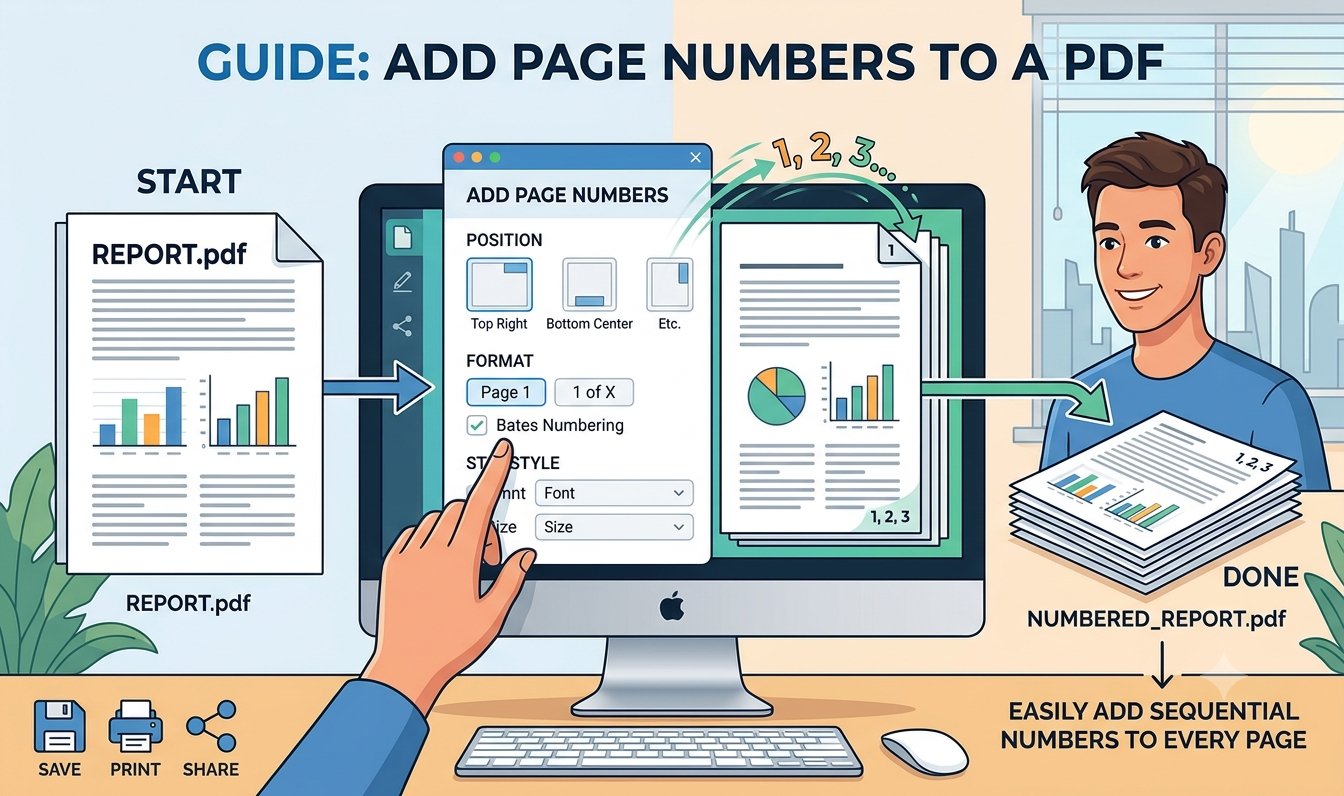
- Choose where the numbers go. Pick one of six positions: top or bottom of the page, aligned left, center, or right.
- Customize the look. Adjust the format (the default Page [P] of [T] prints something like “Page 3 of 12”), the start number, the font size, and the color.
- Check the live preview. The tool shows a preview of the first page with your settings applied, so you can tweak everything before committing.
- Click “Add Page Numbers”. Your numbered PDF downloads instantly, ready to share or print.
Customizing the numbers
Every option in the tool does exactly what it says — here’s what’s available:
- Position: six choices — top-left, top-center, top-right, bottom-left, bottom-center, and bottom-right.
- Format: a text template where [P] is the page number and [T] is the total page count. The default “Page [P] of [T]” gives “Page 3 of 12”; change it to just “[P]” for plain numbers.
- Start Number: the number printed on the first page. Leave it at 1, or set it higher (for example, 5) if your first pages are a cover or front matter.
- Font Size: adjustable from 6 to 72 pt (default 12).
- Color: any color via the color picker (default black).
The numbers are drawn in a clean Helvetica typeface with a small margin from the page edge, so they sit neatly in the header or footer area.
Where the numbers go
The six position options cover the classic header and footer spots:
- Bottom center or bottom right — the most common choice for reports and books.
- Top left, top center, or top right — useful when the footer is already busy with footnotes or disclaimers.
The tool applies your chosen position to every page, keeping the numbering consistent from the first page to the last.
Frequently asked questions
Is it free?
Yes. Numbering your PDF is completely free, with no account or signup required.
Is my PDF uploaded anywhere?
No. Your file never leaves your device — it’s read and numbered entirely in your browser, then downloaded straight back to you. Nothing is uploaded to a server, stored, or shared.
Can I choose the position?
Yes — six positions: top or bottom of the page, aligned left, center, or right.
Can I start numbering from a later page?
Partly. The Start Number setting controls which number is printed on the first page — set it to 5, for example, if your document’s real page 1 is the fifth sheet. But every page still gets a number; the tool doesn’t skip pages, so use this when your numbering is offset rather than when you want the first pages left blank.
Will it overwrite existing numbers?
No — the tool adds new numbers without removing anything already on the page. If your PDF already has page numbers, you’ll end up with two sets, so pick a different position for the new ones or remove the old numbering first.
Does it work on scanned PDFs?
Yes. The numbers are drawn as text on top of each page, so they appear on scanned or image-based PDFs just as well as on text-based ones.
Number your PDF in seconds
Adding page numbers is a two-minute job that makes any long document easier to navigate, cite, and share. Number your PDF pages now with Trencada’s free tool — no signup, no uploads, just a neatly numbered PDF ready to download.