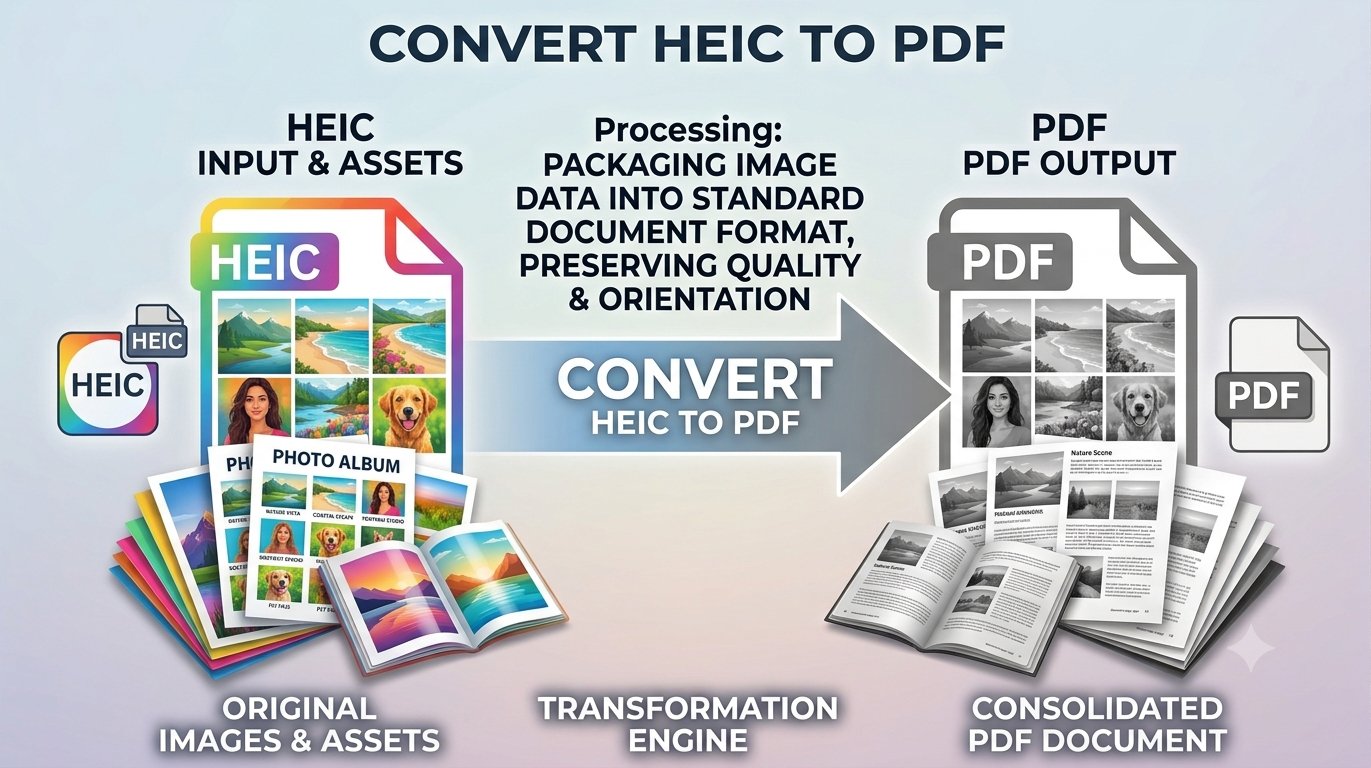
Your iPhone takes fantastic photos — then saves them as HEIC files that half the world can’t open. If you’ve ever tried to email an iPhone photo to a Windows user, upload it to a school portal, or attach it to a form that only accepts PDFs, you’ve hit the HEIC wall. The fix is simple: convert HEIC to PDF online free with Trencada’s browser-based tool. No signup, no software to install, and your photos never leave your device.
Why HEIC photos are a problem outside Apple
HEIC (High Efficiency Image Container) has been the iPhone’s default photo format since iOS 11. It stores excellent image quality in roughly half the file size of JPEG, which is great for your phone’s storage. The trouble starts the moment a photo leaves the Apple ecosystem: many Windows PCs, Android apps, email clients, printers, and web forms simply don’t recognize .heic files. The result is broken thumbnails, rejected uploads, and “file type not supported” errors at the worst possible moments.
PDF is the opposite story — it opens on virtually every device ever made. Converting your HEIC photos to PDF gives you a single, portable document that’s easy to share, print, and archive, no matter what device the other person uses.
How to convert HEIC to PDF
Here’s the whole process using Trencada’s free HEIC to PDF converter — it takes less than a minute:
- Choose your file(s). Click “Choose HEIC File(s)” — or drag and drop — to add one or more .heic or .heif photos. Each photo becomes one page in the PDF.
- Pick your page size and quality. Choose A4 or Letter pages, and High, Medium, or Low image quality.
- Hit “Convert to PDF”. The tool decodes each photo right in your browser — nothing is uploaded anywhere.
- Preview and download. Check the result in the preview, then click “Download PDF” to save your finished document.
What the PDF looks like
The output is a clean, print-ready PDF with one photo per page — no watermarks, no branding. The page size follows your choice of A4 or Letter, and the quality setting controls the balance between sharpness and file size: High keeps the most detail for printing, while Medium or Low produce smaller files that are easier to email. Because the tool accepts batch uploads, you can combine a whole set of photos into one tidy multi-page PDF in a single run.
HEIC to PDF vs HEIC to JPG: which should you choose?
Both conversions start from the same HEIC photo — the right one depends on what you need the result for:
- Choose PDF when you need a document: printing, archiving, or submitting photos to services, portals, and forms that specifically ask for PDF. A multi-page PDF also keeps a whole photo set in one tidy file.
- Choose JPG when you need a regular image file: sharing on social media, messaging apps, or uploading to websites that expect standard image formats. If that’s your goal, convert HEIC to JPG with Trencada’s free converter instead.
Frequently asked questions
Is it free?
Yes. The converter is completely free — no signup, no hidden fees, and no watermark on the finished PDF.
Is my photo uploaded anywhere?
No. The tool processes everything in your browser — Trencada describes it as 100% client-side processing, so your photos never leave your device and are never transmitted to or stored on any server.
Can I convert multiple HEIC files?
Yes. You can select several HEIC photos in one batch, and each photo becomes its own page in a single PDF.
What page size is the PDF?
You choose: A4 or Letter. Pick whichever matches your printer or the requirements of whoever receives the document.
Does it work on Android and Windows?
Yes. The converter runs in any modern browser on desktop, tablet, or phone — including Android and Windows — with nothing to install.
Will quality be preserved?
The tool offers High, Medium, and Low quality settings. Choose High for the best detail — your HEIC photo is decoded and placed into the PDF at the quality level you select, so High keeps it looking sharp for printing and archiving.
Ready to turn those iPhone photos into shareable documents? Try Trencada’s free HEIC to PDF converter and convert iPhone HEIC to PDF in seconds, right in your browser.