When a legal team hands you 2,000 pages for discovery, nobody wants to dig through an unnumbered stack. Bates numbering PDF stamps give every page its own unique, sequential ID — and with Trencada’s free Bates numbering tool for PDF, you can stamp a whole document right in your browser, without uploading it anywhere. This guide walks you through the full workflow, from your first upload to the final download.
What Is Bates Numbering?
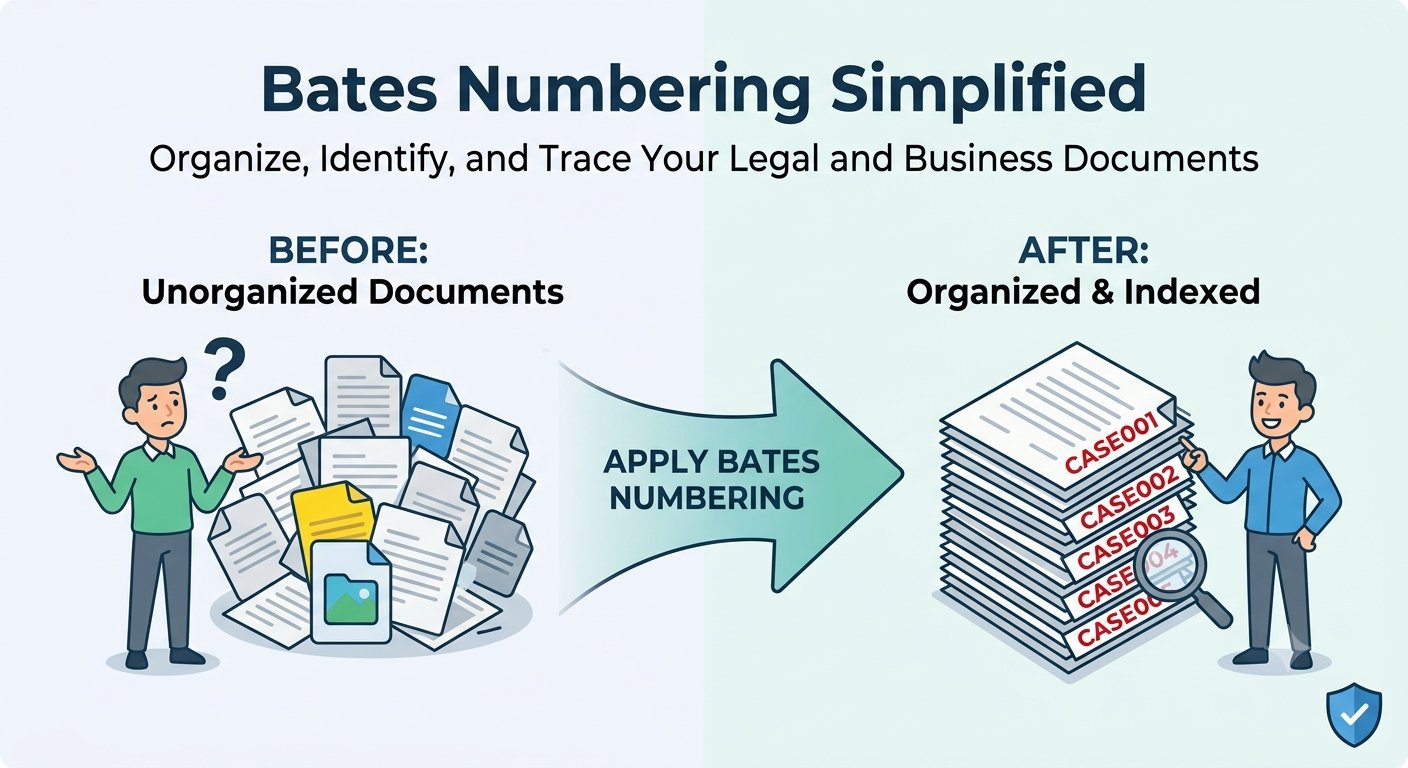
Bates numbering is a method of assigning a unique, sequential identifier to every page of a document — something like ABC-000001, ABC-000002, ABC-000003, and so on. Each label pairs a short prefix with a zero-padded number, so the IDs sort and search cleanly.
The practice comes from the legal world, where law firms and courts need a reliable way to reference specific pages across huge document productions. Instead of saying “page 14 of that one binder,” everyone can cite ABC-000014 and know exactly which page they mean.
When You Need Bates Numbering
You don’t have to be a lawyer to find Bates stamps useful. Here are the situations where sequential page numbering pays off:
- Litigation and discovery — identify and reference every page in a document production without ambiguity.
- Compliance and audits — hand regulators or auditors a numbered set of records that’s easy to cite and track.
- Large document sets — contracts, reports, archives, and manuals stay organized when every page carries its own ID.
- Office record-keeping — numbered pages make scanning, filing, and retrieval far less error-prone.
How to Add Bates Numbering PDF Stamps in 5 Steps
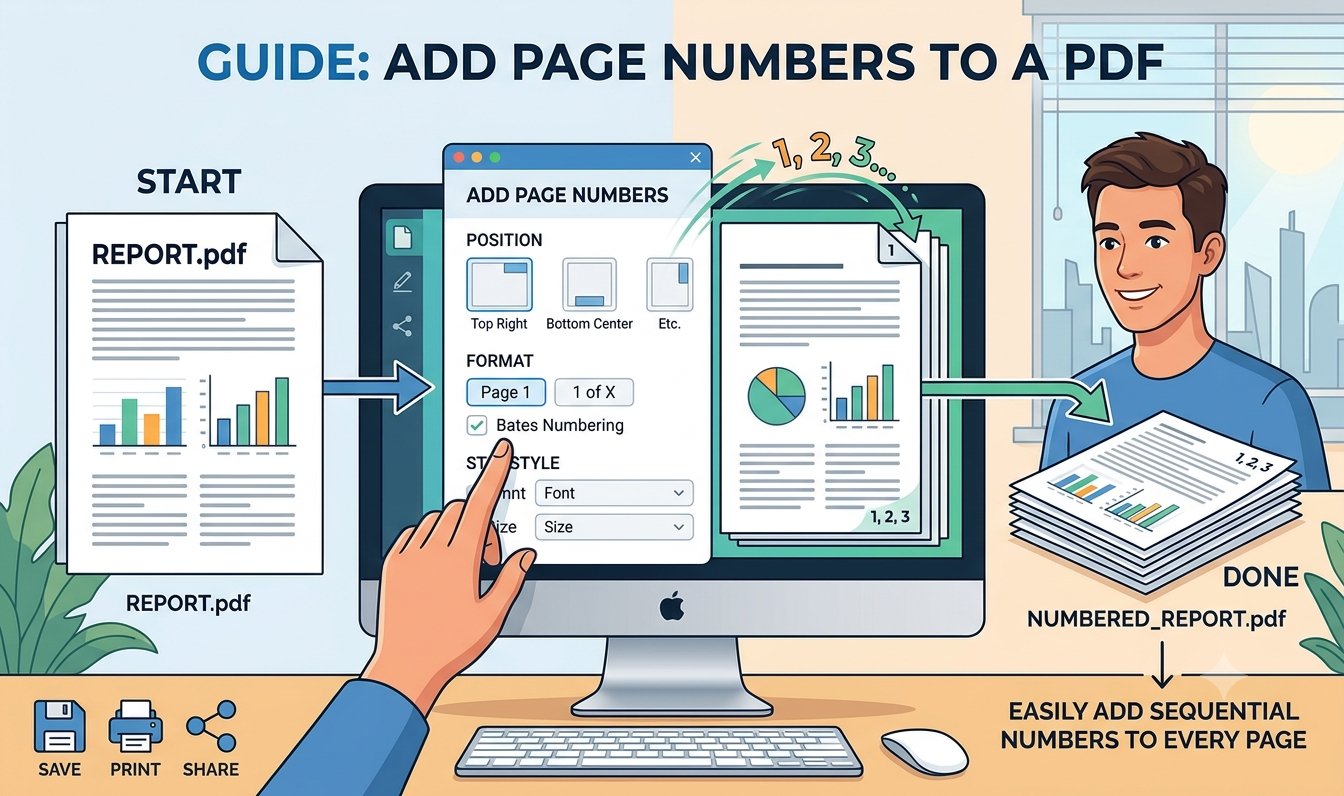
Trencada’s Bates numbering tool stamps sequential numbers on every page of your PDF in a few clicks — the fastest way to number pages of a PDF sequentially without installing anything:
- Open the tool and add your PDF. Drop the file onto the upload area or click Choose File — files up to 200 MB are supported.
- Set your label options. Enter a prefix (the default is ABC-), choose the starting number (default 1), and pick how many digits the number should have. The tool zero-pads it, so with 6 digits page 1 becomes 000001.
- Choose the position and size. Place the stamp at the bottom center, bottom left, bottom right, top left, top center, or top right, and adjust the font size. A live preview shows exactly what your label will look like before you commit.
- Apply the stamps. Click Apply Bates Numbers. The tool stamps every page, then shows a summary: how many pages were stamped, the first and last labels, and the output file size.
- Download the stamped PDF. Click Download Stamped PDF to save the result. Processing another file? Hit Stamp Another PDF and go again.
Customizing Your Bates Stamp
Adding Bates numbering to a PDF with Trencada gives you control over every part of the label:
- Prefix — any text you like, such as a matter or client code (ABC-, CONTRACT-, EXH-).
- Starting number — begin at 1, or pick up numbering where a previous batch left off.
- Digits — set the zero-padding from 1 to 10 digits, so ABC-000001 keeps its tidy format even in huge productions.
- Position — six placements with clean half-inch margins: bottom center, bottom left, bottom right, top left, top center, or top right.
- Font size — adjustable from 6 to 72 pt, so the stamp stays readable without overpowering the page.
The stamps are added as crisp vector text on every page, so they stay sharp at any zoom level and never blur the underlying document.
Frequently Asked Questions
Is Bates numbering free on Trencada?
Yes. Every Bates numbering PDF you stamp on Trencada is free — no signup, no watermarks, and no limit on how many documents you process.
Is my PDF uploaded anywhere?
No. All stamping happens right in your browser using a JavaScript PDF library — your file is never uploaded to a server, which makes the tool a good fit for sensitive documents.
What does a Bates number look like?
A typical Bates number is a short prefix followed by a zero-padded sequential number — for example, ABC-000001 through ABC-000250 for a 250-page file. The tool’s live preview shows your exact format before you apply it.
Can I use a custom prefix?
Yes. Type any prefix you want — a client code, matter number, or exhibit label — and it appears before every number in the sequence.
Can I choose where the number appears?
Yes. Place the stamp at the bottom center, bottom left, bottom right, top left, top center, or top right of each page, and adjust the font size to suit your document’s layout.
Does it work on scanned PDFs?
Yes. The stamp is overlaid as new text on every page, so it works on scanned PDFs just as well as on digitally created ones. One thing to know: password-protected PDFs aren’t supported.
Ready to number your pages? Try the free Bates stamp tool from Trencada and finish your Bates numbering PDF in under a minute.