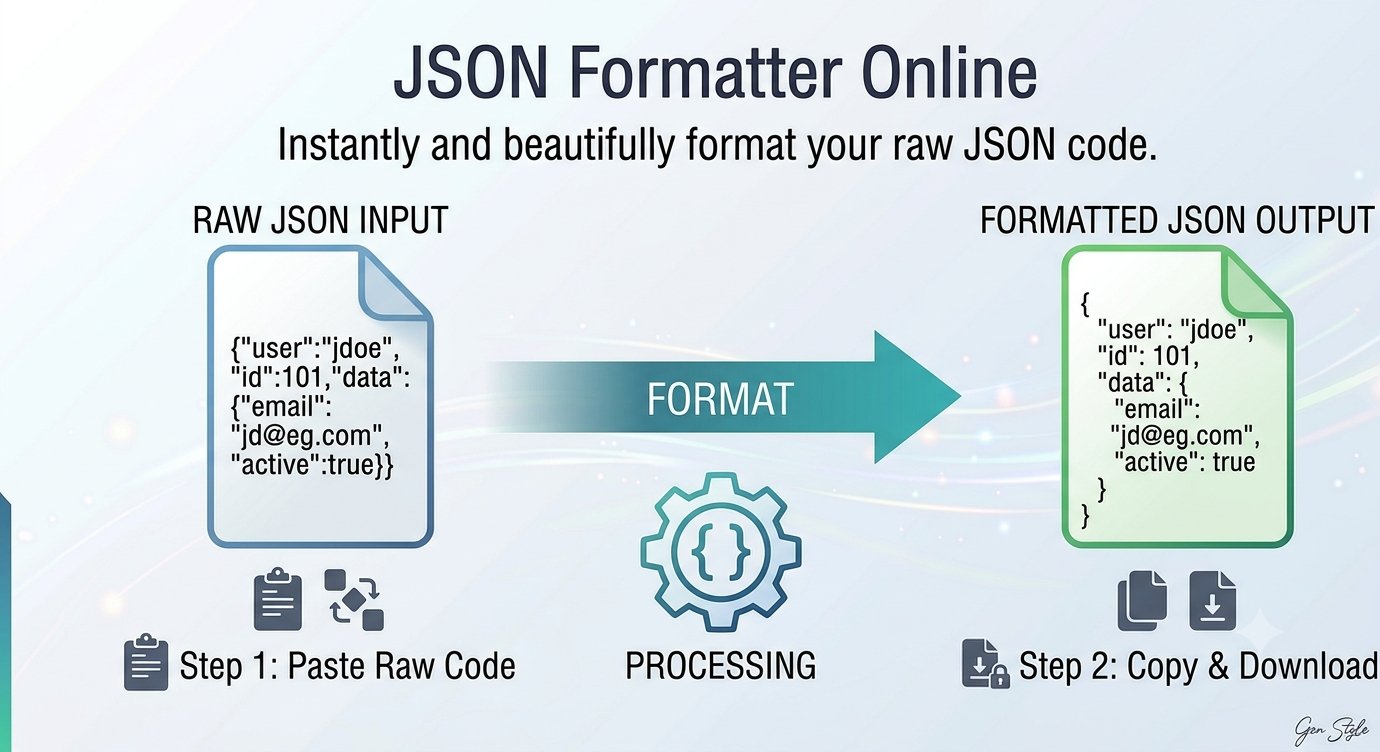
JSON is the language of modern APIs, config files, and data feeds — but it usually arrives as a single dense line that is painful to read by hand. A json formatter online takes that wall of text and turns it into clean, indented, human-readable structure in one click. Trencada’s free JSON Formatter does exactly that, and adds a built-in json validator and minifier, all running right in your browser with nothing to install.
What JSON formatting actually does
Computers don’t care about whitespace — but developers do. Minified JSON strips out every unnecessary space and line break so the file is as small as possible, which is ideal for sending data over a network. Formatted (or beautified) JSON adds indentation and line breaks so you can actually see the structure: which objects nest inside which, where arrays start and end, and where a missing comma might be hiding.
Here is the same data, both ways:
{"user":{"name":"Ada","active":true},"roles":["admin","editor"]}{
"user": {
"name": "Ada",
"active": true
},
"roles": [
"admin",
"editor"
]
}Same data, same meaning — one layout is for machines, the other is for humans. Formatting never changes your data; it only changes how it is displayed.
How to format and validate JSON in seconds
Using the tool takes about ten seconds:
- Paste your JSON. Drop your code into the input editor — a live counter shows the character and line count as you type. (To validate json online without changing your code, this is all you need before the next step.)
- Pick your indentation. Choose 2 spaces, 4 spaces, or a Tab from the Indent dropdown to match your project’s style.
- Format, minify, or validate. Click Format JSON to beautify with proper indentation, Minify JSON to compress everything into a single compact line, or Validate JSON to check the syntax without changing a thing.
- Copy, download, or clear. Use Copy JSON to grab the result, Download JSON to save it as a
data.jsonfile, or Clear to reset the editor and start over. - Fix errors at the exact spot. If your JSON is broken, the tool flags the precise line and column where parsing fails — more on that next.
Common JSON errors and how to spot them
JSON’s syntax rules are strict, and one misplaced character breaks the whole file. Run Validate JSON on broken input and the tool reports something like “Invalid JSON. Error near line 1, column 28” — pointing you straight at the break point. The usual culprits it catches include:
- Trailing commas —
{"name": "Ada",}looks harmless, but JSON forbids a comma after the last item. - Missing commas —
{"a": 1 "b": 2}needs a comma between the two pairs. - Unquoted keys or single quotes —
{name: 'Ada'}fails; JSON requires double-quoted keys and strings. - Missing closing brackets or braces — an unclosed
[or{anywhere breaks the parse.
The fix is usually mechanical: jump to the reported line and column, correct the character, and hit Validate JSON again. Repeat until you get the green confirmation — then format with confidence.
Minify vs beautify: when to use each
A good json beautifier handles both directions, because each has its moment:
- Beautify when you are reading, debugging, or editing. Reviewing an API response, editing a config file, or hunting a bug? Indented JSON lets you scan structure at a glance.
- Minify when you are shipping. Production payloads, embedded data, or anything sent over the wire should be as small as possible. Minified JSON keeps every byte of meaning and drops everything else.
Either way, the underlying data is identical — you are just choosing the presentation that fits the job.
Frequently asked questions
Is it free?
Yes. The tool is completely free to use — no account, no signup, no software to install. You can format json free as often as you like.
Is my JSON uploaded anywhere?
No. The tool states that all processing happens locally in your browser — your JSON is never uploaded to a server or stored anywhere online.
What happens with invalid JSON?
The validator shows an error message with the exact line and column where parsing broke (for example, “Invalid JSON. Error near line 1, column 28”), so you can jump straight to the problem. Nothing is formatted until the syntax is valid — fix the flagged spot and validate again.
Can I minify JSON too?
Yes — the Minify JSON button compresses your code into a compact single line, which is handy for production files and API payloads where size matters.
Is there a size limit?
No specific limit is stated — the tool page says “no limits” and requires no signup. Because everything runs in your browser, your device does the work rather than a remote server.
Do you store my data?
No. Since everything is processed locally in your browser, there is nothing on Trencada’s side to keep — paste, format, copy, and it is gone when you close the tab.
Next time an API hands you a wall of minified JSON, don’t squint at it — run it through Trencada’s JSON Formatter and get clean, validated, readable data in seconds. And if you work with authentication tokens, remember that JWT payloads are just JSON too — you can decode a JWT and paste its payload straight into the formatter to inspect it.