Ever opened a PDF only to find the pages completely out of order? Maybe the scanner fed your pages in the wrong sequence, two documents got merged back to front, or you spotted a last-minute mistake before sending a report. Whatever happened, you don’t need to rescan or wrestle with expensive software — with Trencada’s free Organize PDF tool, you can reorder PDF pages in seconds: drag, drop, and download your fixed file with no signup and no watermarks.
In this guide, you’ll learn when PDF page order goes wrong, how to rearrange PDF pages step by step, and a few extra things you can do while organizing your document.
When page order goes wrong
PDF page order problems are more common than you’d think. Here are the usual suspects:
- Scanned out of order. Multi-page scanners and phone apps sometimes save pages in the order they were fed, not the order they belong in — especially if you scanned in batches.
- Merged documents. Combining two or more PDFs into one file can stack the pages in an order that made sense during the merge but reads badly afterwards.
- Last-minute changes. You need to move the summary to the front, push the appendix to the back, or slot a new page into the middle of a finished document.
The good news: fixing page order doesn’t mean recreating the PDF. You just need a tool that lets you see every page and rearrange them visually.
How to reorder PDF pages
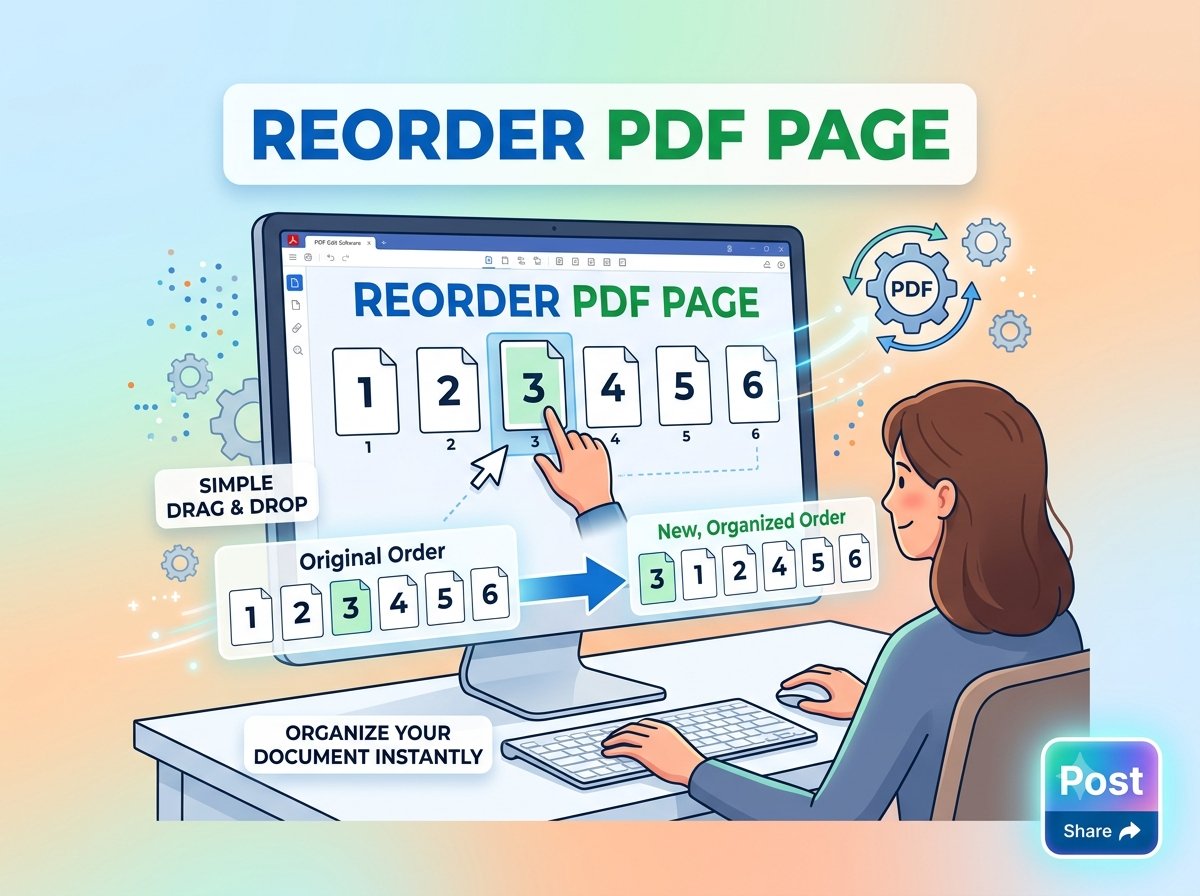
Trencada’s Organize PDF tool shows every page as a thumbnail, so you can see exactly what you’re moving. Here’s how it works:
- Upload your PDF. Click the Upload PDFs button and choose your file — or simply drag and drop it onto the page. You can upload more than one PDF if you want to combine pages from several files.
- Browse the page thumbnails. Every page appears as a thumbnail preview, so you can quickly spot which pages are out of place.
- Drag pages into the right order. Click and drag any thumbnail to its correct position. The order updates live as you move pages around.
- Click Organize PDF. When the order looks right, hit the Organize PDF button. The tool builds a single new PDF with your pages in the new order, ready to download.
That’s it — four steps, and your document reads the way it should.
What else you can do while organizing
Reordering is just the start. While your pages are laid out as thumbnails, you can also:
- Rotate pages. Click the rotate icon on any page to turn it 90° at a time — handy for sideways scans. Click again to keep rotating until it’s upright.
- Delete pages. Click the delete icon to remove unwanted pages, like blank scans or duplicates. Changed your mind? The restore option brings a deleted page straight back.
- Merge multiple PDFs. Upload several files at once and the tool combines all their pages into one organized PDF, in whatever order you arrange them.
- Keep everything private. The tool runs entirely in your browser — your files never leave your device, and there’s no signup.
Tips for getting the order right
- Use the thumbnails as your map. Scan through every thumbnail before you start dragging, so you know the full picture.
- Zoom in on lookalike pages. Pages with similar layouts (tables, forms, charts) are easy to mix up — take a closer look before placing them.
- Fix rotation first. Straighten any sideways pages before reordering, so you’re judging each page’s actual content.
- Remove the clutter first. Delete blank or duplicate pages early, so you’re only arranging the pages that matter.
- Double-check the download. After organizing, open the downloaded PDF and flip through it once to confirm the order.
Frequently asked questions
Is it free to reorder PDF pages?
Yes. Trencada’s Organize PDF tool is free to use, with no signup and no watermarks on your files.
Is my PDF uploaded anywhere?
No. The tool runs entirely in your browser on your device, so your files never leave your computer or phone.
Can I delete pages too?
Yes. Click the delete icon on any page thumbnail to remove it, and use the restore option if you change your mind before downloading.
Can I rotate pages?
Yes. Each page has a rotate icon that turns it 90° at a time — click repeatedly until the page is the right way up.
Will reordering change the file quality?
No. Reordering only changes the sequence of pages; the content of each page stays exactly as it was.
Does it work on my phone?
Yes. The tool works in any modern browser on desktop or mobile, so you can organize PDF pages on the go.
Ready to fix your document? Open Trencada’s free Organize PDF tool, drag your pages into the perfect order, and download your polished PDF — no signup needed.