Need to share just a few pages from a long PDF? Whether you’re sending a single chapter, pulling out a receipt, or breaking a bulky report into smaller files, the easiest way is to split PDF online free with Trencada — no upload, no signup, and it works right in your browser.
Why split a PDF?
Large PDFs are awkward to share and slow to open. Splitting one into smaller files helps when you want to:
- Share only the pages someone needs, like a single chapter or contract section
- Reduce file size so documents are easier to email or upload
- Pull out specific pages — receipts, certificates, or forms — as standalone files
- Organize a long document into logical parts you can manage separately
How to split PDF online in 4 steps
- Drop your PDF into the tool. Open Trencada’s Split PDF tool and drag your file onto the drop zone — or click to browse your files.
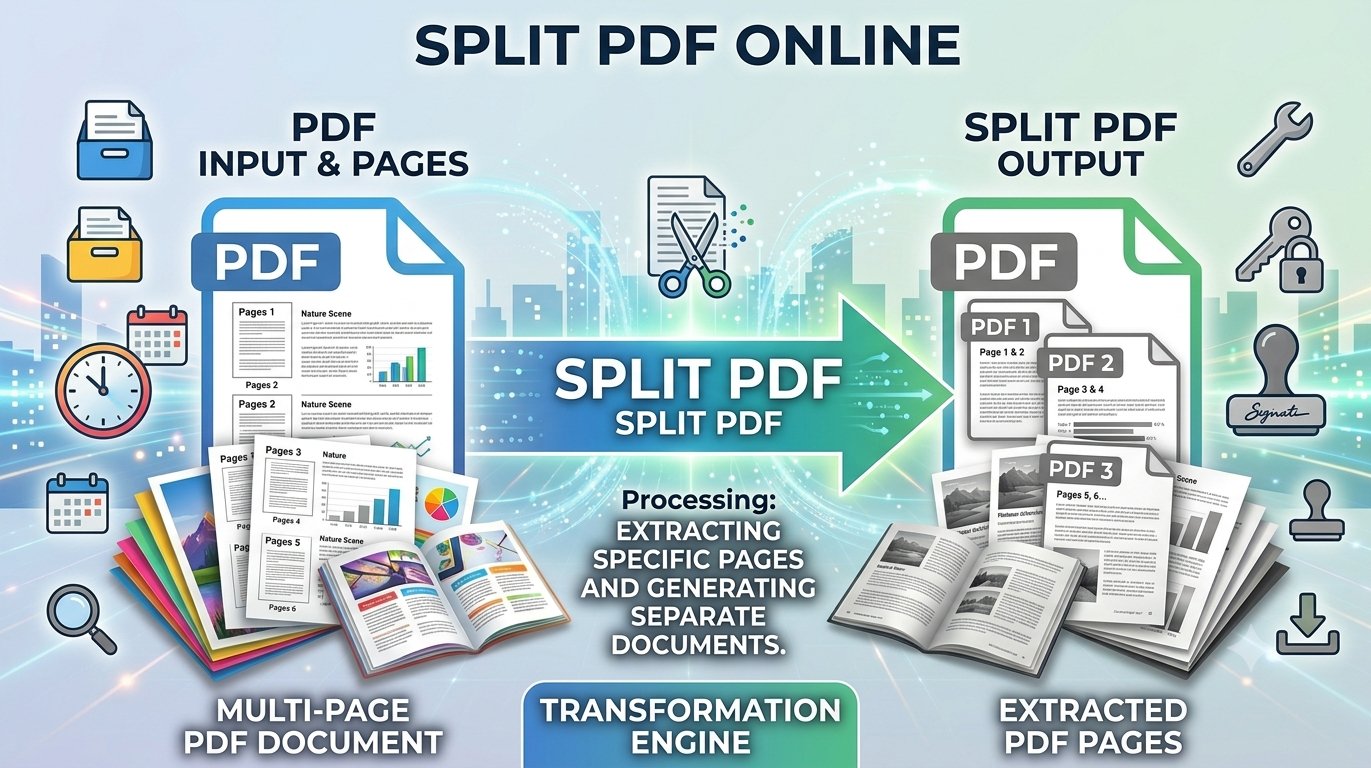
- Pick a split mode. Choose “Split All Pages Individually” to turn every page into its own file, or “Split by Page Ranges” to define exactly which pages go together.
- Enter your page ranges (optional). If you chose ranges, type them in the box — for example
1-5, 8, 10-12. Overlapping or invalid ranges are ignored automatically. - Split and download. Click “Split PDF”, then download each resulting file with its own green download button.
The split modes explained
Split all pages individually
This is the default mode, and the simplest one: each page of your PDF becomes its own separate PDF file. A 12-page document gives you 12 files — one per page. It’s the fastest option when you need to extract pages from a PDF without deciding anything in advance.
Split by page ranges
Need more control? With page ranges you decide exactly how the document is divided. Type ranges like 1-5, 8, 10-12 and each range becomes its own file — so a report’s introduction, main chapters, and appendix can each become a separate document. You can mix single pages and ranges in one entry, and the tool simply ignores any overlapping or invalid ranges.
After splitting: downloads and filenames
Once the split finishes, each new file appears with its own green download button, clearly labeled after what it contains — “Page 1” for individual pages, or “Range 1-5” for page ranges. Download the files you need one by one; there’s also a “Split Another PDF” button when you’re ready for the next document. Keep your original file too — splitting creates separate copies, so the source document stays untouched.
FAQ
Is it free to split PDF online?
Yes. Trencada’s Split PDF tool is completely free, with no signup and no watermark on your files.
Is my PDF uploaded anywhere?
No. Splitting happens entirely in your browser — your file never leaves your device, so nothing is uploaded to a server.
How many files do I get?
It depends on the mode you choose. “Split All Pages Individually” produces one file per page, so a 20-page PDF becomes 20 files. “Split by Page Ranges” produces one file per range you define.
Can I pick exact pages?
Yes — choose “Split by Page Ranges” and type exactly the pages you want, like 1-5, 8, 10-12. Each range becomes its own file.
Will splitting change the quality of my PDF?
No. Splitting divides your existing pages into separate files without re-rendering them, so the pages keep their original quality.
Do I need an account?
No account needed. Open the tool, split your PDF, and download — that’s it.
Ready to split PDF online? Try Trencada’s free Split PDF tool — extract pages or split by page ranges in seconds, right in your browser.