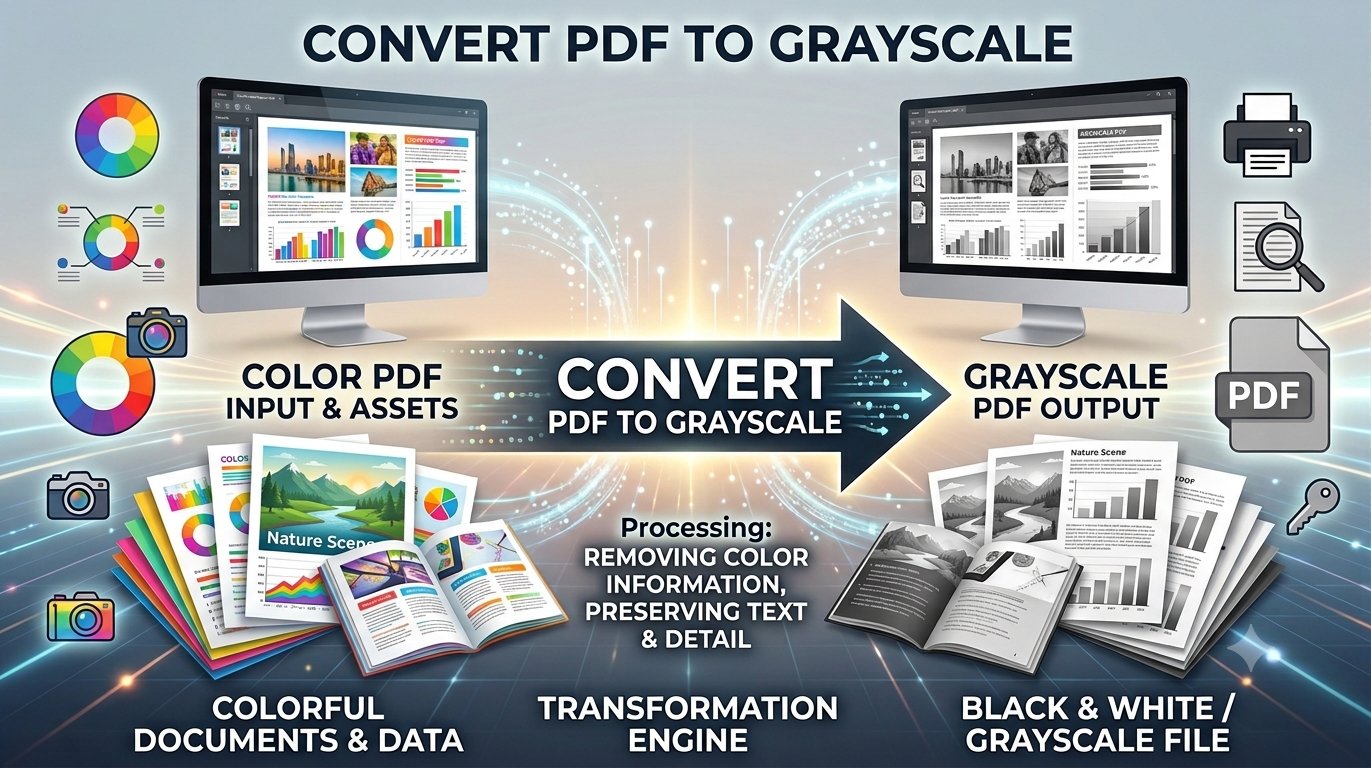
Printing a colorful PDF on a home or office printer can burn through expensive color ink on a document that never needed color in the first place. The simple fix: convert PDF to grayscale before you print or share it. A grayscale PDF keeps every word and layout intact while swapping full color for clean shades of gray.
With Trencada’s free PDF to grayscale tool, the whole conversion happens in your browser — no signup, no software, and your file is never uploaded anywhere. Convert your PDF to grayscale now and get a print-ready file in seconds.
Why grayscale PDFs matter
Color printing is one of the quietest budget drains in any home or office. Every logo, photo, and colored heading on the page draws from your color ink or toner cartridges — even when the document would read perfectly well in black and white. Converting to grayscale first means your printer only uses black ink or toner, which stretches your cartridges further.
Grayscale can also produce leaner files. Stripping out color information often shrinks PDFs that are heavy on color images — handy when you are emailing documents or uploading them to forms with file-size limits. And if your office runs a black-and-white printer, a grayscale PDF prints exactly as you see it on screen, with no surprises.
How to convert PDF to grayscale
Here is how it works with Trencada’s converter — the whole thing takes under a minute:
- Upload your PDF — click “Choose PDF File” or drag and drop your document into the upload zone.
- Check the preview — the first page renders in color and grayscale side by side, so you can see exactly what the conversion will look like before you commit.
- Pick a quality level — choose Standard (150 DPI), High (200 DPI), or Print (300 DPI). Higher DPI gives sharper text, but takes longer to process and produces a larger file.
- Convert — click “Convert to Grayscale” and watch the progress bar as every page of your document is converted automatically.
- Download — preview the result, compare the before-and-after file sizes shown on screen, then click “Download Grayscale PDF” to save your new file (named your-file-grayscale.pdf).
When grayscale is the right choice
Grayscale shines for everyday documents where color adds nothing:
- Printing drafts, handouts, and internal documents
- Forms, invoices, notes, and student assignments
- Any document heading to a black-and-white printer
- Sharing files where a smaller, simpler document is easier to handle
Skip it when color carries meaning you cannot afford to lose — for example, documents where color-coded information would become ambiguous, or official paperwork that requires color stamps or signatures.
What changes and what doesn’t
It helps to know exactly what the conversion does, so there are no surprises:
- Colors become shades of gray. A red heading becomes a gray shade; a blue chart becomes a mix of gray tones. Detail is preserved — it is not a harsh two-color black-and-white conversion.
- Each page is re-rendered as an image. Text stays visually readable, but it is no longer selectable or searchable in the converted file.
- Your original is untouched. The tool creates a brand-new PDF for you to download — your color original stays exactly as it was.
- Layout, page count, and page size stay the same. Only the color information changes.
One tip: check the side-by-side preview before converting. Very light colors can become hard to read in gray, and the preview lets you spot that in advance.
Frequently asked questions
Is converting a PDF to grayscale free?
Yes. Trencada’s PDF to grayscale tool is completely free, with no signup and no hidden fees.
Is my PDF uploaded anywhere?
No. The conversion runs entirely in your browser, so your file never leaves your device and is never uploaded to any server.
Can I convert the PDF back to color afterward?
No — the conversion is one-way. Once the color information is removed, it cannot be restored from the grayscale file, so keep your original color PDF somewhere safe.
Does grayscale reduce file size?
It can, especially for PDFs with lots of color images, because the color information is removed. The exact result depends on the quality level you choose — the tool shows the original and converted file sizes after processing so you can compare. If shrinking the file is your main goal, compressing the PDF is the more direct route.
Will text still be readable?
Yes. Text stays visually readable — it is simply rendered as part of each page’s image. For the sharpest text, choose the High (200 DPI) or Print (300 DPI) quality level. Just remember you will not be able to select or copy text from the converted file.
Does it work on scanned PDFs?
Yes. Because every page is re-rendered as an image during conversion, scanned PDFs convert just like text-based ones. (The same caveat applies: text in the result is not selectable — but in a scan, it was not selectable to begin with.)
Ready to stop wasting color ink? Convert your PDF to grayscale free with Trencada — private, fast, and done in under a minute.