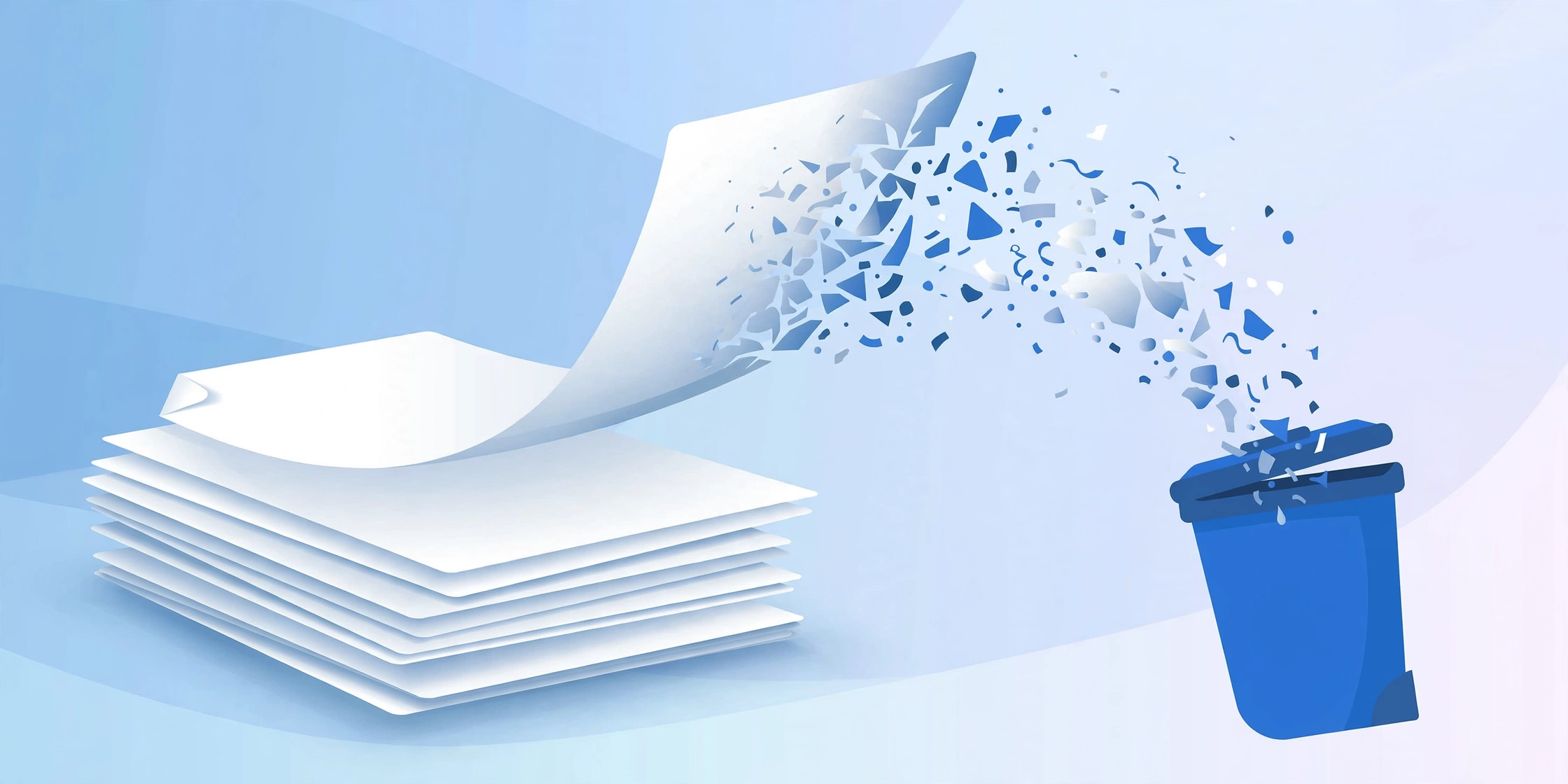
Almost everyone who writes in Microsoft Word has met the mystery blank page: it refuses to be selected, the Delete key does nothing, and it shows up in every printout. Here are five methods that actually work, depending on what is causing the extra page.
Method 1: Select the Page and Delete It
For a page with actual content you want gone, the simplest approach usually works:
- Click anywhere on the unwanted page.
- Press Ctrl + G (Go To), type
\pagein the box, and press Enter — this selects the entire current page. - Press Delete (or Backspace).
The \page trick is more reliable than dragging with the mouse, because it guarantees you select everything on the page and nothing else.
Method 2: Delete a Blank Page at the End of the Document
A trailing blank page is almost always caused by invisible paragraph marks. To see them, press Ctrl + Shift + 8 (or click the ¶ button on the Home tab).
- Turn on paragraph marks with Ctrl + Shift + 8.
- Go to the end of your document and select all the ¶ marks on the blank page.
- Press Delete.
If the marks will not delete because they carry formatting, select them and shrink the font size to 1 pt — the page will collapse and disappear.
Method 3: Remove a Manual Page Break
If someone pressed Ctrl + Enter, Word inserts a manual page break that pushes everything after it onto a new page. With paragraph marks visible (Ctrl + Shift + 8), the break shows as a dotted line labeled “Page Break”. Click just before it and press Delete, or select it and press Delete.
Method 4: Delete a Blank Page in the Middle (Section Breaks)
Blank pages in the middle of a document are usually caused by section breaks — often left behind after deleting a landscape page or changing headers. With paragraph marks visible, look for a double dotted line labeled “Section Break”. Place your cursor just before it and press Delete.
Warning: removing a section break can change headers, footers, and page orientation for the surrounding pages, because the section after the break inherits the formatting of the section before it. If your layout shifts, press Ctrl + Z and try Method 5 instead.
Method 5: Tighten Paragraph Spacing
Sometimes there is no extra page at all — just a paragraph whose “Space After” or line spacing pushes a single line onto the next page. Select the last paragraph of the previous page, open Paragraph settings (Home tab → the small arrow in the Paragraph group), and reduce the spacing. The orphan line snaps back up.
Finished Editing? Convert It to PDF
Once your document looks right, save it as a PDF so the layout stays exactly as you designed it on any device. Trencada’s free Word to PDF converter turns your DOCX into a PDF in seconds — no signup, no watermark.
Frequently Asked Questions
Why won’t the blank page delete when I press Backspace?
Because the page is held open by invisible formatting — paragraph marks, page breaks, or section breaks. Turn on ¶ marks (Ctrl + Shift + 8) to see the real cause, then delete that.
How do I delete a page in Word on Mac?
The same methods work: Cmd + Option + G opens Go To, type \page, press Enter, then Delete. Paragraph marks toggle with Cmd + 8.
Will deleting a page affect the rest of my document?
Deleting content pages is safe. Only section breaks carry layout formatting — if in doubt, work on a copy of the file first.