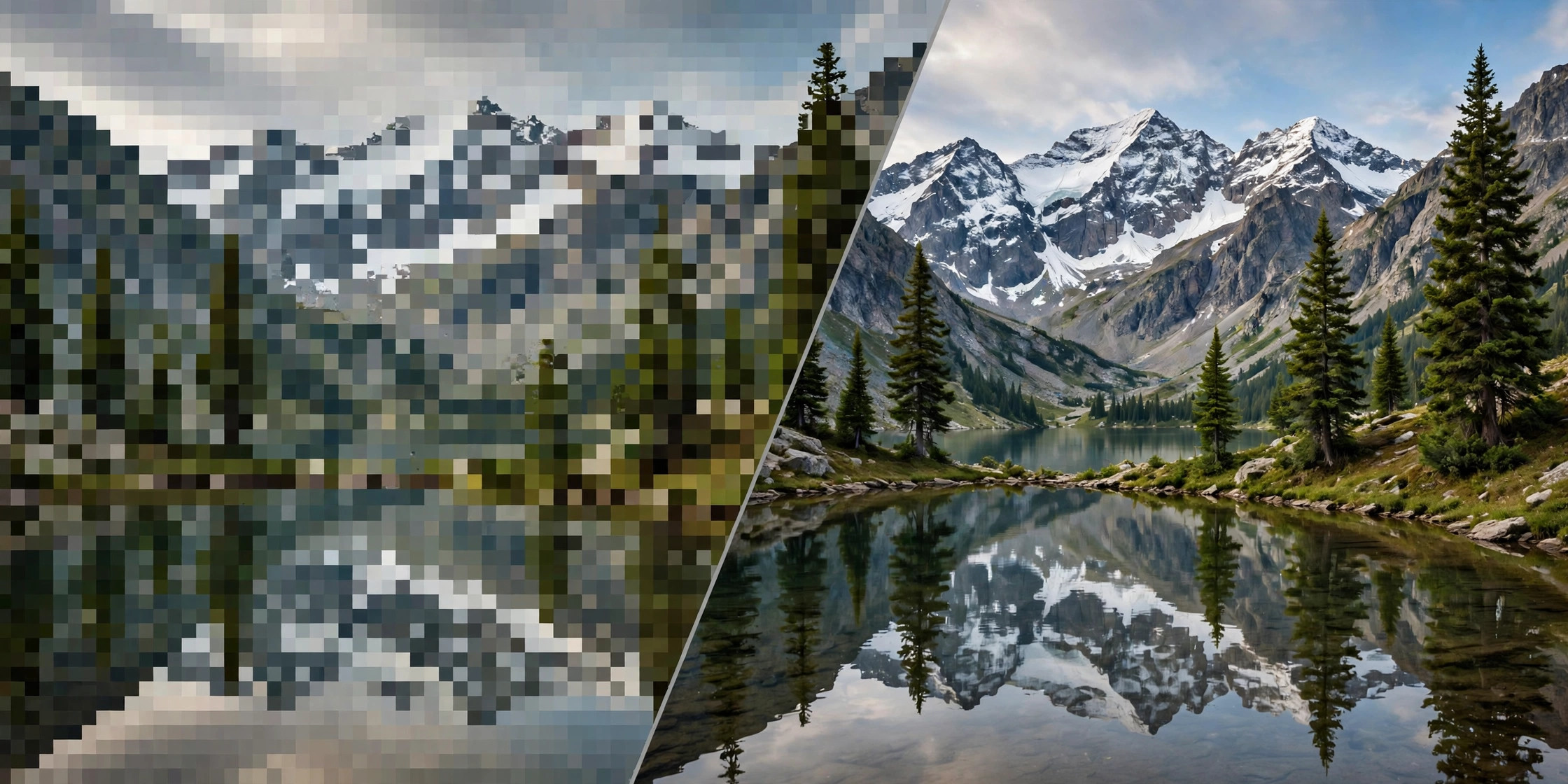
Pixelated photos happen when an image doesn’t have enough pixels for the size it’s displayed at — zoom in and the smooth edges turn into visible blocks. The good news: in many cases you can genuinely improve a pixelated photo, as long as you set the right expectation. Upscaling adds pixels and smooths edges, but it can’t recover detail that was never captured. Here’s what actually works.
Why photos look pixelated
- Too few pixels for the display size. A 400 × 400 px image stretched across a full screen will always look blocky.
- Heavy compression. Aggressive JPEG compression throws away detail and leaves blocky artifacts.
- Repeated re-saving and screenshotting. Every save-and-repost cycle (especially through messaging apps) degrades quality further.
- Digital zoom. Zooming past the optical limit just enlarges existing pixels.
1. Start from the best original you have
Before upscaling anything, hunt down the highest-resolution version of the photo: the original camera file, the cloud backup, or the unedited export. Fixing a 200 KB heavily compressed copy is far harder than fixing the 5 MB original. If the photo came through WhatsApp or social media, check whether the sender still has the original.
2. Upscale it with a free online upscaler
For mild to moderate pixelation, enlarging the image with high-quality resampling plus sharpening visibly smooths blocky edges. Trencada’s free Image Upscaler enlarges photos 2×, 3×, or 4× with optional sharpness enhancement — entirely in your browser, no upload, no signup. It works best on photos that are slightly soft or a bit too small, like old profile pictures or cropped screenshots.
3. Reduce compression artifacts first
If the photo is full of JPEG blockiness rather than simple low resolution, upscaling alone can exaggerate the blocks. In a desktop editor (GIMP is free, Photoshop is paid), apply a light noise-reduction or blur filter before enlarging — this smooths the compression artifacts so the upscale has cleaner data to work with.
4. Use AI upscaling for badly damaged photos
When a photo is severely pixelated — a tiny thumbnail you need at poster size, for example — conventional upscaling hits its limit. This is where dedicated AI upscalers (Topaz Gigapixel, or free options like Upscayl) earn their keep: they hallucinate plausible detail rather than just smoothing pixels. Results vary by photo, and faces can look slightly “reconstructed,” so compare before/after carefully.
5. Prevent pixelation next time
- Shoot at your camera’s highest resolution and avoid digital zoom.
- Share originals, not screenshots — send photos as files/documents in messaging apps.
- Export for the target size: don’t upload a 600 px image where a 1920 px one is needed.
- Keep one master copy and make smaller versions from it, never the reverse.
Frequently asked questions
Can you really fix a pixelated photo?
You can improve it — smoothing blockiness and enlarging it cleanly — but no tool recovers detail that was never recorded. Moderate cases improve dramatically; extreme cases only partially.
Is upscaling the same as enhancing?
Upscaling increases pixel dimensions. Enhancing (sharpening, denoising) improves how those pixels look. The best results combine both, which is what the Image Upscaler does with its sharpness option.
Will upscaling make a blurry photo sharp?
It helps mild softness but can’t fix motion blur or missed focus — those need the photo to be retaken or AI reconstruction.