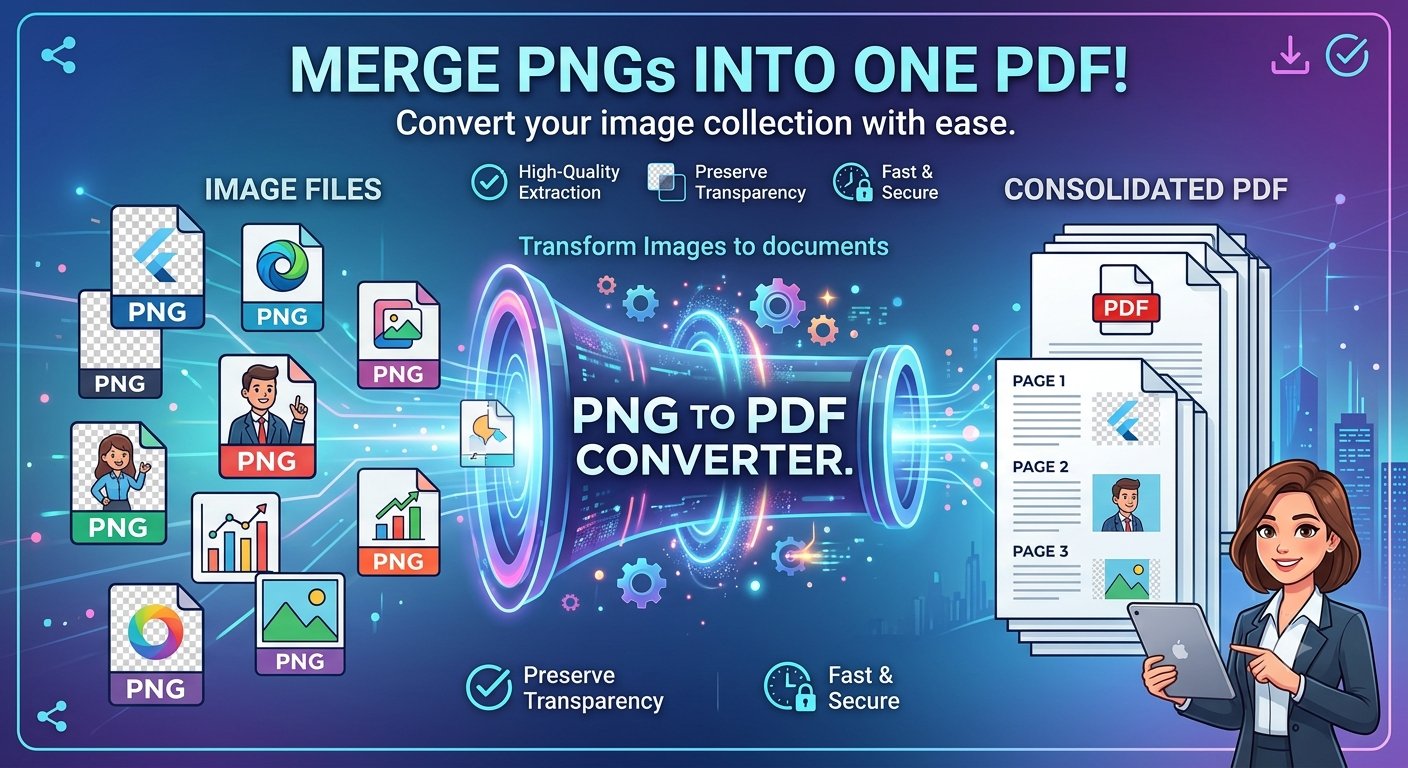
Need to turn a PNG image into a PDF document? With Trencada’s free Image to PDF converter, you can convert PNG to PDF online in seconds — right in your browser, with no signup and no software to install.
Why convert PNG to PDF
PNG is a great format for images, but it isn’t always the most practical one. Converting your PNGs to PDF makes sense when you need to:
- Share neatly — send one tidy PDF document instead of a handful of loose image files.
- Print predictably — a PDF keeps each image on its own fixed page, so prints come out the way you expect.
- Combine images — merge several PNGs, such as scanned pages or screenshots, into a single document.
- Submit paperwork — many forms, applications, and contracts ask for PDF attachments rather than image files.
How to convert PNG to PDF
Here’s how it works with Trencada’s converter — the whole process takes less than a minute:
- Choose your images. Click “Choose Images” to pick PNG files from your device, or simply drag and drop them onto the page. JPG and BMP files work too.
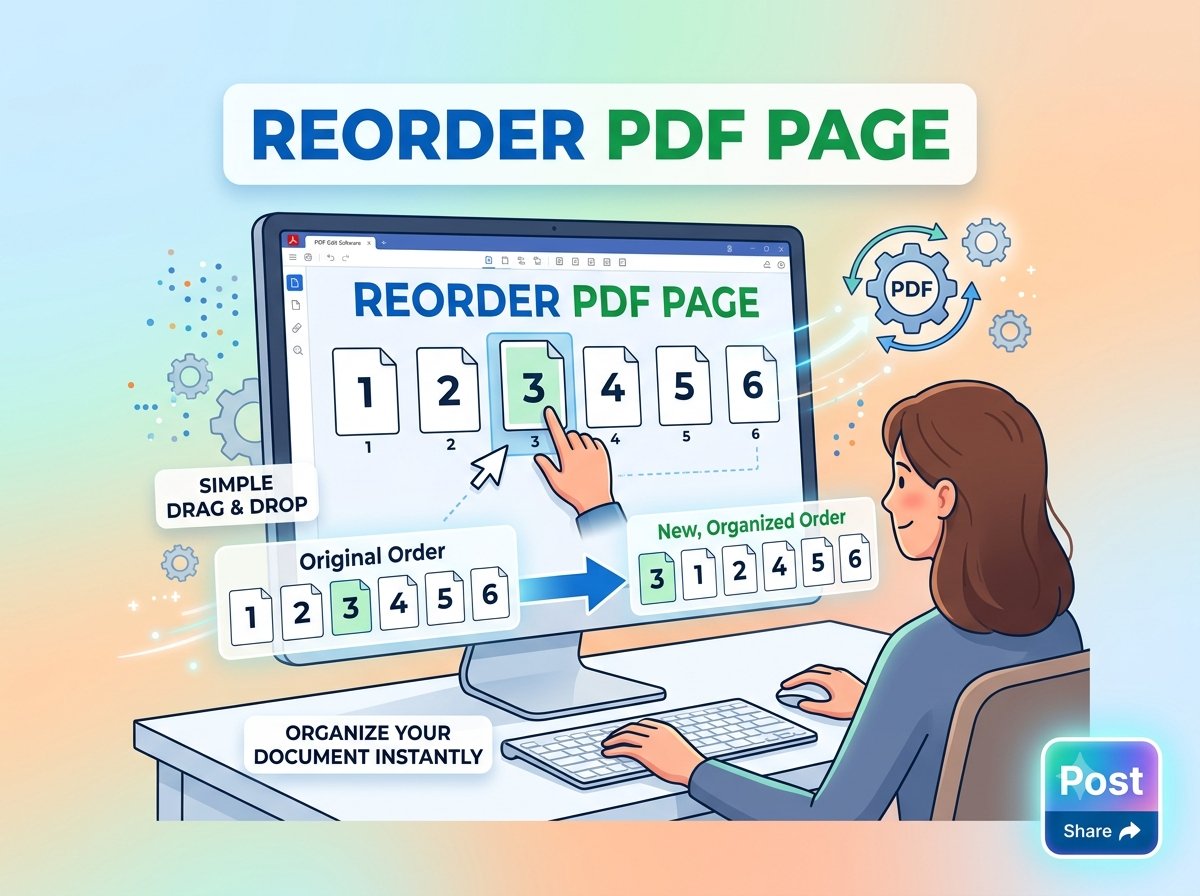
- Arrange your pages. Each image becomes one page of the PDF. Drag the thumbnails to reorder them, remove any you don’t need, or click “Add More” to keep adding images.
- Adjust the page settings (optional). Pick a page size — A4, Letter, or Fit to Image — choose portrait or landscape orientation, and set custom margins if you like.
- Convert and download. Click “Convert to PDF”, then “Download PDF” to save your finished document.
Settings that matter
A few simple options control exactly how your PDF turns out:
- Page size — choose A4 or Letter for standard documents, or Fit to Image to keep each page at the image’s original dimensions.
- Orientation — switch between portrait and landscape depending on how your images are shaped.
- Margins — set custom top, right, bottom, and left margins for precise control over spacing.
What the output looks like
Your finished PDF places one image on each page, in the order you arranged. Multiple PNGs are combined into a single PDF file, and no watermark or branding is added — the document is clean and ready to share, print, or attach.
FAQ
Is it free?
Yes. Converting PNG to PDF with Trencada is completely free, with no signup and no watermark on your output.
Is anything uploaded to a server?
The tool is described as 100% client-side: your images are processed entirely in your browser and are never uploaded anywhere.
How many images can I add?
You can add multiple images — use the “Add More” button to keep adding files. Each image becomes its own page in the combined PDF.
What page sizes are supported?
A4, Letter, or Fit to Image, which keeps each page at the image’s original dimensions.
Will my image quality be preserved?
Your images are placed on the page as-is with no watermark added, and the Fit to Image option keeps each image at its original dimensions.
Does it work on my phone?
Yes. The converter runs in any modern web browser, so it works on your phone, tablet, or computer.
Ready to try it? Convert your PNGs to PDF now with Trencada’s free online converter — it takes seconds, and your files never leave your browser.