Ever opened a PDF that looked fine at first glance, only to find giant white margins, a stray header, or a slide deck floating in empty space? When you need to crop PDF online, you don’t have to print, screenshot, or wrestle with desktop software – you can crop your PDF online for free and trim each page down to just the part that matters – right in your browser, with no signup.
Cropping a PDF simply means cutting away the edges of each page – the margins, headers, or blank borders you don’t need – so the content you actually want gets the spotlight. Trencada’s free PDF crop tool does this with a visual crop box that you draw yourself, so you can see exactly what you’re keeping before you download the result.
When to crop a PDF
Cropping isn’t something you need every day, but when a PDF’s layout gets in the way, it’s the fastest fix. Common reasons people trim PDF margins include:
- Scanned documents with wide, uneven margins left over from the scanner bed.
- Slide decks where every slide sits inside a sea of empty space.
- Cutting off distracting headers or footers near the page edges for cleaner reading.
- Focusing on a single chart, table, or signature block without enlarging the whole page.
- Cleaning up a page before printing, so ink isn’t wasted on blank borders.
How to crop PDF online in 5 steps
Here’s how it works with Trencada’s crop PDF tool – the whole process takes under a minute:
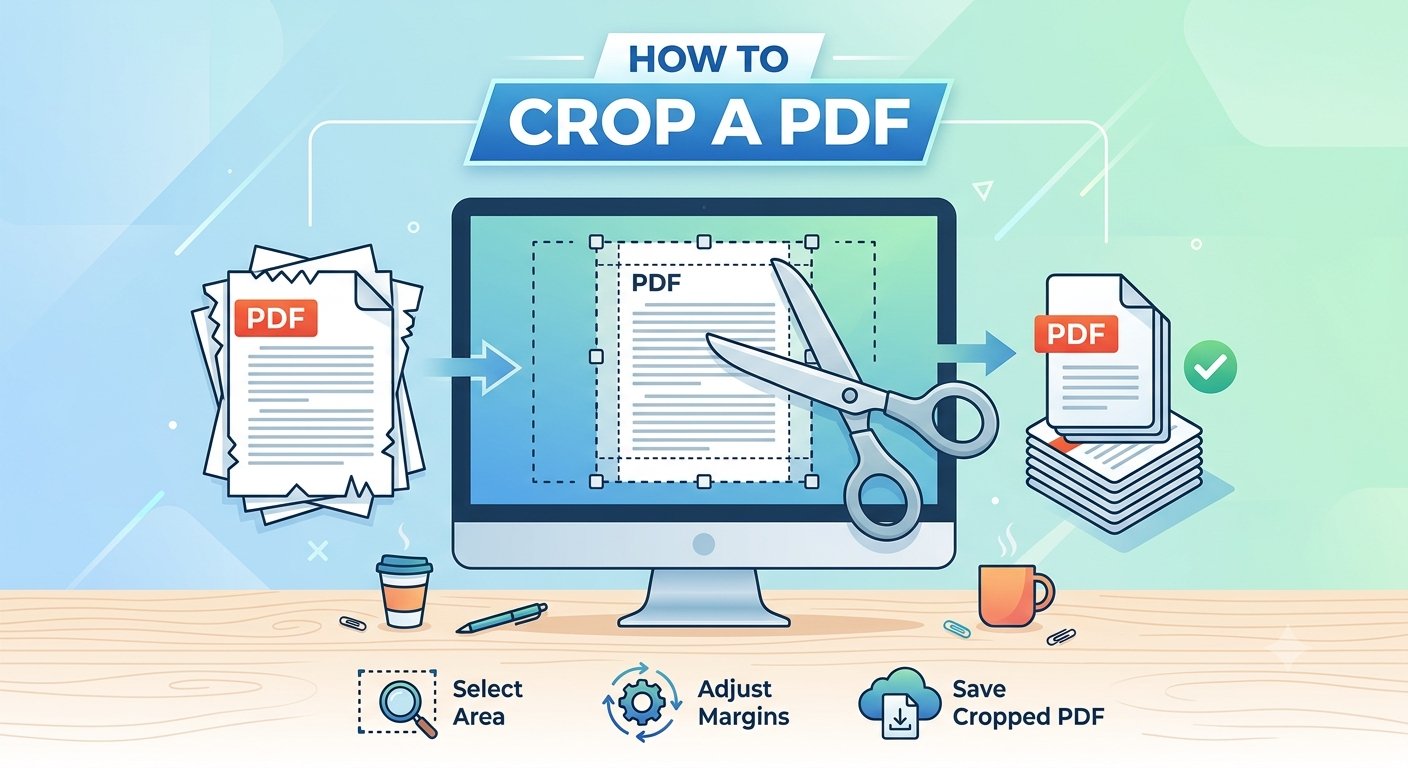
- Upload your PDF. Open the tool and click the “UPLOAD PDF FILE” button to choose the file from your device.
- Preview your pages. Once the file loads, you’ll see a page preview. Use the Prev and Next controls to move through multi-page documents and find the right page.
- Draw your crop box. Click and drag directly on the preview to draw a rectangle around the area you want to keep. Drag the box to move it, or pull its corner handles to resize it until the selection is just right.
- Choose which pages to crop. Pick “Current Page” to crop only the page you’re viewing, or “All Pages” to apply the same crop box to every page at once.
- Crop and download. Click the “Crop PDF” button – it activates once you’ve drawn a box – and download your newly cropped PDF.
Cropping vs resizing vs trimming
These terms get mixed up a lot, so here’s the honest difference:
- Cropping cuts away the outer edges of the page. The visible page gets smaller, but everything inside the crop box keeps its original size and quality.
- Resizing (scaling) shrinks or enlarges the entire page content to fit a different page size – nothing is cut off, everything just gets bigger or smaller.
- Trimming, in everyday PDF talk, usually means the same thing as cropping: cutting off margins and unwanted edges.
What cropping changes and what it doesn’t
It helps to know exactly what happens when you crop, so there are no surprises:
- It changes the visible page area. Anything outside your crop box is removed from view in the downloaded file.
- It gives you a brand-new file. You download a cropped copy – your original PDF on your device is never modified.
- It doesn’t rewrite your content. Text and layout inside the crop box stay exactly as they were – nothing is retyped or rebuilt.
- It doesn’t auto-detect white space. You draw the crop box yourself, so you’re always in control of exactly what gets cut.
Frequently asked questions
Is it free?
Yes. Trencada’s Crop PDF tool is completely free to use, with no signup and no watermarks on the output.
Is my PDF uploaded anywhere?
No. When you crop PDF online with Trencada, the tool processes your PDF entirely in your browser – the file never leaves your device, and nothing is sent to a server.
Can I crop all pages at once?
Yes. After drawing your crop box, choose the “All Pages” option and the same crop is applied to every page in the document before you download.
Can I undo a crop?
Your original file is never changed – cropping produces a new downloaded file. If you don’t like the result, just upload the original again and draw a different box.
Will text still be selectable after cropping?
Yes. Cropping only adjusts the visible page boundaries – it doesn’t flatten your pages into images or rebuild the content, so everything you keep works exactly as before.
Does it work on scanned PDFs?
Yes. The tool handles text-based, image-based, and scanned PDFs the same way – the crop box works on the page itself, regardless of what’s on it.
Ready to clean up your document? Crop PDF online with Trencada’s free tool – upload your file, draw your box, and download a trimmed, focused PDF in under a minute.