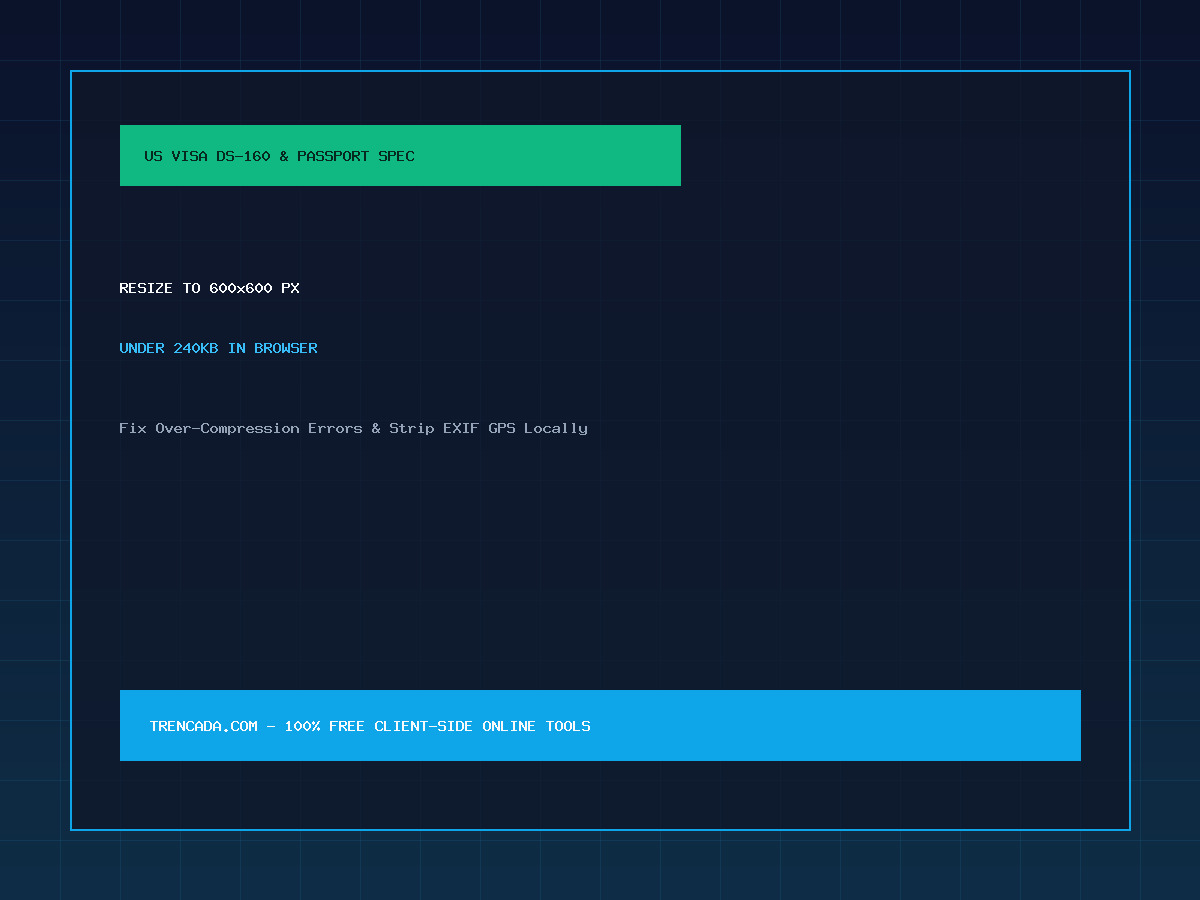
If you have ever tried to upload a digital passport or visa photo to the U.S. CEAC portal, a Schengen visa application, or a university ID system, you have likely typed “resize image to 600×600 pixels under 240kb” straight into Google after hitting an unexpected rejection screen. Government immigration portals validate strict, simultaneous constraints on pixel dimensions, aspect ratio, file format, color space, and kilobyte ceiling.
Worse yet, general-purpose image tools like iLoveIMG, TinyPNG, CloudConvert, and FreeConvert treat pixel resizing and kilobyte compression as separate tools—while requiring you to upload biometric passport photos to remote servers. In this guide, you will learn the exact official specifications required by the U.S. Department of State Digital Image Requirements, why applicants hit the “Image is overly compressed” error on Reddit’s r/visas and r/USVisas, and how to resize, convert, and scrub GPS metadata from your photos 100% locally in your browser on Trencada.
Quick Jump Navigation (Table of Contents)
Official Digital Photo Requirements: Why Portals Reject Smartphone Photos
According to the official U.S. Department of State Digital Image Requirements on Travel.State.gov, every digital photo uploaded to Form DS-160 or DS-260 must pass five simultaneous technical checks:
- Exact Square Aspect Ratio (1:1): Minimum 600 × 600 pixels and maximum 1200 × 1200 pixels.
- Strict File Size Ceiling (≤ 240 KB) AND Compression Ratio Floor: While the ceiling is 240 KB, compressing a 600×600 JPEG below 35–40 KB (more than a 20:1 compression ratio) triggers the “Image is overly compressed” error documented on Reddit’s r/travel forum and Travel Stack Exchange.
- File Format (JPEG / .jpg Only): Apple
.HEIC, Chrome.WebP,.AVIF, and.PNGfiles are rejected even if renamed. - Color Depth (24-bit sRGB): Must be 24-bit sRGB color (Display P3 or CMYK profiles trigger CEAC crashes as seen in r/usvisascheduling reports).
| Portal / Application Type | Required Pixel Dimensions | Allowed KB Range (Sweet Spot) | Required Format | Best Trencada Workflow |
|---|---|---|---|---|
| US Visa Form DS-160 / DS-260 | 600 × 600 px to 1200 × 1200 px | ≤ 240 KB (Target 80–210 KB) | .jpg (24-bit sRGB) |
Resize in Image Resizer + tune KB in Image Compressor |
| US Diversity Visa (DV Lottery) | 600 × 600 px exact square | ≤ 240 KB (Target 90–220 KB) | .jpg (24-bit sRGB) |
Convert in HEIC to JPG or PNG to JPG first |
| Print-on-Demand (Printify / Cricut) | 4500 × 5400 px (300 DPI) | Up to 100 MB | .png or .jpg |
Scale dimensions in Image Resizer |
Step-by-Step: How to Resize an Image to 600×600 Pixels Under 240KB in Your Browser
Step 1: Convert HEIC, WebP, AVIF, or PNG to True 24-Bit sRGB JPEG
If your photo is an iPhone .HEIC or .AVIF file, open Trencada’s HEIC to JPG Converter or AVIF to JPG Converter (see also our Batch HEIC & AVIF Windows 11 Guide). If Chrome saved your image as a .webp or .png file—a common browser issue discussed on SuperUser (#1837971), Reddit’s r/chrome, and the Shopify Developer Forum—convert it properly using Trencada’s PNG to JPG Converter.
Step 2: Lock Exact 600×600 (or 900×900) Square Pixel Dimensions
Open Trencada’s Image Resizer inside the Image Tools Hub and set the width and height to 600 × 600 px (or 900 × 900 px).
Step 3: Hit the 80 KB – 210 KB Sweet Spot (Fixing “Image Is Overly Compressed”)
If your 600×600 JPEG is over 240 KB, pass it through Trencada’s Image Compressor at 85%–90% quality. Conversely, if the CEAC portal says "Image is overly compressed" because your 600×600 file is under 35 KB, resize the original image to 900 × 900 pixels in Image Resizer at 90% quality so it naturally weighs 110–185 KB. For document uploads, pair Image to PDF Converter with our Compress PDF to 100KB/200KB Guide.
Privacy Bonus: Automatically Strip EXIF GPS Location Metadata Before Uploading
As highlighted in privacy discussions on Reddit’s r/privacy, r/GooglePixel, the DEV Community, and PrivMeta, smartphone photos embed exact GPS coordinates in EXIF headers. Because Trencada’s Image Resizer and Image Compressor re-render pixels locally via the browser’s HTML5 Canvas API, 100% of hidden EXIF GPS metadata is wiped automatically with zero server uploads.