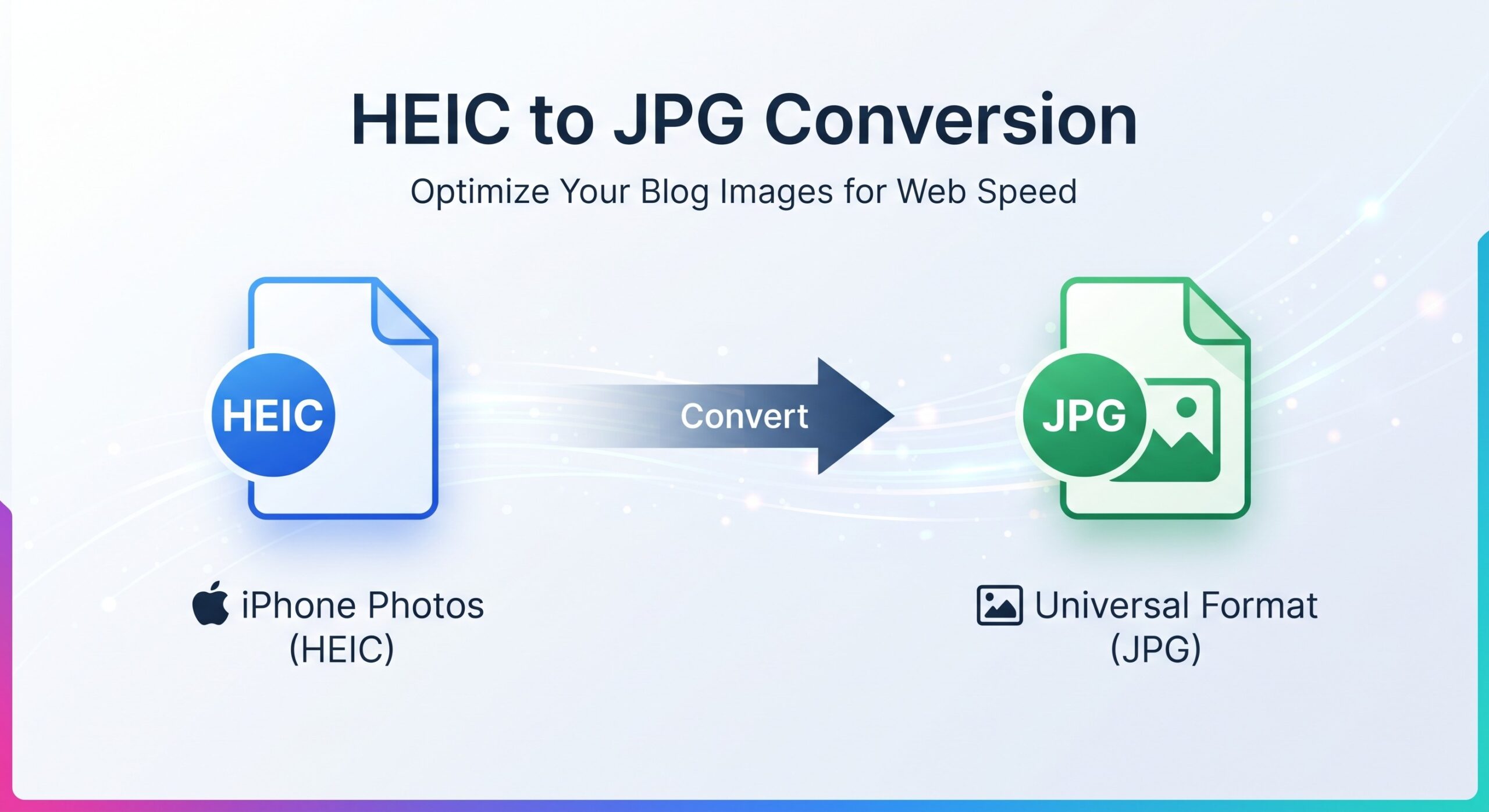
Trying to convert HEIC to JPG, turn iPhone cutouts into a transparent PNG, or open a downloaded .avif image on a Windows 11 PC shouldn’t require buying codec extensions from the Microsoft Store or uploading private family photos to a remote cloud server. Yet millions of Windows users, graphic designers, and e-commerce sellers hit this exact wall every day: you transfer a folder of iPhone photos to your desktop or save a product image from Chrome, only to discover that older editors, corporate portals, and email forms reject the file immediately.
With Trencada’s free, client-side HEIC to JPG Converter, AVIF to JPG Converter, and HEIC to PDF Converter, you can batch convert HEIC to JPG, PNG, or PDF and transform AVIF files 100% locally inside your web browser. Zero files are ever uploaded to an external server, zero account registration is required, and there are no daily task caps or CAPTCHAs.
Quick Jump Navigation (Table of Contents)
Why Windows 11 Struggles When You Convert HEIC to JPG or Open AVIF Files
To understand why file compatibility breaks across devices, it helps to examine why Apple and modern web browsers moved away from the 30-year-old JPEG format in the first place:
- Apple’s HEIC (High Efficiency Image Container): Since iOS 11, iPhones and iPads capture photos in HEIC (powered by the HEVC / H.265 compression codec) by default. HEIC stores twice the image detail of a standard JPEG at roughly half the file size, and supports 16-bit color depth, Live Photos, depth maps, and alpha transparency. However, because HEVC is covered by patent licensing pools, Microsoft excludes native HEVC decoding from fresh Windows 11 installations unless you install separate Microsoft Store extensions.
- The Rise of AVIF (AV1 Image File Format): Created by the Alliance for Open Media, AVIF compresses web graphics up to 50% smaller than JPEG and 20% smaller than WebP while supporting HDR color and lossless transparency. Major content delivery networks (CDNs), Shopify themes, and WordPress optimization plugins now serve
.avifautomatically to Chrome, Edge, and Firefox—meaning when you right-click and click “Save image as…”, you get an.aviffile that legacy software, print shops, and government portals cannot read.
| Image Format | File Size Efficiency | Supports Alpha Transparency? | Universal Portal & Legacy App Support | Best Trencada Conversion Route |
|---|---|---|---|---|
HEIC / HEIF (.heic) |
Excellent (~50% smaller than JPG) | Yes (iOS subject cutouts & bursts) | Poor on Windows & Web Forms (Rejected by most upload portals) | Use HEIC to JPG for photos or HEIC to PDF for documents. |
AVIF (.avif) |
Highest (~50%+ smaller than JPG) | Yes (Full alpha channel) | Moderate (Supported in browsers, rejected by many desktop apps) | Use AVIF to JPG (or select PNG output to preserve transparency). |
JPG / JPEG (.jpg) |
Standard lossy compression | No (Replaces transparent pixels with solid white/black) | 100% Universal (Opens on every OS, printer, and portal worldwide) | Compress further in Image Compressor or resize in Image Resizer Online. |
PNG (.png) |
Larger (Lossless compression) | Yes (Lossless 8-bit/24-bit alpha transparency) | 100% Universal (Ideal for logos, UI screenshots, and cutouts) | Create cutouts in Transparent PNG Maker or shrink in Image Compressor. |
When to Convert HEIC & AVIF to JPG vs. Transparent PNG
One of the most common mistakes users make when they convert HEIC to JPG or convert an AVIF graphic is picking the wrong target format for their specific image type:
- Choose JPG for Camera Photographs, Portraits & Landscapes: Standard camera photos do not have transparent backgrounds. Converting a 3 MB iPhone HEIC photo to JPG at 85%–92% quality in HEIC to JPG yields a crisp, universally compatible
.jpgfile that weighs just 400 KB to 900 KB. - Choose PNG for iOS Sticker Cutouts, Logos, UI Screenshots & Transparent AVIFs: If you used iOS’s “Copy Subject” feature to lift a person or product out of a photo background, or if you downloaded a transparent company logo saved as
.avif, converting it to JPG will destroy the transparent background and fill it with a solid white box. Instead, select PNG output or pair your workflow with Trencada’s Transparent PNG Maker to keep the alpha channel intact. (Read our full breakdown in how to resize and format images without losing quality.) - Choose PDF for Scanned Receipts, IDs & Multi-Page Forms: If you photographed a multi-page contract, homework assignment, or expense receipt on your iPhone, skip JPG entirely and use HEIC to PDF to bundle your HEIC shots directly into a clean, printable PDF document.
Step-by-Step: How to Batch Convert HEIC to JPG, PNG, or PDF on Windows 11 (Zero Upload)
Unlike cloud-based converters such as CloudConvert (which caps free users at 10 conversion credits per day) or FreeConvert (which limits free accounts to 20 conversion minutes per day and uploads your photos to remote servers), Trencada processes your images locally inside your browser tab:
Step 1: Open the Client-Side Converter in Your Browser
Launch HEIC to JPG Converter for iPhone photos or AVIF to JPG Converter for web images. Because decoding runs on your own CPU via WebAssembly, there is no server queue and no file upload delay.
Step 2: Drag and Drop Your Entire Folder of HEIC or AVIF Files
Select multiple .heic or .avif files from Windows File Explorer and drag them straight into the browser dropzone. Trencada supports instant batch processing without restricting you to 1 or 2 files at a time.
Step 3: Adjust Quality & Strip Hidden EXIF GPS Location Metadata
Before downloading, choose your target output format and quality level. A major privacy advantage of converting iPhone HEIC photos through Trencada’s browser canvas pipeline is automatic EXIF metadata sanitization: raw iPhone HEIC files embed exact GPS latitude/longitude coordinates showing where your home, school, or office is located. Converting in-browser strips hidden GPS tracking tags while preserving full visual fidelity.
Step 4: Optimize Dimensions & File Weight for Web or Portal Uploads
Once your files are converted, you can immediately chain them into Trencada’s companion image utilities:
- Resize Exact Pixel Dimensions: Open Image Resizer Online to scale 4032 × 3024 iPhone photos down to standard web dimensions (such as 1920 × 1080 or 1200 × 630) with the aspect-ratio lock enabled.
- Shrink File Size by Up to 80%: Run your converted JPGs or PNGs through Image Compressor (or read our guide on fixing photos that are too big for the internet) to meet strict 100KB or 200KB portal caps.
- Combine into a Single Document: Need to submit multiple converted images as a single application file? Drop them into Image to PDF Converter and shrink the final packet with Compress PDF.
How to Stop Your iPhone From Transferring HEIC to Windows in the First Place
If you frequently plug your iPhone into a Windows 11 laptop via USB cable and want iOS to transfer JPGs automatically in the future, you can adjust two built-in iPhone settings:
- Keep HEIC Storage on iPhone, Auto-Convert on PC Transfer (Recommended): Open Settings → Apps → Photos on your iPhone, scroll to the bottom under Transfer to Mac or PC, and select Automatic instead of Keep Originals. Your iPhone will continue saving space with HEIC internally but convert files to JPG when copying over USB.
- Switch Camera Capture to “Most Compatible”: Go to Settings → Camera → Formats and choose Most Compatible. Note that this forces your iPhone to shoot in JPEG all the time, which consumes roughly 2x more iCloud and local phone storage. Keeping your camera on High Efficiency and using Trencada’s free HEIC to JPG tool whenever you need a JPG on Windows gives you the best of both worlds.
Frequently Asked Questions (FAQ)
How do I convert HEIC to JPG on Windows 11 for free without installing software?
Open Trencada’s HEIC to JPG Converter in Edge, Chrome, Brave, or Firefox on Windows 11, drag and drop your .heic files into the box, and download your converted .jpg images immediately. Everything runs in your browser with zero software installation and no Microsoft Store codec purchase required.
Does converting HEIC or AVIF in a browser upload my private photos to the cloud?
Not on Trencada. Unlike traditional online converters that upload your family or client photos to remote cloud storage, Trencada’s HEIC to JPG and AVIF to JPG tools execute 100% locally inside your browser tab. Your photos never leave your computer.
Can I convert multiple HEIC photos into a single PDF file?
Yes! Use Trencada’s HEIC to PDF Converter to select multiple iPhone HEIC photos, arrange their page order, and download a single combined PDF document—or merge existing PDFs afterward using Merge PDF.