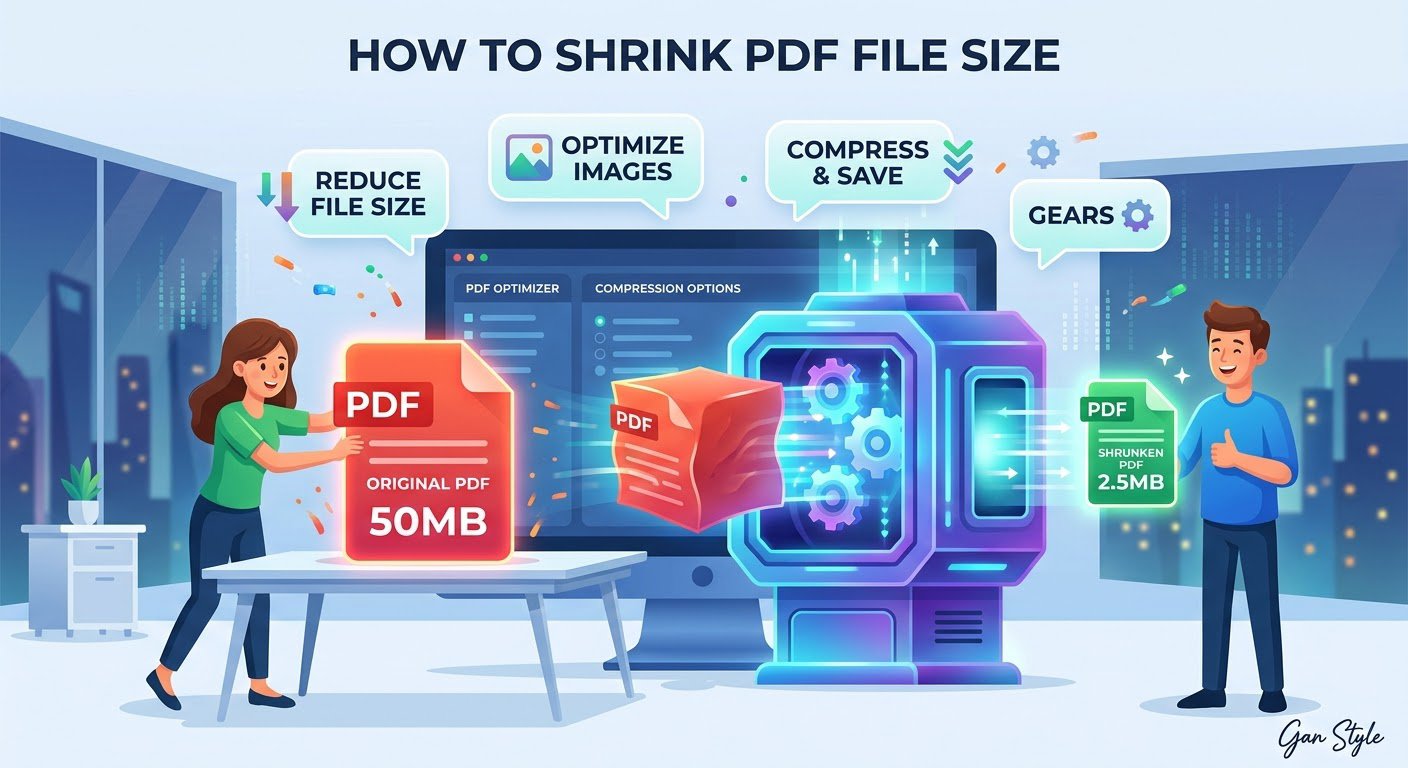
Trying to compress a PDF to 100KB or 200KB for a strict government visa portal, university admissions system, or corporate job board is one of the most frustrating hurdles in digital document management. You export a clean, two-page resume or scan a passport page on your phone, only to discover the file sits at 2.4 MB—more than twelve times the maximum upload limit. Worse yet, when you run that document through an aggressive, low-quality online compressor, your crisp typography turns into pixelated, unreadable smudges that fail both human reviewers and automated Applicant Tracking Systems (ATS).
The good news is that shrinking a PDF to an exact target like 100KB or 200KB without blurring text does not require paid desktop software like Adobe Acrobat Pro, nor does it require uploading confidential personal records to a third-party cloud server. With Trencada’s free, browser-based Compress PDF tool—paired with smart pre-compression steps like PDF to Grayscale, PDF Form Flattener, and Resize PDF—you can hit strict kilobyte caps in seconds while keeping every single character razor-sharp and 100% private on your device.
Quick Jump Navigation (Table of Contents)
Why Portals Require You to Compress PDF to 100KB or 200KB. Legacy government immigration databases, civil service exam portals, and high-volume enterprise Applicant Tracking Systems process millions of uploads each month. To keep database storage costs predictable and ensure caseworkers on low-bandwidth connections can open files instantly, system administrators hard-code file-size validation rules directly into upload forms.
| Portal / Application Type | Typical PDF Size Cap | Document Structure | Best Trencada Compression Workflow |
|---|---|---|---|
| Corporate Job Portals & ATS Resumes (Workday, Greenhouse, Taleo) | 100 KB – 500 KB | Vector text, embedded custom fonts, clickable links | Subset/standardize fonts + lossless stream optimization in Compress PDF (keeps text layer 100% selectable). |
| Government Visa & Immigration Portals (Passport, ID, Civil Certificates) | 100 KB – 250 KB | Single-page or multi-page smartphone/flatbed raster scans | Crop excess margins in Crop PDF, convert to PDF to Grayscale, then run Compress PDF at 150 DPI. |
| University Admissions & Scholarship Uploads (Transcripts & Diplomas) | 200 KB – 1 MB | Multi-page scanned academic transcripts with seals/stamps | Merge pages in Merge PDF, flatten annotations in PDF Form Flattener, and compress to target KB. |
| Tax, Banking & KYC Verification Portals (Signed Forms & Bank Statements) | 150 KB – 500 KB | Interactive form fields + digital signature images | Bake interactive fields permanently with PDF Form Flattener, then shrink in Compress PDF. |
Why Text Turns Blurry When You Compress a PDF (Vector Text vs. Raster Images)
To compress a PDF to 100KB without destroying readability, you first need to know what is actually inflating your file size. Inside the PDF specification (ISO 32000), page content exists in two fundamentally different formats: vector text streams and raster bitmap images.
- Vector Text & Line Art: When you export a document directly from Microsoft Word, Google Docs, or LaTeX (or use our Word to PDF Converter), every letter is stored as mathematical coordinates and character codes rather than pixels. Vector text takes up almost zero space—a 5-page text-only PDF typically weighs just 25 KB to 60 KB—and stays perfectly crisp at any zoom level.
- Embedded Font Tables: Why does a 1-page resume exported from Canva, InDesign, or Word sometimes balloon to 1.2 MB? Because the PDF embeds complete TrueType or OpenType font families (including thousands of unused international glyphs and weights) along with uncompressed XML metadata.
- Raster Images & Scanned Pages: When you scan a physical piece of paper or insert a high-resolution headshot into a CV, the PDF stores millions of individual RGB color pixels. A single 300 DPI full-color A4 scan contains roughly 8.7 million pixels and easily exceeds 2 MB to 5 MB if saved without smart downsampling.
Many low-end online PDF compressors cheat by converting your entire PDF page—including crisp vector text—into a low-resolution JPEG image. That crude rasterization is what makes letters look fuzzy, creates ugly gray “mosquito noise” halos around words, and completely wipes out the selectable text layer that ATS resume scanners need to read your work history.
Step-by-Step: How to Compress a PDF to 100KB or 200KB Free in Your Browser
When you use Trencada’s Compress PDF utility, vector text streams remain untouched vector text while embedded images and redundant object streams are selectively optimized. Follow this four-step workflow to hit a strict 100KB or 200KB limit on your first try:
Step 1: Open the Client-Side Compress PDF Tool (Zero Server Upload)
Navigate to Trencada’s Compress PDF tool in any desktop or mobile browser. Unlike cloud-based platforms such as iLovePDF or Smallpdf—which upload your sensitive resumes, passports, and tax forms to remote servers and restrict free users to daily task caps—Trencada processes your document locally inside your browser using WebAssembly. Your files never leave your computer or phone, and there is no signup, watermark, or daily limit.
Step 2: Choose the Right Compression Preset for Your Target Size
Drop your PDF into the workspace and select the compression level that matches your starting file size and portal requirement:
- Recommended / Balanced Compression (140–150 DPI Image Downsampling): Ideal when shrinking a 600 KB – 2 MB document down to 200KB. This mode strips hidden metadata, compresses internal cross-reference tables, and applies clean JPEG re-encoding to embedded photos while preserving 100% sharp vector fonts.
- Maximum / Extreme Compression (96–110 DPI Downsampling): Best when you must compress a PDF to 100KB or less from a multi-megabyte scan. It aggressively downsamples oversized background images and high-DPI camera scans while keeping text legible on standard screens.
Step 3: Apply the 3 “Secret Weapons” When a Stubborn PDF Won’t Drop Below 100KB
If your PDF still sits at 230 KB after standard compression, don’t lower the image quality until the text blurs. Instead, combine these three precision tools on Trencada to shed an extra 50% to 75% of file weight without sacrificing sharpness:
- Convert Color Scans to 8-Bit Grayscale (PDF to Grayscale): A standard RGB color scan stores 24 bits of color data per pixel (8 bits each for Red, Green, and Blue). Even if the page looks black-and-white to your eyes, your scanner saved it in full color. Running the file through PDF to Grayscale strips two-thirds of the raw pixel channel data immediately, cutting scanned PDF sizes by 40% to 65% with zero loss in text clarity.
- Flatten Interactive Form Fields & Layers (PDF Form Flattener): Fillable government forms, annotations, and digital signature layers carry heavy interactive widget dictionaries and duplicate appearance streams. Baking those fields permanently into the page via PDF Form Flattener eliminates the interactive overhead and prevents portal viewers from displaying blank form boxes.
- Trim Dark Scanner Borders & Standardize Page Dimensions (Crop PDF & Resize PDF): Smartphone camera scans often include dark desk edges or oversized 4000 × 3000 pixel page boxes. Trimming black borders in Crop PDF and normalizing the page canvas to standard A4 or US Letter in Resize PDF removes thousands of wasted border pixels that consume JPEG compression budget.
Step 4: Verify ATS Text Selectability and Download
Before uploading your compressed file to a job board or visa portal, open the downloaded PDF in our Online PDF Viewer (or your browser’s built-in PDF tab) and press Ctrl+A (or Cmd+A on Mac) to highlight the text. If you can highlight individual words on your resume, your vector text layer is 100% intact and ATS-ready.
Special Workflow: Compressing Smartphone Photos & Scans into a 100KB PDF
Often, the problem starts before the PDF is even created. If you take a photo of a certificate, receipt, or ID card using a modern iPhone or Android camera, the raw image is a 12-megapixel or 48-megapixel file weighing 4 MB to 8 MB. Dropping that raw photo directly into a PDF wrapper guarantees a bloated file.
For the cleanest sub-100KB result when starting from photos:
- Convert HEIC or PNG Sources First: If you captured the document on an iPhone, convert the file using HEIC to JPG or go straight to HEIC to PDF. If you have a heavy lossless screenshot, run it through Image Compressor first.
- Resize Pixel Dimensions Before Building the PDF: An A4 page at 150 DPI only needs to be roughly 1240 × 1754 pixels. Use Image Resizer Online to scale a 4032-pixel phone photo down to 1240 pixels wide, then combine your pages in Image to PDF Converter. Your resulting PDF will naturally weigh between 65 KB and 140 KB with crystal-clear text!
- Make Scanned Pages Searchable: If an employer or university requires a searchable PDF from a camera scan, run the compressed file through OCR PDF to embed an invisible, selectable text layer.
Frequently Asked Questions (FAQ)
How do I compress a PDF to 100KB without losing text quality?
To compress a PDF to 100KB without blurring text, avoid tools that rasterize the entire page into a low-res image. Use Trencada’s Compress PDF tool, which preserves vector fonts at full sharpness while downsampling only the embedded images and stripping hidden metadata. For scanned documents, run PDF to Grayscale first to cut color channel data by up to 60%.
Will compressing my resume PDF break Applicant Tracking Systems (ATS)?
No—as long as your original resume was exported from a word processor (like Word or Google Docs) with real text rather than saved as a flattened image. Trencada’s Compress PDF keeps all vector text streams, bullet points, and hyperlinks selectable so ATS software can parse your skills and experience accurately. You can also test if your file has real text using our guide on how to check if a PDF is scanned.
Is it safe to compress my passport, visa, or tax PDF online?
With traditional server-based converters, uploading a passport or tax return sends your private file to a remote cloud server where it may sit for hours. On Trencada, PDF compression runs locally inside your web browser—your confidential documents never leave your device, and no account or email signup is ever required.
What if my multi-page PDF is still over 200KB after maximum compression?
If a 10-page scanned document cannot physically fit under 200KB as a single file, check whether the portal allows uploading documents in parts (e.g., “Academic Transcripts Part 1” and “Part 2”) and use Split PDF Online to divide the document cleanly, or use Organize PDF Pages to delete blank or non-essential cover sheets.