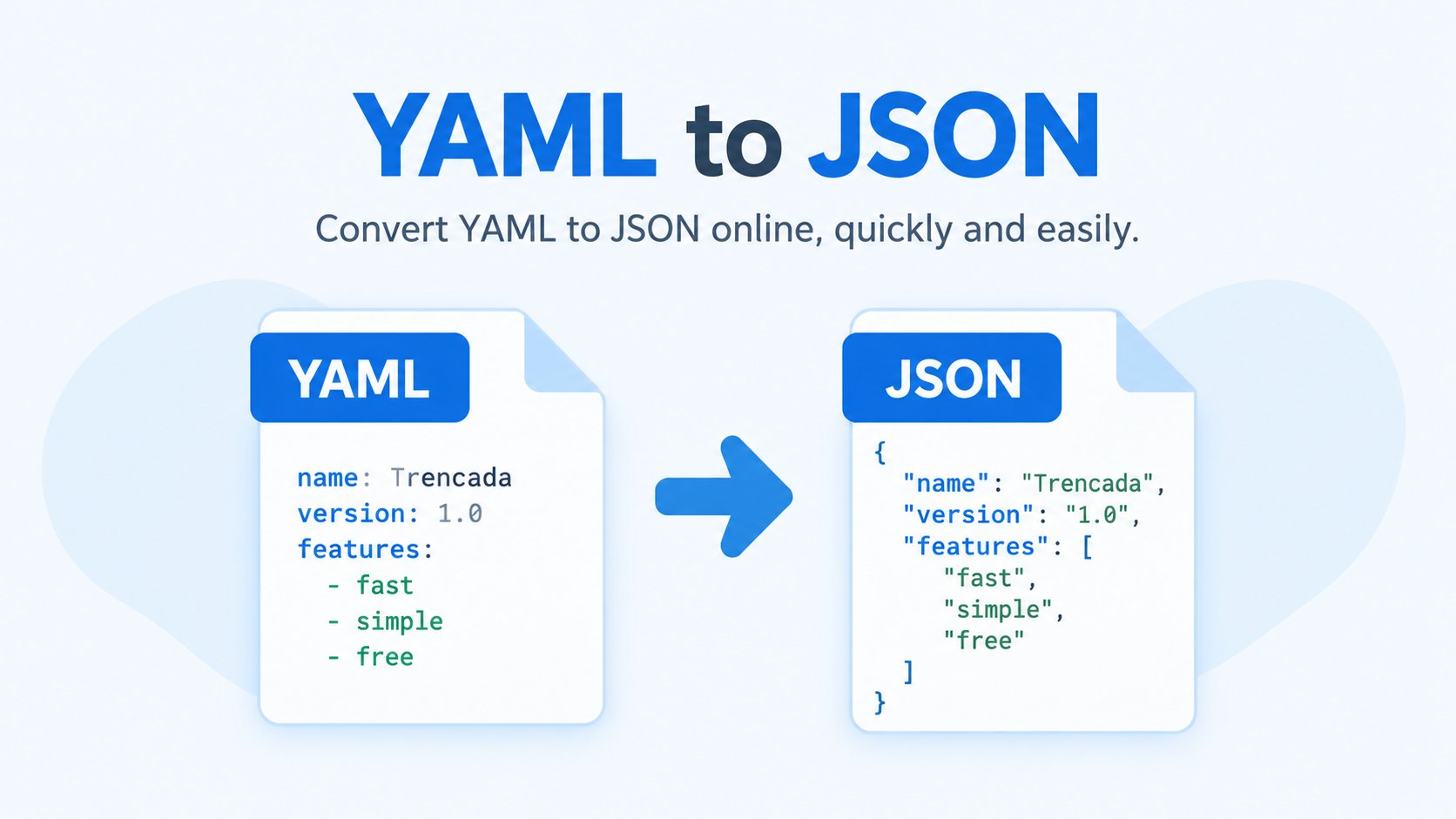
If you work with Kubernetes, GitHub Actions, Docker Compose, or OpenAPI specs, you live in YAML. And if you have ever tried to debug an API response, feed a config into a JSON-only tool, or figure out why your deployment silently failed, you have needed YAML as JSON. A yaml to json converter handles the translation in seconds — and the good ones also validate your YAML and tell you exactly which line is broken.
Quick Jump Navigation (Table of Contents)
Why YAML keeps needing to become JSON
YAML is the human-friendly format: no braces, no quotes everywhere, indentation instead of nesting. JSON is the machine-friendly one: strict, fast to parse, and what most APIs actually accept.
The conversion comes up constantly:
- You copy a Kubernetes manifest and need it as JSON for a kubectl dry-run or a dashboard that takes JSON input.
- A GitHub Actions workflow file needs testing as a JSON payload.
- An OpenAPI spec in YAML must be fed to a tool that only reads JSON.
- You are debugging and want to compare two configs without squinting at indentation.
Doing it by hand is error-prone. A converter does it exactly.
The real reason: YAML’s indentation errors
Here is the dirty secret of YAML: the format itself is the bug factory. YAML uses spaces for nesting, and one wrong space can change the meaning of your entire file — or break it. Tabs are forbidden. A missing space after a colon is a syntax error. An extra indent silently moves a value into the wrong section.
The classic Kubernetes headache: a deployment that fails to apply, and the only clue is “error converting YAML to JSON: yaml: line 14: did not find expected key.” A converter with validation catches this before you paste it into your cluster — it should point at the exact line and explain what is wrong, not just refuse to convert.
How Trencada’s converter works
Trencada’s YAML to JSON tool parses everything in your browser using js-yaml — your config is never uploaded anywhere, which matters when the YAML contains API keys, secrets, or internal hostnames.
A typical session:
- Paste your YAML into the left panel (or drag in a .yaml file).
- If the YAML is valid, clean formatted JSON appears instantly on the right.
- If something is broken, you get an error pointing at the line and column — e.g. “line 7, column 3: bad indentation of a mapping entry” — so you fix that one line instead of re-reading the whole file.
- Copy the JSON or download it.
No signup, no uploads, no account. The whole thing runs locally in the page.
The YAML mistakes that break everything
These are the errors a validator saves you from, over and over:
Tabs instead of spaces. YAML forbids tab indentation. If your editor inserts tabs, the file breaks. Configure your editor to insert spaces — 2 is the common convention.
Missing space after a colon. key:value is a plain string, not a key-value pair. key: value is what you meant.
Inconsistent indentation. Mixing 2-space and 4-space indents in the same file is an error. Pick one and stay consistent.
Unquoted special values. Values like yes, no, on, off, and things starting with * or & have special meanings in YAML. Quote them if you mean the literal text: "yes".
Duplicate keys. Defining the same key twice in one mapping silently keeps only the last one — a validator flags it.
Run any suspect file through the converter before you commit or deploy; catching these locally is always cheaper than debugging a failed pipeline.
A Kubernetes example
Take a minimal deployment snippet:
apiVersion: apps/v1
kind: Deployment
metadata:
  name: web
spec:
  replicas: 3
  selector:
    matchLabels:
      app: web
Paste it into the yaml to json converter and you get the exact JSON equivalent — useful when a tool in your chain only accepts JSON, or when you want to diff it against what the API server actually stored. And if you accidentally indent replicas one level too deep, the validator tells you on which line before you apply it.
JSON back to sanity checks
Sometimes you need the reverse trip: JSON from an API that you want to read as YAML. Most converters in this category focus on YAML to JSON, but the validation mindset applies both ways — when you paste JSON, a good tool also tells you about trailing commas, missing quotes, and mismatched braces with the same line-number precision.
Frequently asked questions
Is YAML a superset of JSON?
Yes — valid JSON is valid YAML. That is why converting JSON to YAML always works, while the other direction only works when your YAML parses cleanly.
Why does my YAML fail with “did not find expected key”?
Almost always an indentation problem: a mapping key is indented to a level the parser does not expect. Check the line the error points to, fix the indentation, and re-validate.
Can I convert YAML to JSON without uploading my file?
Yes — the conversion here happens entirely in your browser with js-yaml. Nothing is sent to a server, so configs with secrets stay on your machine.
What is the difference between YAML and JSON?
YAML is designed to be written and read by humans (indentation-based, minimal punctuation). JSON is designed for machines (strict syntax, fast parsing). APIs overwhelmingly speak JSON; humans overwhelmingly write YAML for config.
Does the converter handle multi-document YAML files?
Files with multiple documents separated by --- convert to a JSON array of the documents. If your file has one document, you get one JSON object.
Catch the Broken Line Before Deploy
YAML is pleasant to write and brutal to debug — one misplaced space can sink a deployment. A yaml to json converter with real validation turns that debugging session into a two-second check: paste, see the JSON or the exact broken line, fix, move on. Keep your indentation consistent, quote your special values, and validate before you deploy.
Convert and validate your YAML in Trencada’s YAML to JSON tool.