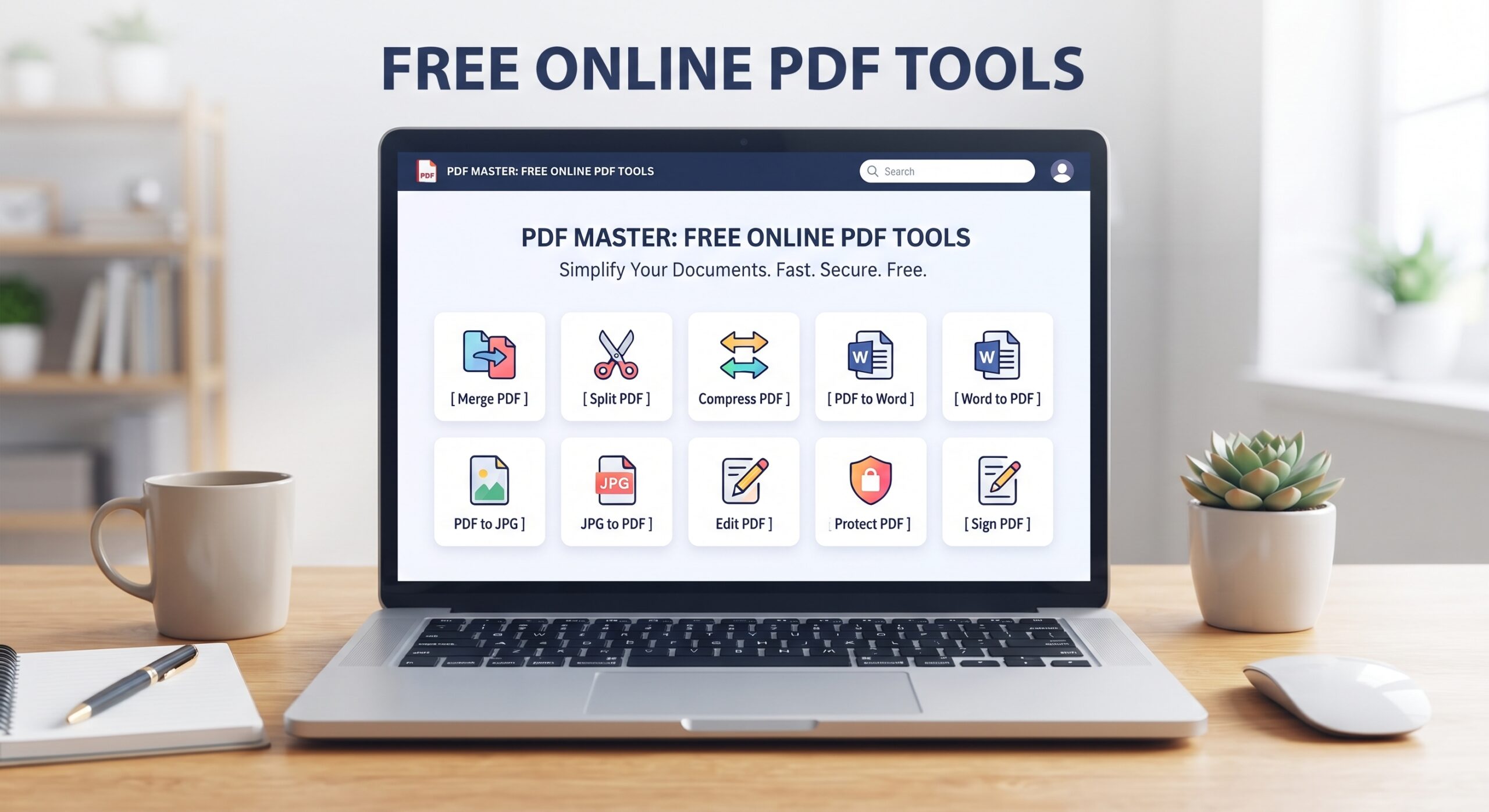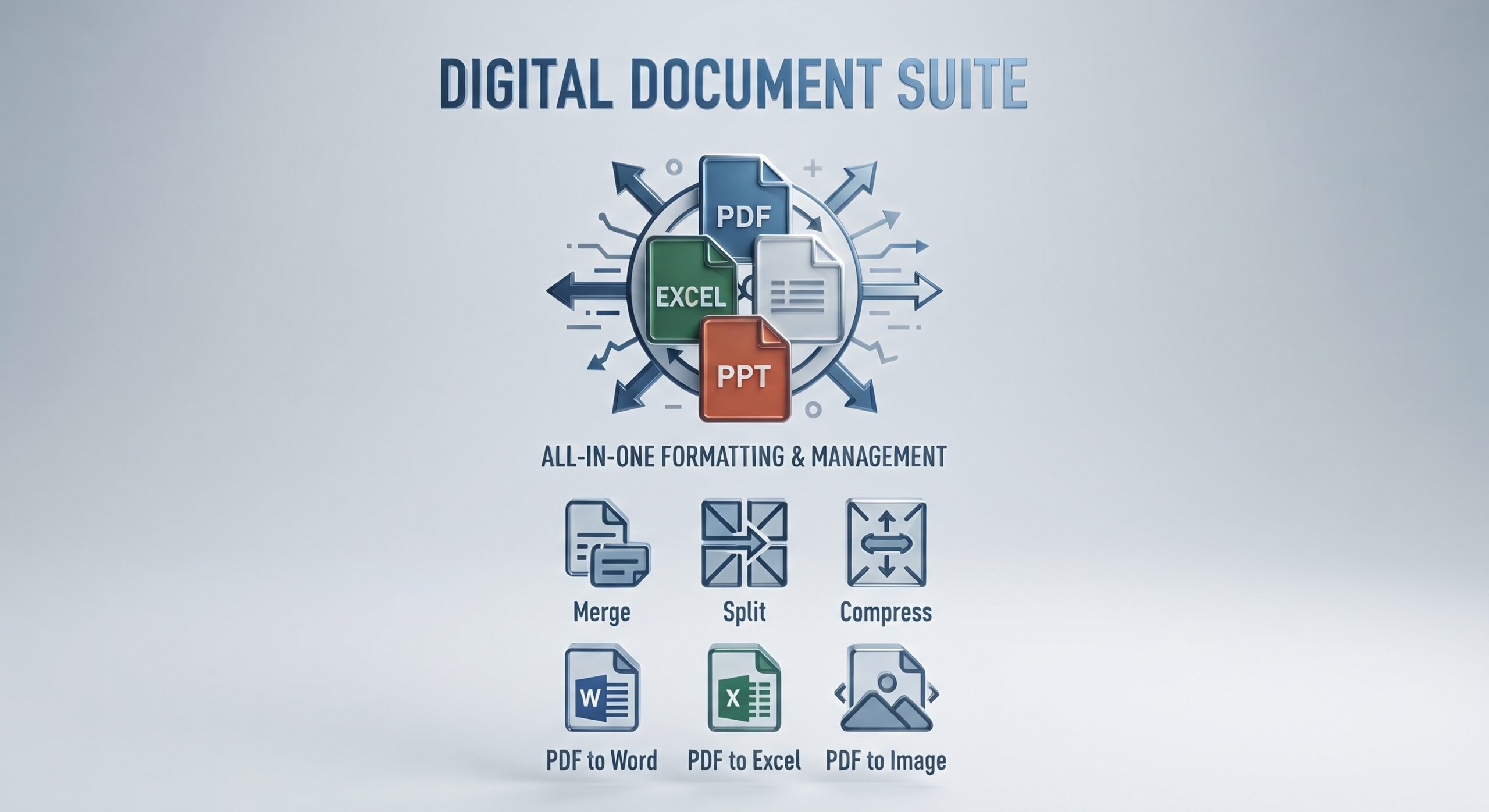
If you’ve ever needed to turn a PDF into something you can actually edit — or turn a document into a PDF so it looks the same on every screen — you’ve run into the same problem millions of people search for every day. A PDF conversion tool solves it: it changes a file from one format into another (Word into PDF, PDF into JPG, PowerPoint into PDF) without you needing to retype, rebuild, or manually reformat anything.
This guide covers how a PDF converter actually works, what you can convert, how to pick a good one — including dedicated sections on converting PowerPoint to PDF and using a PDF converter on Mac — and the problems that trip people up most often.
What Is a PDF Conversion Tool?
A PDF conversion tool is software — usually a website, sometimes a desktop app — that changes a file’s format while trying to preserve its layout, text, and images as closely as possible. Conversion generally runs in two directions:
- Converting a PDF into an editable format — PDF to Word, PDF to Excel, PDF to PowerPoint, or images — useful when you need to edit, extract data from, or reuse content that’s currently locked inside a PDF.
- Converting a file into a PDF — Word to PDF, Excel to PDF, PowerPoint to PDF, or Image to PDF — useful when you need a final, shareable version that looks identical no matter what device or software someone opens it with.
That second use case is really why the PDF format exists in the first place: it “prints” a document’s exact appearance into a single, portable file, which is why businesses, schools, and government agencies default to it for anything final.
How Does a PDF Converter Work?
Without getting into the technical weeds, a PDF converter reads the structure of your file — text, fonts, images, tables, spacing — and rebuilds that same structure in the target format. There are two broad approaches:
- Text-based conversion: if your PDF already contains selectable text (most PDFs exported from Word, Google Docs, or a website do), the converter reads that text directly and maps it into the new format.
- OCR (Optical Character Recognition): if your PDF is a scanned image — a photographed document, a faxed page — there’s no selectable text to read. OCR scans the image and recognizes the shapes of letters and words, turning a picture of text into actual, editable text. This is essential for scanned contracts, old paperwork, or photos of documents.
Conversion quality depends heavily on which of these two situations you’re in. A clean, text-based PDF converts far more reliably than a scanned one.
What Can You Convert With a PDF Converter?
Most general-purpose online document conversion tools cover the same core set of formats:
- PDF to Word — for editing text, contracts, or reports
- PDF to Excel — for pulling tables and data out of a PDF into a working spreadsheet
- PDF to PowerPoint — for turning a PDF report into editable slides
- PDF to JPG and PDF to PNG — for pulling pages out as standalone images
- Word to PDF, Excel to PDF, PowerPoint to PDF (PPT to PDF and PPTX to PDF) — for producing a final, universally viewable file
- JPG to PDF / PNG to PDF — for combining photos or scanned pages into one document
Some tools also offer file compression, merging multiple PDFs into one, and basic OCR for scanned documents.
How to Convert Files Online: Step by Step
The general process is nearly identical across most browser-based PDF conversion tools:
- Open the converter in your browser — no installation required.
- Upload your file by dragging it in or selecting it from your device.
- Choose the output format — Word, Excel, PowerPoint, JPG, PNG, or PDF, depending on the direction you’re converting.
- Let the tool process the file — this usually takes a few seconds for text-based documents, longer for large or scanned files.
- Download the converted file, checking that formatting, fonts, and layout came through as expected.
Convert your file online using this same process for any of the format pairs above — the workflow rarely changes, only the input and output formats do.
How to Convert PowerPoint to PDF
Converting a PowerPoint to PDF is one of the most common conversion needs, especially for sharing a deck with people who don’t have PowerPoint installed or whose version might render fonts and animations differently.
Both PPT to PDF and PPTX to PDF work the same way through most online converters — PPTX is simply the newer PowerPoint file format (introduced in Office 2007), and modern converters handle both without any extra steps.
What a good PowerPoint-to-PDF conversion should preserve:
- Slide order and layout — each slide becomes one PDF page, in the original sequence
- Images and graphics — positioned and sized the same as in the original deck
- Fonts — either embedded directly or substituted closely enough that text doesn’t reflow oddly
- Hyperlinks — links in text or on shapes should remain clickable in the exported PDF
- Speaker notes — most converters skip these by default, since they’re not meant for the audience-facing version
One thing to know: PDF is a static format, so anything animated (transitions, build-ins, embedded video) won’t carry over — you’ll get the final static state of each slide. If you need everything to stay editable, keep the source PPTX and treat the PDF as the “read-only” version for distribution.
Try the PDF conversion tool for your next deck if you’re sending a presentation to a client, a professor, or a hiring panel — a PDF guarantees they see exactly what you built, regardless of what device they open it on.
How to Use a PDF Converter on Mac
A PDF converter for Mac doesn’t need to be a separate category of software — most browser-based PDF conversion tools work identically whether you’re on Windows or macOS, since they run inside the browser rather than on your operating system.
This matters because it sidesteps compatibility questions entirely. A browser-based converter works the same in Safari (Mac’s default browser), Chrome, Firefox, and Microsoft Edge.
Since the file is processed through the browser rather than an installed application, there’s no need to check whether a piece of software supports macOS the way you would with a downloaded desktop program. That said, macOS also includes a built-in way to create a PDF from many apps (File → Export as PDF, or the Print dialog’s PDF option), which works well for the “file to PDF” direction. Where a dedicated PDF converter tool matters more is the other direction — converting an existing PDF into Word, Excel, or PowerPoint — since macOS doesn’t have a native tool for that.
Online PDF Converter vs. Desktop Software
| Factor | Online PDF Converter | Desktop Software |
|---|---|---|
| Installation | None — works in browser | Requires download and setup |
| Device access | Any computer, phone, or tablet | Limited to installed devices |
| Cost | Often free for basic conversions | Frequently paid or subscription-based |
| Offline use | Requires an internet connection | Works without internet |
| Large/batch files | May have file size or volume limits | Usually handles larger volumes |
| Privacy | Depends on the provider’s data handling | File never leaves your device |
Neither option is universally better — it depends on what you’re converting and how often. Someone converting a single PDF a few times a month is usually better served by a browser-based online PDF converter. Someone converting hundreds of files a week, or working with highly sensitive documents that can’t touch a server, may prefer desktop software that runs entirely offline.
How to Choose a PDF Converter
Not all conversion tools are built the same way. Before settling on one, it’s worth checking:
- Supported formats — does it cover the specific conversion you need?
- Conversion quality — does it preserve formatting, fonts, and layout, or does text reflow and break?
- Ease of use — can you complete a conversion in a few clicks, without a confusing interface?
- File size limits — some free tools cap file size or the number of conversions per day
- Security and privacy — how long are uploaded files stored, and are they encrypted in transit?
- OCR support — does it handle scanned documents, or only text-based PDFs?
- Mac and mobile compatibility — does it work consistently across devices?
- Watermarks — does the free tier add a watermark to your output file?
- Account requirements — can you convert without creating an account?
- Batch conversion — can you convert multiple files at once, or only one at a time?
Free PDF Converter: What Should You Actually Check?
“Free” means different things across different tools. Before relying on a free PDF converter for something important, check:
- Whether there’s a daily limit on how many files you can convert
- Whether the output file includes a watermark
- Whether there’s a maximum file size for the free tier
- How long your uploaded file is stored on the provider’s servers before deletion
- Whether an account or email signup is required to download your result
A genuinely useful free converter should let you complete a normal, everyday conversion — a single document, a reasonable file size — without hitting a paywall halfway through.
Common PDF Conversion Problems
Even good converters run into predictable issues, usually tied to how complex the original file is:
- Formatting changes — text that shifts, spacing that collapses, or elements that move slightly out of place
- Missing fonts — if a font isn’t embedded in the original file, the converter substitutes a similar one, which can shift line breaks
- Broken hyperlinks — links sometimes don’t carry over, especially in PDF-to-image conversions where the whole page becomes a picture
- Large file sizes — PDFs with many high-resolution images can convert slowly or produce oversized output files
- Scanned PDFs — without OCR, a scanned page converts as an uneditable image, not real text
- Image quality loss — converting to a compressed format like JPG can visibly soften text-heavy pages; PNG holds up better for graphics and text
- Tables not converting correctly — complex tables with merged cells or nested formatting are the single hardest thing for any converter to reproduce accurately in Word or Excel
Tips for Better PDF Conversion
- Start from the cleanest source file you have — a native Word or PowerPoint file converts better than a PDF that was itself converted from something else
- For scanned documents, check whether OCR is enabled before converting — otherwise you’ll get an image, not editable text
- If a table doesn’t convert cleanly to Excel, try PDF to Word first, then copy the table over — sometimes the intermediate step preserves structure better
- Keep image-heavy pages as PNG rather than JPG if the page includes text or line art, since JPG compression blurs sharp edges
- For anything sensitive, check a provider’s file retention policy before uploading
Frequently Asked Questions
What is a PDF converter?
A PDF converter is a tool that changes a file’s format to or from PDF — for example, turning a Word document into a PDF, or a PDF into an editable Excel spreadsheet — while trying to preserve the original layout as closely as possible.
What is the best way to convert a file to PDF?
For most documents, exporting directly from the source program (Word, Excel, PowerPoint) or using a browser-based PDF conversion tool gives the most reliable result, since it converts from the original file rather than a copy.
Can I convert PDF files on a Mac?
Yes. Browser-based PDF converters work the same on macOS as on any other operating system, since they run through Safari, Chrome, or another browser rather than requiring installed software.
How do I convert PowerPoint to PDF?
Upload your PPT or PPTX file to a PDF conversion tool, or use PowerPoint’s own “Export” or “Save As PDF” option, which is available on both Windows and Mac.
Can I convert PPTX to PDF the same way as PPT?
Yes — PPTX is just the newer PowerPoint format, and standard PDF converters handle both formats without any extra steps.
Is online PDF conversion safe?
It depends on the provider. Look for encrypted file transfer and a clear policy on how long files are stored before deletion, and avoid uploading highly sensitive documents to a tool that doesn’t disclose its data handling.
Can I convert PDF files without installing software?
Yes — browser-based PDF conversion tools handle the entire process online, with nothing to download or install.
What happens to formatting when converting files?
Simple, text-based documents usually convert cleanly. Complex layouts — multi-column pages, embedded tables, unusual fonts — are more likely to shift slightly, so it’s worth reviewing the output before using it as a final version.
Do I need an account to convert a PDF online?
Many free converters let you convert without creating an account, though some require a free signup once you exceed a certain file size or number of conversions.
Can scanned PDFs be converted into editable text?
Only if the converter includes OCR. Without it, a scanned PDF converts as an image, not selectable text.
Final Thoughts
A good PDF converter should make format conversion feel invisible — upload, choose a format, download, done. Whether you’re turning a PowerPoint into a PDF for a client, pulling a table out of a PDF into Excel, or converting on a Mac without installing anything, the tools above cover the full range of what most people need. Browse the full toolkit to get started.