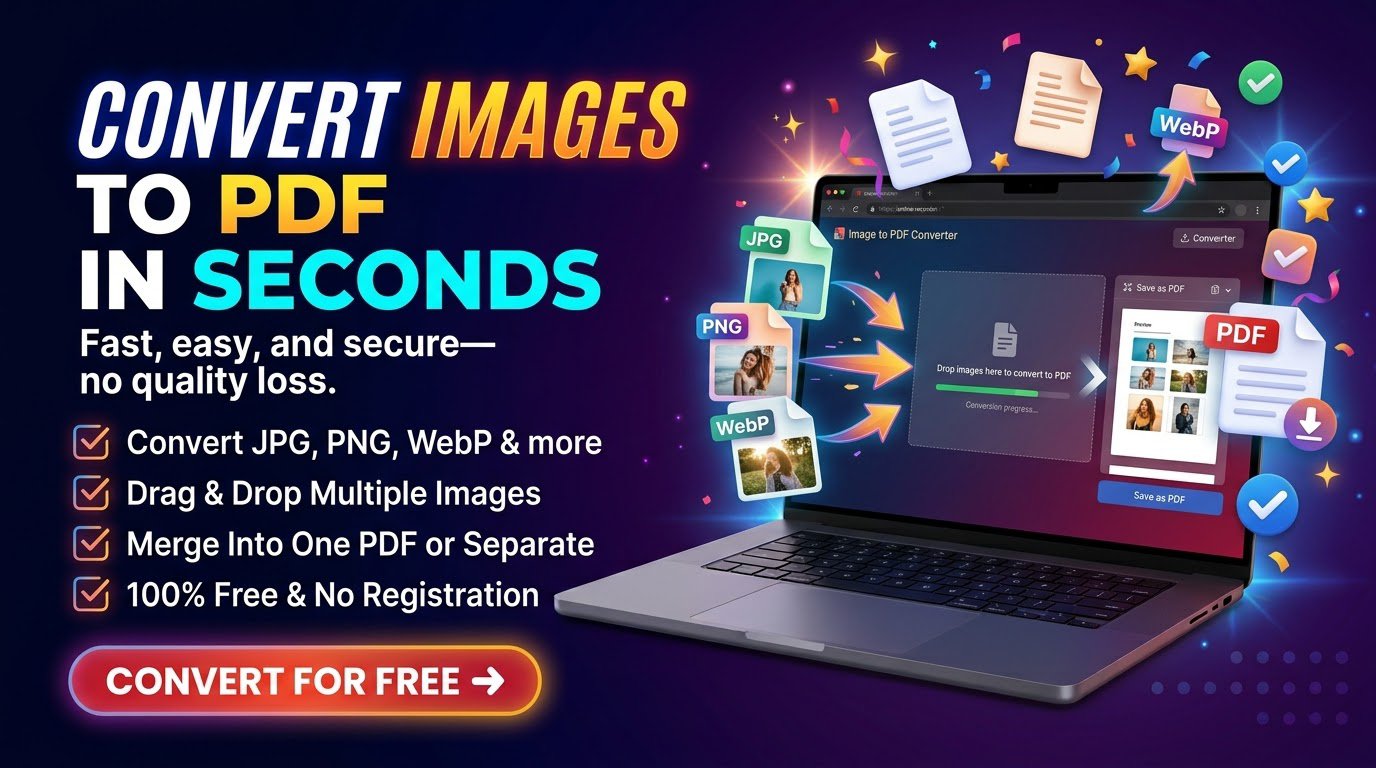
You took five photos of your homework, or ten snapshots of signed documents — and the upload form only accepts a single PDF. Emailing images one by one is a mess. This is exactly when you need to turn JPG to PDF.
This guide shows when JPG to PDF is the right call, how to combine multiple photos into one clean PDF in the right order, and how to do it free online — with no signup.
Quick Jump Navigation (Table of Contents)
When you actually need JPG to PDF
A photo is great for viewing. A PDF is great for sending, filing, and printing. Convert your images to PDF when:
- A school, college, or job portal asks for a single PDF upload — scanned documents, certificates, or assignment photos.
- You’re submitting receipts, IDs, or forms — one PDF keeps everything together instead of a dozen loose image files.
- You need to print photos — a PDF with proper page sizes prints far more reliably than loose JPGs.
- You want to share a set of screenshots — one document that opens the same way on any device.
- You’re archiving photos — a PDF bundles related images into one tidy file.
Rule of thumb: viewing on screen, keep the JPG. Sending, submitting, filing, or printing — make it a PDF.
How to convert JPG to PDF online free
A free image to PDF converter runs right in your browser — no signup, no software, no watermarks.
Step by step
- Upload your images — click Choose Files and select your JPGs (PNG, GIF, and BMP work too). You can select multiple images at once.
- Arrange the page order — drag and drop the thumbnails so the pages run in the right sequence. This is the step most people forget, and it matters: the PDF will follow exactly the order you set.
- Pick a page size — A4 (210×297 mm) for standard documents, Letter for US-format forms, or Fit to Image if you want each page to match the photo’s own dimensions.
- Click Convert and download your PDF. That’s it — one clean document, no watermarks.
Combining multiple photos into one PDF (the right way)
Most people convert images one by one and end up with five PDFs instead of one. The better approach is to build the whole document first:
- Sort your photos before uploading — name them in order (01, 02, 03…) or just upload them in sequence.
- Reorder in the tool — if two pages are swapped, drag them into place before converting. Fixing order after the PDF is made means starting over.
- Match the page size to the purpose — A4 or Letter for anything that will be printed or filed; Fit to Image for full-bleed photos and screenshots.
- Watch the mix of orientations — portrait phone photos and landscape screenshots can share one PDF, but check that each page looks right in the preview order you set.
Will the PDF be big? A note on quality
Converting JPG to PDF doesn’t reduce image quality — the tool places your original images onto PDF pages, so what you see in the JPG is what you get in the PDF. The file size of the finished PDF depends on your source images: high-resolution camera photos make larger PDFs than screenshots.
If a portal rejects your PDF for being too large, shrink the images first (a free image compressor works fine) and then convert to PDF again. Don’t convert, compress, and reconvert in loops — compress once, then build the PDF.
JPG to PDF FAQ
How do I convert multiple JPGs into one PDF?
Upload all the images at once, drag them into the order you want, pick a page size, and click Convert. Everything lands in a single PDF in your sequence.
Can I convert JPG to PDF for free without signing up?
Yes — free, no account, no watermarks. And nothing is ever uploaded: the conversion happens entirely in your browser.
Which image formats can I convert to PDF?
JPG, PNG, WebP, GIF and BMP are all supported directly — you can even mix formats in one PDF.
What page size should I choose: A4, Letter, or Fit to Image?
A4 for international documents and printing, Letter for US forms, and Fit to Image when the photo itself should define the page.
Does converting JPG to PDF lose image quality?
No. Your images go into the PDF at their original quality — the conversion itself degrades nothing.
Are my photos uploaded to a server during conversion?
No. The whole conversion runs in your browser, so your photos never leave your device.
Can I convert PNG or WebP to PDF with the same tool?
Yes — the same free converter handles JPG, PNG, WebP, GIF and BMP.
How do I make the resulting PDF smaller?
If the PDF is too big to email or upload, shrink it with the free PDF compressor.
One PDF beats twenty loose photos when you’re emailing, uploading, or archiving. Combine your images once and share a single clean file. Combine your photos into one PDF — no signup