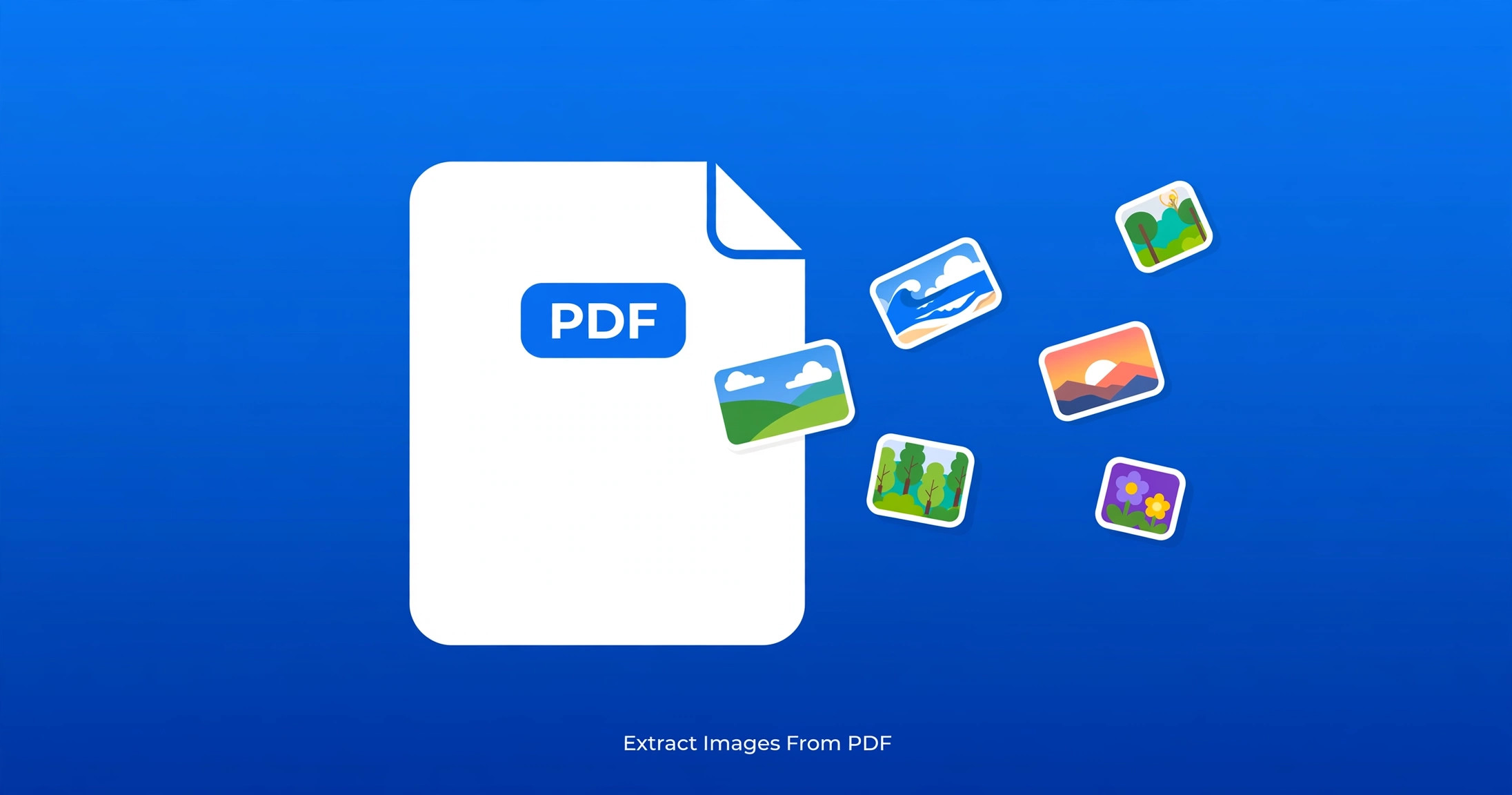
Need to pull a photo, logo, or diagram out of a PDF without taking a blurry screenshot? Trencada’s free Extract Images from PDF tool scans your document right in your browser, finds every embedded picture, and hands them back as downloadable JPG files — individually, or all at once in a single ZIP archive. No signup, no installation, and your file never leaves your device.
Whether you’re reusing a client’s logo, recovering photos from an old report, or grabbing charts for a presentation, extracting images from a PDF is faster and cleaner than screenshots. Here’s how the tool works, what you’ll actually get, and where its limits are.
Quick Jump Navigation (Table of Contents)
Why extract images from a PDF
- Reuse logos and brand assets: pull a logo from a brand guide, invoice, or brochure PDF and use it in your own documents and designs.
- Recover lost photos: save pictures from old reports, ebooks, and catalogs when the original image files are long gone.
- Build better presentations: drop diagrams and charts straight into your slides instead of degrading them through screenshots.
- Archive and repurpose: collect the images from a document in one go so you can organize and reuse them later.
How to extract images from a PDF
The whole process takes less than a minute:
- Upload your PDF: open the Extract Images from PDF tool and click “Upload PDF File” to choose the document from your computer.
- Click “Extract Images”: the tool scans every page for embedded pictures and shows a progress bar while it works.
- Preview the results: when the scan finishes, you’ll see a “Found N Images” grid with thumbnails of everything it detected.
- Download your images: save pictures one by one with the Download button under each thumbnail, or click “Download All (N) as ZIP” to grab everything in a single archive. Hit “Reset” any time to start over with a new file.
What you get
- JPG downloads: extracted images are saved as JPG files.
- Labeled by source page: each file is named after the page it came from, so sorting and organizing is easy.
- Thumbnail preview grid: see every found image before you download anything.
- Flexible downloads: save images individually or all at once as a ZIP archive.
- Free, private, and clean: no signup, no watermark, no installation — everything runs in your browser.
What it can’t extract
Honest limitations, so you know what to expect:
- Vector graphics: logos or icons drawn as vector shapes and line art aren’t embedded pictures, so they won’t be picked up. If a PDF contains only text or vector graphics, the tool shows a “No images found in this PDF” message.
- Single pages: the tool scans the entire PDF — there’s no option to extract from one page or a page range.
- PNG output: extracted images download as JPG files, even if the original picture was stored in a different format.
- Text: it pulls out embedded pictures, not text — for text, use a PDF-to-text or OCR tool instead.
Frequently asked questions
Is it free?
Yes. Trencada’s image extractor is completely free to use — no signup, no hidden fees, no subscription.
Is my PDF uploaded anywhere?
No. The scan and extraction run entirely in your browser. Your PDF is never uploaded to or stored on any server, so there’s nothing to delete afterward.
What formats do I get?
Extracted images download as JPG files, each labeled with the page it came from.
Can I extract images from one page only?
Not currently — the tool scans every page of the PDF and collects all embedded images at once.
Will quality be preserved?
The tool pulls the pictures embedded in the PDF itself rather than taking screenshots of the pages, and saves them as JPG files. What you get are the document’s own embedded pictures — not degraded screenshots.
Does it work on scanned PDFs?
If a scanned page is stored as an image inside the PDF, the tool will find it — just note that you’ll get the whole scanned page as one image, not separate cropped pictures.
Ready to grab your pictures? Try Trencada’s free Extract Images from PDF tool — upload your PDF, click Extract Images, and download your images in seconds.