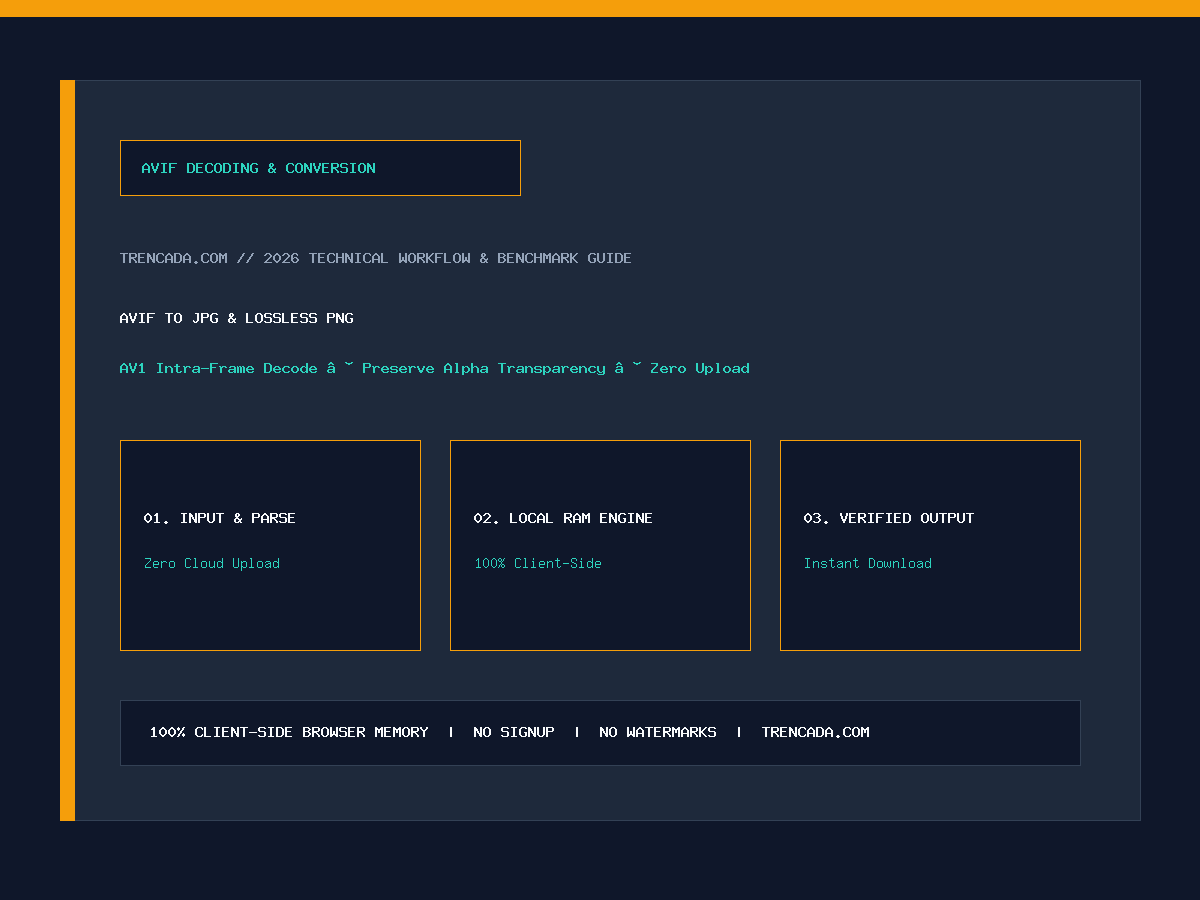
Developed by the Alliance for Open Media (AOMedia), the AVIF (AV1 Image File Format) compresses web photographs up to 50% smaller than JPEG and 20% smaller than WebP while supporting 10-bit/12-bit HDR color and alpha transparency. Because of those bandwidth savings, Content Delivery Networks (Cloudflare, Akamai, Fastly), e-commerce platforms, and CMS plugins now automatically serve .avif files whenever you right-click and click “Save image as…” in Chrome, Edge, or Firefox. Yet the moment you try to import that saved .avif file into legacy Adobe Photoshop, Microsoft Word, PowerPoint, Windows 10/11 Photo Viewer, or marketplace upload portals (Amazon Seller Central, Etsy, eBay), you hit an immediate error: “Could not complete your request because it is not the right kind of document.”
As documented across Microsoft Tech Community Windows 11 discussions, changing a file’s extension from image.avif to image.jpg in File Explorer does not convert the file—it merely puts a fake `.jpg` label on an AV1 video keyframe container, causing design apps to reject the corrupted header. This 2026 technical guide explains how AVIF compression works, when to convert AVIF to JPG vs. lossless PNG, and how to batch-convert AVIF files offline in your browser RAM without installing sketchy codecs.
- Decode and convert
.avifimages to universal JPG or lossless PNG using our Free Client-Side AVIF to JPG/PNG Converter. - Convert Google WebP assets with full alpha transparency via the WebP to PNG Converter.
- Resize converted e-commerce photos to exact pixel specs with the Precision Image Resizer.
- Optimize final JPG/PNG file weights without quality loss using the Client-Side Image Compressor.
Quick Jump Navigation (Table of Contents)
1. Why Windows 11, Legacy Photoshop & Upload Portals Reject .AVIF Files
Unlike traditional raster formats (JPEG from 1992 or PNG from 1996), an .avif file is actually an ISO Base Media File Format (ISOBMFF / HEIF) container wrapping a single compressed AV1 video intra-frame (`ftypavif` magic bytes at offset `0x04`). Opening an AVIF file requires a hardware or software AV1 decoder:
- Windows 10 & Fresh Windows 11 Installations: Windows does not bundle the AV1 Video Extension out of the box on many OEM builds or enterprise LTSC images, requiring a separate Microsoft Store codec download before File Explorer thumbnails or Photos can render
.aviffiles. - Adobe Creative Cloud & Legacy Design Suites: Versions of Photoshop prior to CC 2022 v23.4, Illustrator, InDesign, Premiere Pro, and older CorelDRAW releases lack native `ftypavif` parsers unless third-party plugins (`avif-format.8bi`) are manually installed into the Plug-ins folder.
- E-Commerce & Government Portals: Amazon Seller Central, eBay, USPS, and passport portals strictly validate file magic bytes (`FF D8 FF` for JPEG or `89 50 4E 47` for PNG) and reject AVIF uploads outright.
2. Should You Convert AVIF to JPG or PNG? (Transparency & Generation Loss Math)
Because AVIF supports both lossy photographic compression and lossless alpha-channel transparency, choosing the wrong target format can either destroy transparent backgrounds or bloat file sizes by 800%:
| Source AVIF Content Type | Best Target Format | Recommended Settings | Why This Prevents Quality Loss |
|---|---|---|---|
| UI Logos, Icons, Product Cutouts (Transparent Background) | PNG (32-bit RGBA) | Lossless Deflate compression | JPEG has no alpha channel—converting a transparent AVIF to JPG turns transparent pixels solid black or white. |
| Screenshots, Diagrams & Sharp Typography | PNG (24-bit RGB) | Lossless pixel-for-pixel copy | Prevents JPEG 8×8 DCT mosquito noise and color ringing around sharp text edges. |
| Camera Photographs & E-Commerce Product Shots | JPG (Quality 92%–95%) | q=0.92 to 0.95, 4:4:4 chroma |
Keeps file size compact (250–600 KB) while avoiding visible second-generation re-compression artifacts. |
| Master Archival Editing in Older Photoshop | PNG (Lossless) | Uncompressed raster decode | Guarantees zero additional quantization loss before you edit layers and export your final file. |
3. How Browser-Based Client-Side AVIF Decoding Works (Zero Server Uploads)
Here is the irony of struggling to open an .avif file on Windows or macOS: every modern web browser (Chrome 85+, Edge 121+, Firefox 93+, Safari 16.4+) already has a hardware-accelerated AV1/AVIF decoder built directly into its rendering engine!
Instead of uploading your private photos or proprietary client design assets to a remote cloud conversion server, Trencada’s AVIF Converter harnesses your browser’s native C++/WebAssembly AV1 decoder right inside local RAM:
- Local File Reader (`createImageBitmap`): Your browser reads the `.avif` binary buffer directly from your disk and decodes the 8-bit/10-bit YUV pixel planes into an uncompressed 32-bit RGBA bitmap in GPU/system memory.
- Alpha Channel Inspection: If you choose PNG output, the full 8-bit alpha transparency channel (`A = 0..255`) is preserved byte-for-byte. If you choose JPG output and the source AVIF contains transparent regions, our canvas engine composites a clean `#FFFFFF` pure white matte underneath rather than leaving black artifacts.
- High-Precision `toBlob()` Encoding: The canvas serializes the bitmap into a genuine `.jpg` (`FF D8 FF E0` header) or `.png` (`89 50 4E 47` header) file and triggers an instant local download.
4. Step-by-Step: Converting AVIF to JPG or PNG in Under 5 Seconds
- Step 1 — Launch the Local Converter: Open the Trencada AVIF Converter in Chrome, Edge, Firefox, or Safari.
- Step 2 — Drag and Drop Your `.AVIF` Files: Select one or multiple `.avif` images from your Downloads folder. Because processing happens in your device’s RAM, there is zero upload wait time.
- Step 3 — Select Output Format (`JPG` or `PNG`):
- Choose PNG if the image is a logo, sticker, UI graphic, or has a transparent background.
- Choose JPG (92%–95% Quality) if the image is a photograph headed for e-commerce listings, social media, or email.
- Step 4 — Optional Resize or Background Cleanup: Need a 2000×2000 pure-white Amazon listing image? Pass the converted file directly into our Image Resizer or Background Remover via the workflow bar below the tool.
Frequently Asked Questions (FAQ)
Why can’t I just rename file.avif to file.jpg in Windows File Explorer?
Renaming a file extension only changes its filename label—the internal binary data remains an AV1 ISOBMFF container (`ftypavif`). While web browsers ignore the wrong extension and inspect the file header, desktop apps like Photoshop, Word, and e-commerce uploaders check the binary header and throw a “corrupted or unsupported JPEG marker” error. You must transcode the pixel data using a tool like the Trencada AVIF Converter.
Does converting AVIF to PNG lose image quality?
No. PNG is a 100% mathematically lossless raster format. When you convert an AVIF file to PNG, the decoded RGB and alpha transparency values of every single pixel are preserved with zero generation loss, making PNG the ideal format when moving AVIF assets into Photoshop or Illustrator.
How do I open .AVIF files natively in Windows 11 Photos?
To view `.avif` thumbnails natively in Windows 11 File Explorer and the Photos app, install the free official AV1 Video Extension published by Microsoft in the Microsoft Store. For universal sharing or uploading to websites that only accept `.jpg` or `.png`, convert the file using our browser converter.
How do I stop Chrome from saving website images as .AVIF?
Websites serve `.avif` automatically when Chrome sends image/avif in its HTTP Accept request header. Instead of installing third-party browser extensions that have permission to read all your browsing data, simply save the `.avif` file and drop it into Trencada’s offline converter to get a clean `.jpg` or `.png` in one click.
Can I convert iPhone .HEIC or .JXL files with the same local workflow?
Yes! Trencada provides dedicated client-side decoders for every modern image container, including our HEIC to JPG Converter, JXL (JPEG XL) Converter, and WebP to PNG Converter.